
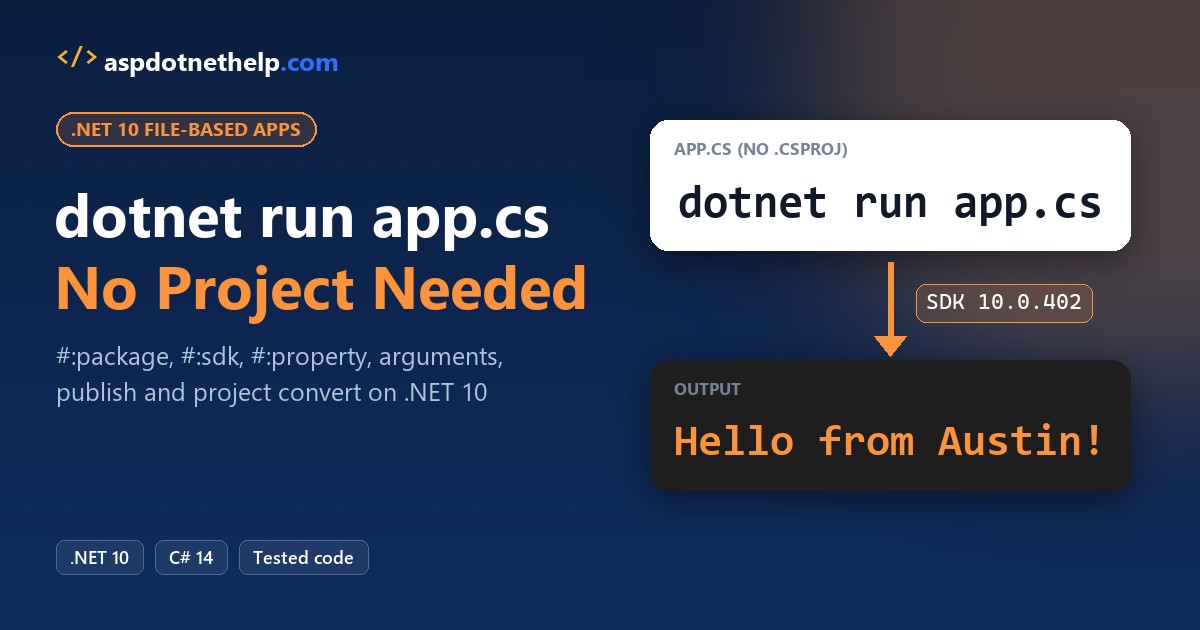
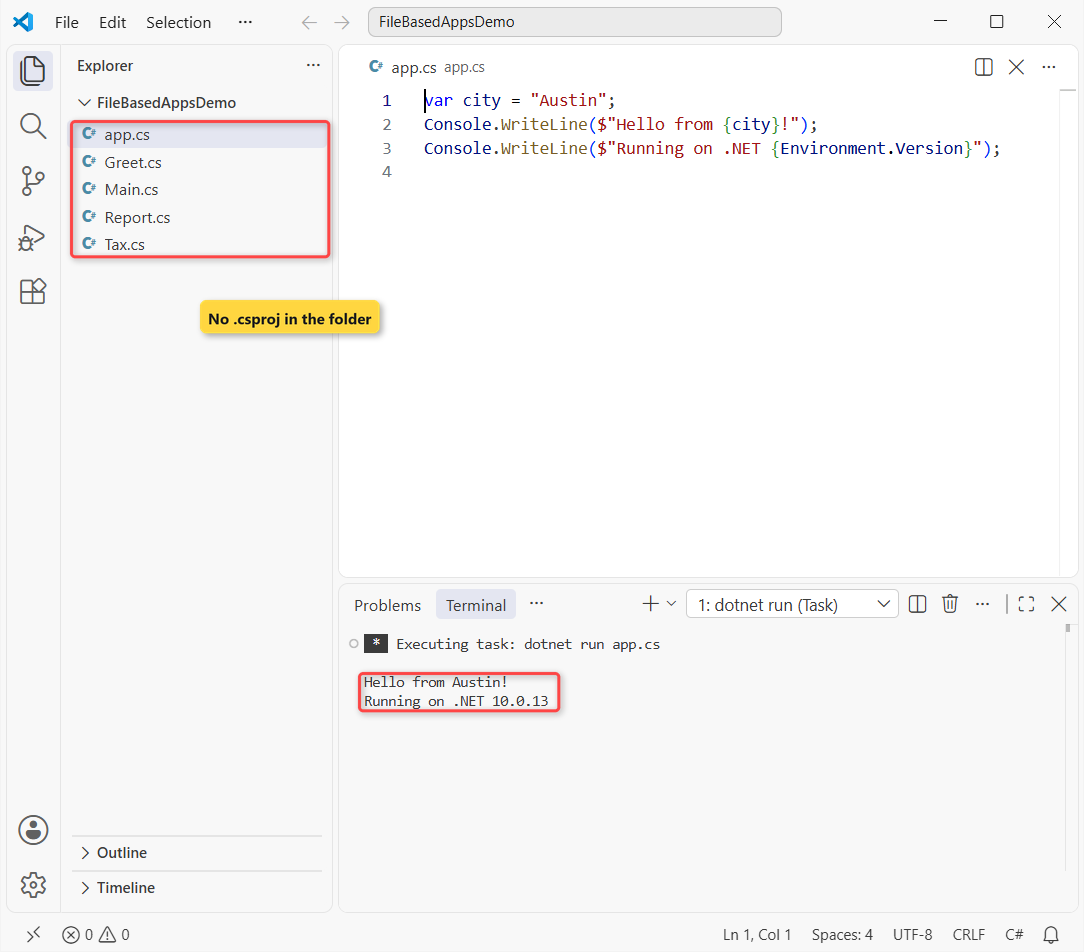
Since .NET 10, you can run a C# file with no project at all. Type dotnet run file.cs (here, dotnet run app.cs) and the SDK builds and runs that one file. This three-line app.cs is the whole program:
var city = "Austin";
Console.WriteLine($"Hello from {city}!");
Console.WriteLine($"Running on .NET {Environment.Version}");
Output of dotnet run app.cs:
Hello from Austin!
Running on .NET 10.0.13
I tested everything below on Windows 11 with SDK 10.0.402: NuGet packages, arguments, a tiny web API, a second file, publishing and converting to a real project.
What You Need to Run a C# File Without a Project
You need the .NET 10 SDK, not just the runtime. File-based apps don’t exist in the .NET 8 or 9 SDK. Here’s how I confirmed my version (more ways in how to check your .NET version):
dotnet --versionOutput:
10.0.402Anything starting with 10 works. If you’re still on .NET 8, my guide to upgrading from .NET 8 to .NET 10 covers the SDK install and what changes.
No editor is required either. Notepad and a terminal are enough, though VS Code with the C# Dev Kit gives you IntelliSense on a loose .cs file.
How Does dotnet run file.cs Work?
The SDK writes a hidden project for your file, builds it into a cache folder and runs the result. You never see the project, but it’s a normal MSBuild build with the defaults a console template would give you.
That’s why the first run is slower than the next ones. On my PC, a forced rebuild (dotnet run app.cs --no-cache) took 2.6 seconds, and the cached run took 0.4 seconds.
The cache key is the file’s content, its directives and the SDK version, so editing the file triggers a rebuild. It’s one of the headline changes in what's new in .NET 10.
dotnet run app.cs vs dotnet app.cs vs dotnet run –file
There are three ways to start the same file. Same app.cs, all three:
dotnet run app.cs
dotnet app.cs
dotnet run --file app.cs
Output:
Hello from Austin!
Running on .NET 10.0.13
Hello from Austin!
Running on .NET 10.0.13
Hello from Austin!
Running on .NET 10.0.13| Command | When to use it |
|---|---|
dotnet run app.cs | The everyday form |
dotnet app.cs | Shorthand, handy in scripts |
dotnet run --file app.cs | Use it when a .csproj sits in the same folder |
Important: if the current folder has a project file, dotnet run app.cs runs that project and passes app.cs as an argument. --file forces the file-based behavior.
Pass Arguments to a File-Based App
Arguments go after --, and your code reads them from args like in any top-level program. Greet.cs checks for them first:
if (args.Length == 0)
{
    Console.WriteLine("Usage: dotnet run Greet.cs -- <name> <state>");
    return;
}

Console.WriteLine($"Arguments received: {args.Length}");
Console.WriteLine($"Hi {args[0]}, welcome from {args[1]}!");
Output:
Arguments received: 2
Hi Jenna, welcome from Texas!
Arguments received: 2
Hi Tyler, welcome from Ohio!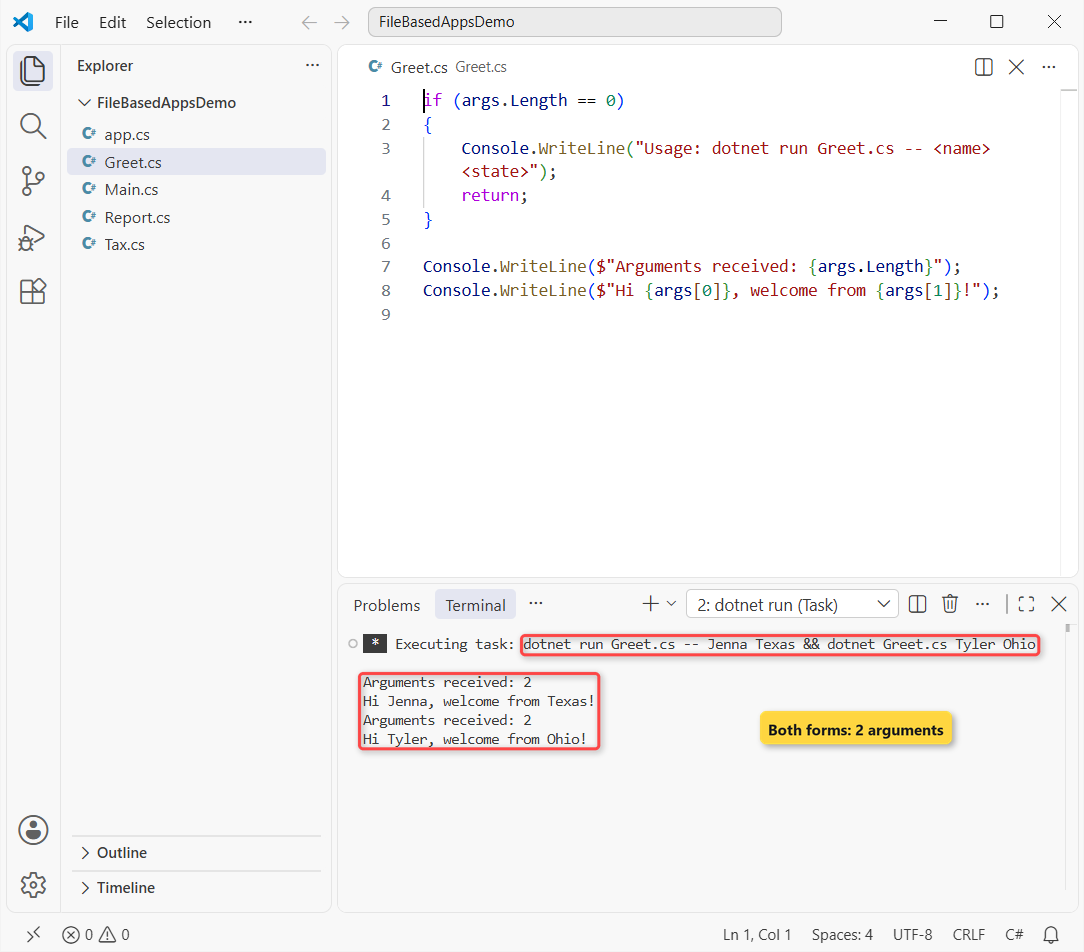
With the shorthand dotnet Greet.cs, plain words pass through without --. Options are a different story, because dotnet grabs the ones it knows:
dotnet Greet.cs --helpOutput:
Description:
Usage:
  dotnet run [<applicationArguments>...] [options]
--help printed the dotnet run help instead of reaching my app. Put -- before options you mean for your own code.
For real input, validate each value too, for example by checking that a string is not null or empty before you use it.
Add a NuGet Package to a File-Based App with #:package
Directives start with #: and go at the top of the file. #:package Name@Version adds a NuGet reference, here Humanizer 3.0.10 (the current stable):
#:package Humanizer@3.0.10
using System.Globalization;
using Humanizer;

CultureInfo.CurrentCulture = new CultureInfo("en-US");
CultureInfo.CurrentUICulture = new CultureInfo("en-US");

var shipped = new DateTime(2026, 10, 28);
var today = new DateTime(2026, 11, 1);
Console.WriteLine($"Shipped {(today - shipped).Humanize()} ago");
Console.WriteLine("order_status_pending".Humanize(LetterCasing.Title));
Console.WriteLine($"{1250.ToWords()} dollars");
Output:
Shipped 4 days ago
Order Status Pending
one thousand two hundred and fifty dollars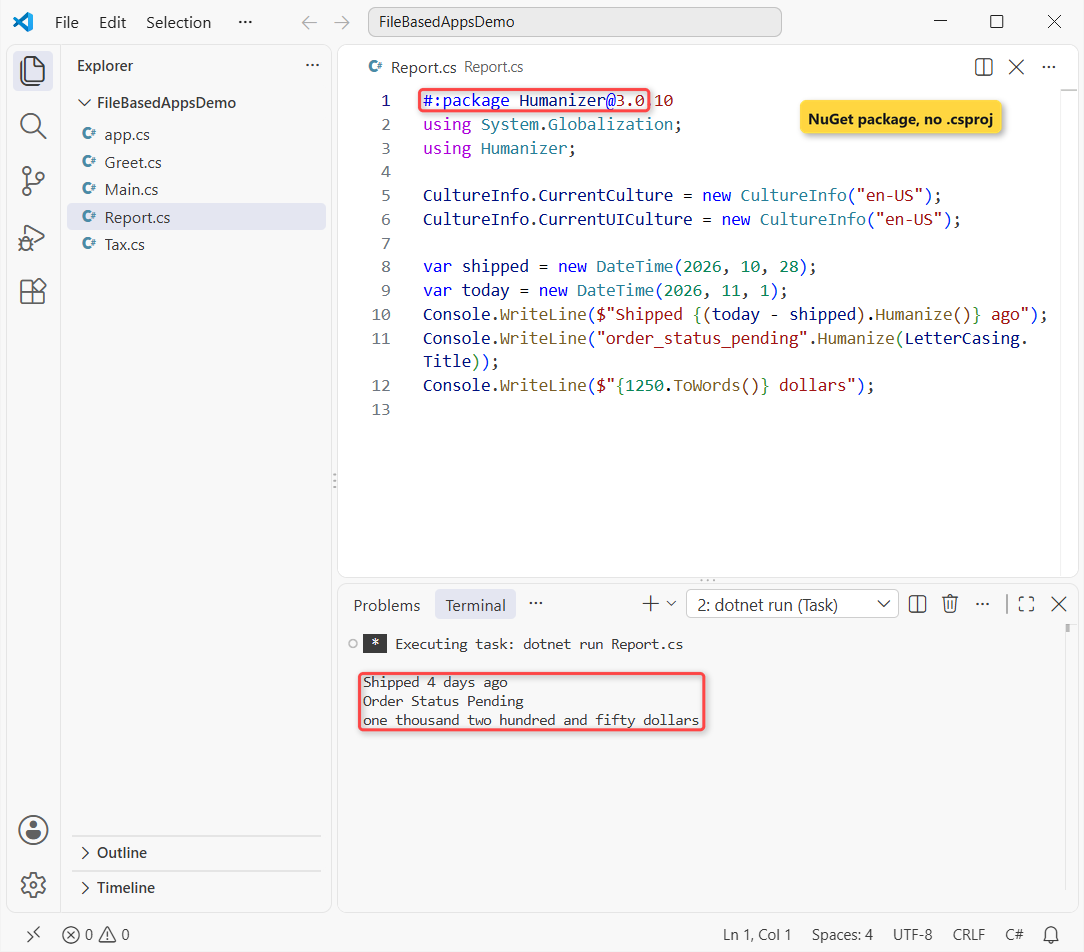
The first run restored the package; later runs reuse it. Always pin a version: Learn says leaving it off only works with central package management, and @* takes the latest.
Normal C# works as usual in the file, from records to LINQ queries over a list.
Set Build Options in a Single File with #:property
#:property Name=Value sets any MSBuild property, the same as a <PropertyGroup> line in a .csproj. These are the ones I actually use:
| Directive | What it does |
|---|---|
#:property PublishAot=false | Turns off native AOT, which is on by default |
#:property LangVersion=preview | Unlocks preview C# features beyond C# 14 |
#:property Nullable=disable | Turns off nullable warnings |
#:property TargetFramework=net10.0 | Picks the target framework |
#:property NoWarn=$(NoWarn);CA2266 | Silences one analyzer warning |
The other two directives are #:sdk, which swaps the SDK, and #:project, which references a .csproj library.
Run a Web API from One File with #:sdk Microsoft.NET.Sdk.Web
#:sdk Microsoft.NET.Sdk.Web turns the file into an ASP.NET Core app. My first try returned an anonymous object, and both endpoints failed:
#:sdk Microsoft.NET.Sdk.Web

var app = WebApplication.Create(args);

app.MapGet("/", () => "Hello from a file-based web app");
app.MapGet("/orders/{id:int}", (int id) =>
    new { id, city = "Austin", total = 42.50m });

app.Run("http://localhost:5187");
Responses:
GET / -> 500 Internal Server Error
GET /orders/1001 -> 500 Internal Server Error

Server log:
System.NotSupportedException: JsonTypeInfo metadata for type '<>f__AnonymousType0`3[System.Int32,System.String,System.Decimal]' was not provided by TypeInfoResolver ...
Native AOT is on by default, and the web SDK then expects source-generated JSON, so the anonymous type can’t be serialized. Because endpoint setup failed, even the plain-text route returned 500.
Adding one directive fixed it. Same Api.cs, now with PublishAot turned off:
#:sdk Microsoft.NET.Sdk.Web
#:property PublishAot=false

var app = WebApplication.Create(args);

app.MapGet("/", () => "Hello from a file-based web app");
app.MapGet("/orders/{id:int}", (int id) =>
    new { id, city = "Austin", total = 42.50m });

app.Run("http://localhost:5187");
Responses:
GET / -> 200 Hello from a file-based web app
GET /orders/1001 -> 200 {"id":1001,"city":"Austin","total":42.50}
Both routes now return 200 and the order JSON. Once you want OpenAPI docs, follow my OpenAPI and Scalar setup for ASP.NET Core.
Can a File-Based App Use More Than One File?
Yes, with SDK 10.0.300 or later. #:include Tax.cs pulls a second file into the build. Included files can add types and methods but no top-level statements. Here’s Tax.cs:
static class Tax
{
    public static decimal Add(decimal amount, decimal rate) =>
        Math.Round(amount * (1 + rate), 2);
}
The first version of Main.cs built, but with a warning:
#:include Tax.cs
using System.Globalization;

CultureInfo.CurrentCulture = new CultureInfo("en-US");
decimal subtotal = 100m;
Console.WriteLine($"Total with Austin sales tax: {Tax.Add(subtotal, 0.0825m):C}");
Output:
C:\DotNetDemo\FileBasedAppsDemo\Main.cs(1,1): warning CA2266: File-based program entry point should start with '#!'
Total with Austin sales tax: $108.25
Rule CA2266 wants the entry file to start with a #! line, so tools can tell it apart from included files. Same Main.cs with a shebang added:
#!/usr/bin/env dotnet
#:include Tax.cs
using System.Globalization;

CultureInfo.CurrentCulture = new CultureInfo("en-US");
decimal subtotal = 100m;
Console.WriteLine($"Total with Austin sales tax: {Tax.Add(subtotal, 0.0825m):C}");
Output:
Total with Austin sales tax: $108.25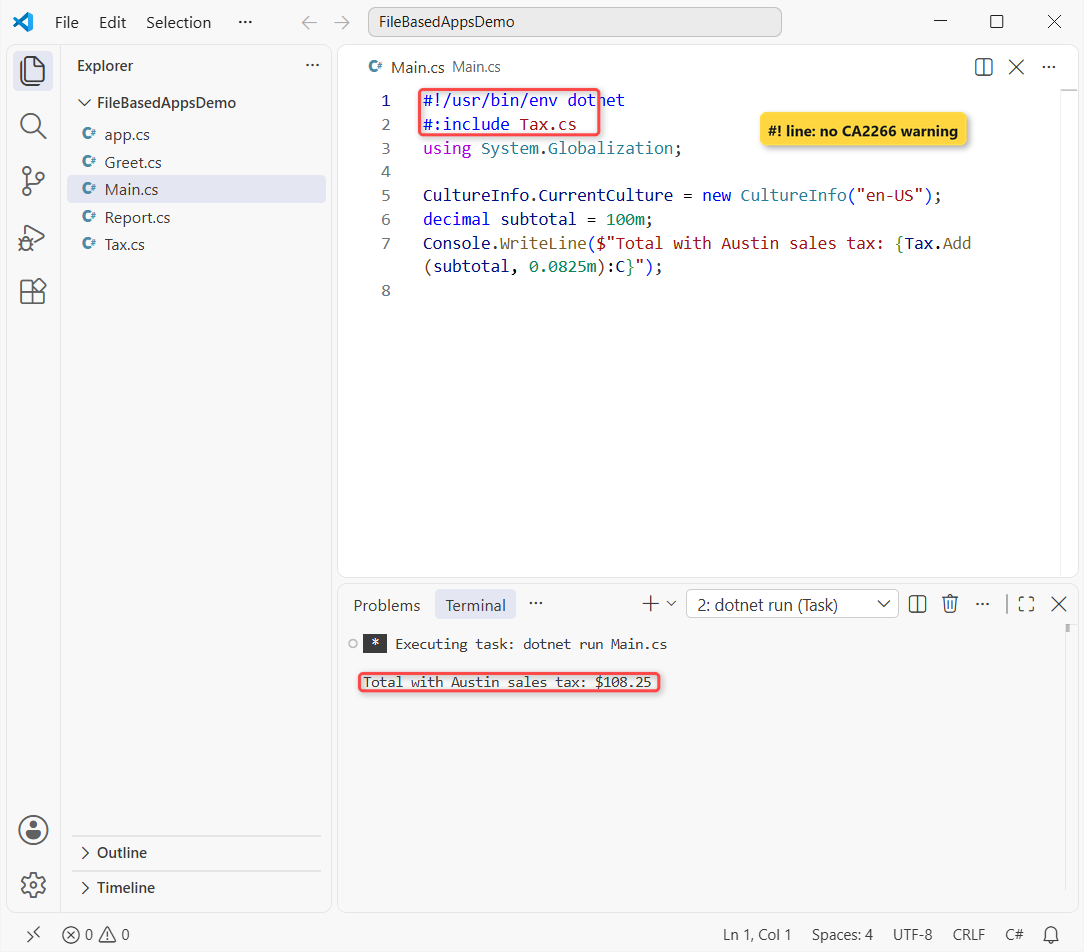
$100 plus 8.25% Austin sales tax prints $108.25; the :C format is covered in how to format numbers with commas and decimals.
On older 10.0.1xx SDKs, keep everything in one file or move shared code to a library and use #:project.
Run a C# File as a Script on macOS and Linux (Shebang)
On Unix-like systems, the #! line also lets you run the file directly. Learn’s recommended first line is this:
#!/usr/bin/env -S dotnet --Then make the file executable and run it:
chmod +x app.cs
./app.cs
Save it with LF line endings and no BOM. The -- stops dotnet from eating options like --help, the problem from the arguments section.
Note: I tested this only on Windows, where dotnet run simply skips the #! line, as the Main.cs run above shows.
Where dotnet run file.cs Caches the Build (and How to Clean It)
Build output goes to <temp>\dotnet\runfile\<app>-<hash>. I replaced my user folder with %TEMP% below:
dotnet build app.csOutput:
app.cs -> %TEMP%\dotnet\runfile\app-cda182b8d1bc90a59b7aa186a680663a05b8da497a3d7b68f9c73a6bbeedd661\bin\debug\app.dlldotnet clean app.cs removes one app’s output. To sweep the whole cache, dotnet clean file-based-apps deletes folders unused for 30 days (change it with --days). Add --dry-run first:
dotnet clean file-based-apps --dry-runOutput:
Scanning for folders to remove in: %TEMP%\dotnet\runfile
Would remove folders: 0
It found 0 folders to remove, because nothing in my cache had sat unused for 30 days. A clean is also your fix when edits to Directory.Build.props don’t trigger a rebuild.
Each SDK update builds fresh folders too, since the SDK version is part of the key. The .NET versions overview shows which SDK band you’re on.
Publish a File-Based App (Native AOT by Default)
dotnet publish app.cs creates a native AOT executable by default. On my PC it failed, because native AOT on Windows needs Visual Studio’s Desktop development with C++ workload:
dotnet publish app.csOutput:
...\Microsoft.NETCore.Native.Windows.targets(142,5): error : Platform linker not found. Ensure you have all the required prerequisites documented at https://aka.ms/nativeaot-prerequisites, in particular the Desktop Development for C++ workload in Visual Studio. For ARM64 development also install C++ ARM64 build tools.Install that workload, or publish a regular framework-dependent build instead. Same app.cs, AOT switched off on the command line:
dotnet publish app.cs -p:PublishAot=false
artifacts\app\app.exe
Output:
  app.cs -> C:\DotNetDemo\FileBasedAppsDemo\artifacts\app\
Hello from Austin!
Running on .NET 10.0.13
The output lands in an artifacts folder next to the file: app.deps.json, app.dll, app.exe, app.pdb, app.runtimeconfig.json. For a permanent switch, put #:property PublishAot=false in the file.
Convert app.cs to a Project with dotnet project convert
When a script grows up, dotnet project convert writes a real project. Same Report.cs with its Humanizer package:
dotnet project convert Report.cs
type Report\Report.csproj
Output:
<Project Sdk="Microsoft.NET.Sdk">

  <PropertyGroup>
    <OutputType>Exe</OutputType>
    <TargetFramework>net10.0</TargetFramework>
    <ImplicitUsings>enable</ImplicitUsings>
    <Nullable>enable</Nullable>
    <PublishAot>true</PublishAot>
    <PackAsTool>true</PackAsTool>
    <UserSecretsId>Report-99f90e732c51c3e6afa2d7e58a1e052bb4fcb865f3bc9e3a7267f03637930fcb</UserSecretsId>
  </PropertyGroup>

  <ItemGroup>
    <PackageReference Include="Humanizer" Version="3.0.10" />
  </ItemGroup>

</Project>
It created a Report folder with Report.cs and Report.csproj and left your original file untouched. The #: lines became a PackageReference, and the file-based defaults (PublishAot, PackAsTool) are now written out where you can change them.
Open that folder like any console project in VS Code.
File-Based App vs Project: Which Should You Use?
| Situation | Use |
|---|---|
| Quick script, data fix, learning C# | File-based app |
| Small tool you share as one file | File-based app |
| Several files, tests, CI pipeline | Project (.csproj) |
| Blazor UI, solution with libraries | Project (.csproj) |
I start almost everything as a file now and convert once it needs a second project. A Blazor app or an MCP server in C# should still begin as a project.
Common dotnet run file.cs Errors and Fixes
Couldn’t find a project to run
You’re on an SDK older than 10, often because a global.json pins it. I reproduced it with this global.json:
{
  "sdk": { "version": "8.0.427" }
}
dotnet --version
dotnet run app.csOutput:
8.0.427
Couldn't find a project to run. Ensure a project exists in C:\DotNetDemo\FileBasedAppsDemo\OldSdk, or pass the path to the project using --project.
Delete or update the global.json, or install SDK 10.
Unrecognized directive
There are five directives: #:package, #:sdk, #:property, #:project and #:include. Anything else, like #:nuget, stops the build:
#:nuget Humanizer@3.0.10
Console.WriteLine("This never runs");
Output:
C:\DotNetDemo\FileBasedAppsDemo\BadDirective.cs(1): error: Unrecognized directive 'nuget'.Platform linker not found
That’s the native AOT publish error from earlier. Install the C++ workload or publish with PublishAot=false.
Here’s where to go next with C# on .NET 10:
- All my C# tutorials, by topic
- A path to learn C# from scratch
- List in C#, the collection most scripts start with
Frequently Asked Questions
Can I run a .cs file without a project?
Yes, with the .NET 10 SDK or later. Run dotnet run file.cs or the shorter dotnet file.cs. The SDK builds a hidden project and caches it, so later runs start quickly.
Does dotnet run file.cs work with .NET 8 or .NET 9?
No. File-based apps need the .NET 10 SDK. An older SDK, or a global.json that pins one, prints “Couldn’t find a project to run.” Your file can still target an older framework with #:property TargetFramework.
How do I add a NuGet package to a single C# file?
Add #:package Name@Version at the top, for example #:package Humanizer@3.0.10, then a normal using. The package restores on the first run.
Can I pipe C# code straight into dotnet run?
Yes. dotnet run - reads the code from standard input, for example echo Console.WriteLine(DateTime.Today.DayOfWeek); | dotnet run - in Command Prompt.
Where are the build files for a file-based app stored?
In your temp folder under dotnet\runfile, one folder per app and content hash. dotnet clean file-based-apps removes old ones, as the file-based apps page on Microsoft Learn explains.

Bijay Kumar is a renowned software engineer, accomplished author, and distinguished Microsoft Most Valuable Professional (MVP) specializing in SharePoint. With a rich professional background spanning over 15 years, Bijay has established himself as an authority in the field of information technology. He possesses unparalleled expertise in multiple programming languages and technologies such as ASP.NET, ASP.NET MVC, C#.NET, and SharePoint, which has enabled him to develop innovative and cutting-edge solutions for clients across the globe. Read more…