
Say you run the web store for a Portland outdoor gear shop. The product page repeats the same card markup for six items, and every price fix means editing six copies.
Blazor components fix that: you write the card once as a .razor file, pass each product in with [Parameter] properties, and send clicks back to the page with EventCallback. We’ll build that store on .NET 10, one component at a time.
Here’s what we’re building:
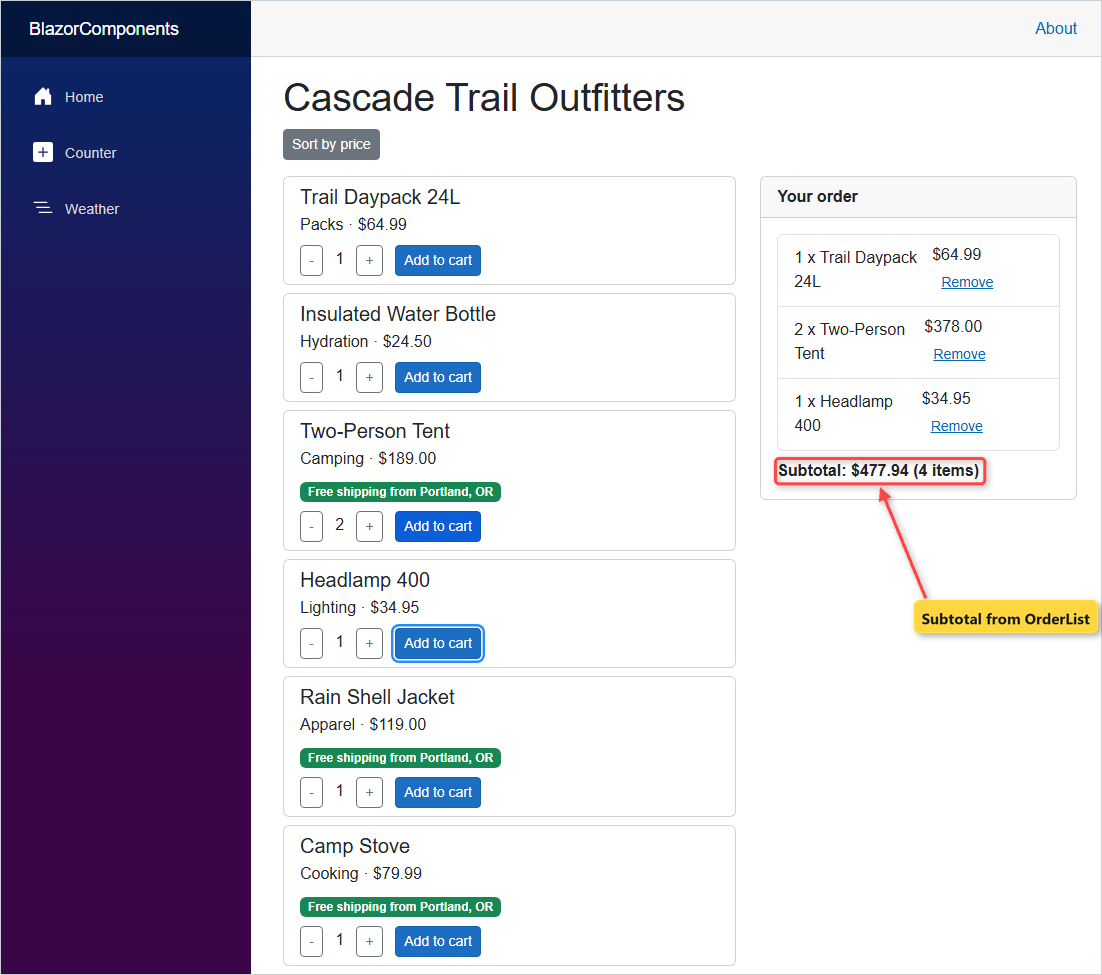
ProductCard: one card per product, with a quantity stepper and an Add to cart buttonPanel: a titled box that wraps whatever markup you put inside itOrderList: the cart lines and subtotal, with its C# in a code-behind file
Before You Start Building Blazor Components
You need the .NET 10 SDK (I used 10.0.402) and an editor; I use VS Code. If dotnet --version doesn’t print 10.x, check which .NET versions you have first.
If you’ve never run a Blazor app, my Blazor tutorial for beginners covers pages and routing. This post stays on components. The sample data is six products, all priced in USD:
| Id | Product | Category | Price |
|---|---|---|---|
| 1 | Trail Daypack 24L | Packs | $64.99 |
| 2 | Insulated Water Bottle | Hydration | $24.50 |
| 3 | Two-Person Tent | Camping | $189.00 |
| 4 | Headlamp 400 | Lighting | $34.95 |
| 5 | Rain Shell Jacket | Apparel | $119.00 |
| 6 | Camp Stove | Cooking | $79.99 |
What Is a Blazor Component?
A Blazor component is a .razor file that mixes HTML markup with a C# @code block. The compiler turns each file into a C# partial class that inherits ComponentBase, named after the file. That’s plain C# inheritance at work.
| Piece | What it does |
|---|---|
ProductCard.razor | File name = class name. It must start with an uppercase letter |
@code { ... } | Fields, methods and parameters of the class |
[Parameter] | A public property the parent sets as an attribute |
@page "/shop" | Turns a component into a routable page |
<ProductCard ... /> | Uses the component inside another one |
A page is just a component with @page. Everything below works the same in both.
Step 1: Create a Blazor Web App in .NET 10
Create the app from the Blazor Web App template. Its default interactivity is Server, applied per page:
dotnet new blazor -o BlazorComponents
cd BlazorComponents
I deleted the two appsettings files (this demo doesn’t use them) and trimmed Properties/launchSettings.json to one http profile on port 5791:
{
  "$schema": "https://json.schemastore.org/launchsettings.json",
  "profiles": {
    "http": {
      "commandName": "Project",
      "dotnetRunMessages": true,
      "launchBrowser": false,
      "applicationUrl": "http://localhost:5791",
      "environmentVariables": {
        "ASPNETCORE_ENVIRONMENT": "Development"
      }
    }
  }
}
The project file and Program.cs are what the template wrote for .NET 10. Program.cs already registers the Interactive Server services we’ll need in Step 4:
<Project Sdk="Microsoft.NET.Sdk.Web">

  <PropertyGroup>
    <TargetFramework>net10.0</TargetFramework>
    <Nullable>enable</Nullable>
    <ImplicitUsings>enable</ImplicitUsings>
    <BlazorDisableThrowNavigationException>true</BlazorDisableThrowNavigationException>
  </PropertyGroup>

</Project>
using BlazorComponents.Components;
var builder = WebApplication.CreateBuilder(args);
// Add services to the container.
builder.Services.AddRazorComponents()
.AddInteractiveServerComponents();
var app = builder.Build();
// Configure the HTTP request pipeline.
if (!app.Environment.IsDevelopment())
{
app.UseExceptionHandler("/Error", createScopeForErrors: true);
// The default HSTS value is 30 days. You may want to change this for production scenarios, see https://aka.ms/aspnetcore-hsts.
app.UseHsts();
}
app.UseStatusCodePagesWithReExecute("/not-found", createScopeForStatusCodePages: true);
app.UseHttpsRedirection();
app.UseAntiforgery();
app.MapStaticAssets();
app.MapRazorComponents<App>()
.AddInteractiveServerRenderMode();
app.Run();New components go in the Components folder. The template’s _Imports.razor already has @using BlazorComponents.Components, so pages can use them without extra lines.
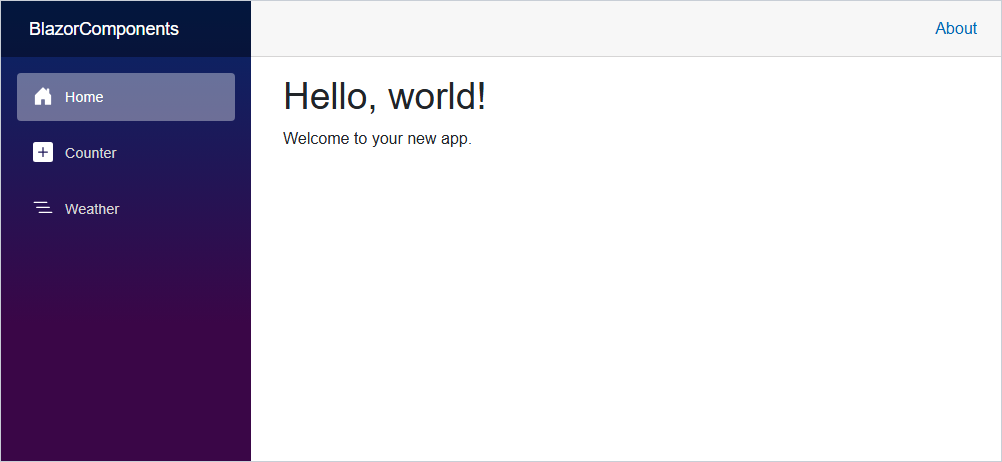
Checkpoint: dotnet run prints Now listening on: http://localhost:5791, and the browser shows “Hello, world!”.
Step 2: Build Your First Blazor Component with [Parameter]
First, the data types in Models/ShopModels.cs. They’re C# records, so each one is a single line plus the cart total:
namespace BlazorComponents.Models;

public record Product(int Id, string Name, string Category, decimal Price);

public record CartLine(Product Product, int Quantity)
{
    public decimal Total => Product.Price * Quantity;
}

public record StoreInfo(string Name, string City, decimal FreeShippingOver);
Now the component, Components/ProductCard.razor. The Product property is the [Parameter] the parent fills in:
@using System.Globalization
@using BlazorComponents.Models

<div class="card mb-2">
    <div class="card-body py-2">
        <h5 class="card-title mb-1">@Product.Name</h5>
        <p class="mb-0">@Product.Category · @Product.Price.ToString("C", Us)</p>
    </div>
</div>

@code {
    private static readonly CultureInfo Us = new("en-US");

    [Parameter, EditorRequired]
    public Product Product { get; set; } = default!;
}
The "C" format with an en-US culture always prints dollars, even on a PC set to another region (more in formatting numbers in C#).
Then the page, Components/Pages/Shop.razor. It loops over the products and passes each one as an attribute:
@page "/shop"
@using BlazorComponents.Models

<PageTitle>Shop</PageTitle>

<h1>Cascade Trail Outfitters</h1>

<div class="row">
    <div class="col-md-7">
        @foreach (var product in products)
        {
            <ProductCard Product="product" />
        }
    </div>
</div>

@code {
    private List<Product> products =
    [
        new(1, "Trail Daypack 24L", "Packs", 64.99m),
        new(2, "Insulated Water Bottle", "Hydration", 24.50m),
        new(3, "Two-Person Tent", "Camping", 189.00m),
        new(4, "Headlamp 400", "Lighting", 34.95m),
        new(5, "Rain Shell Jacket", "Apparel", 119.00m),
        new(6, "Camp Stove", "Cooking", 79.99m),
    ];
}
Keep parameters as plain auto-properties. Microsoft Learn warns that logic in a parameter’s set can cause an infinite render loop.
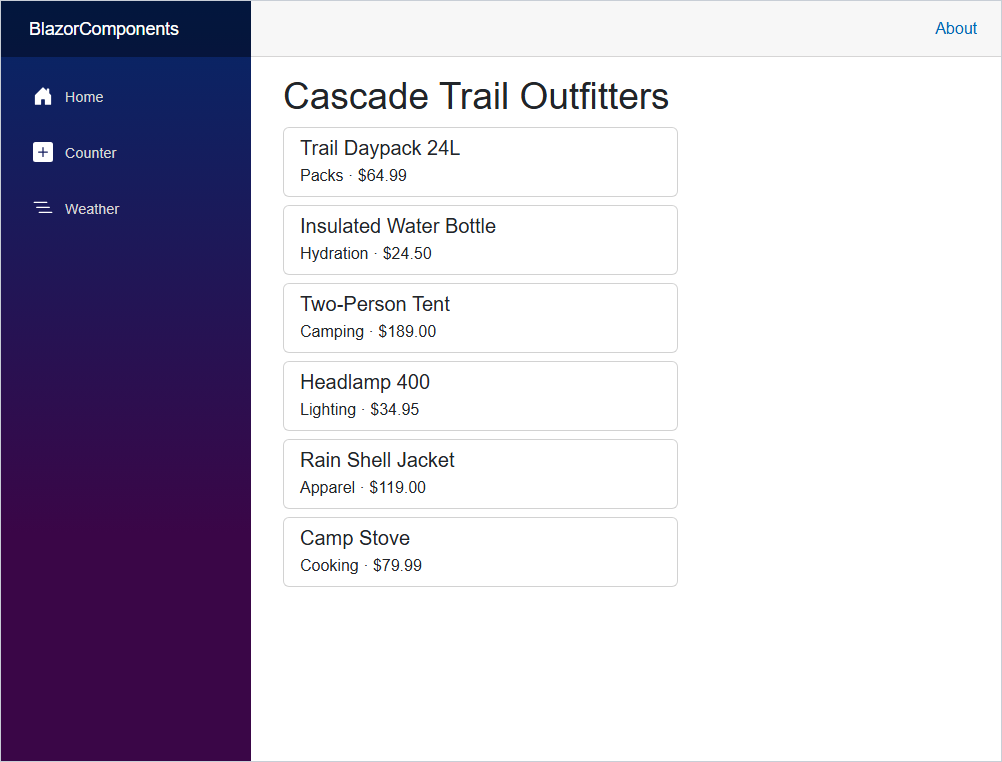
Checkpoint: curl of /shop returned 200 with six cards, starting with “Packs · $64.99”.
Step 3: Make a Blazor Component Parameter Required with [EditorRequired]
[EditorRequired] tells the editor and the build that a parent must set the parameter. To see it, I added a card with no product under the loop:
<ProductCard />dotnet build --no-incremental printed this warning:
Components\Pages\Shop.razor(14,9): warning RZ2012: Component 'ProductCard' expects a value for the parameter 'Product', but a value may not have been provided.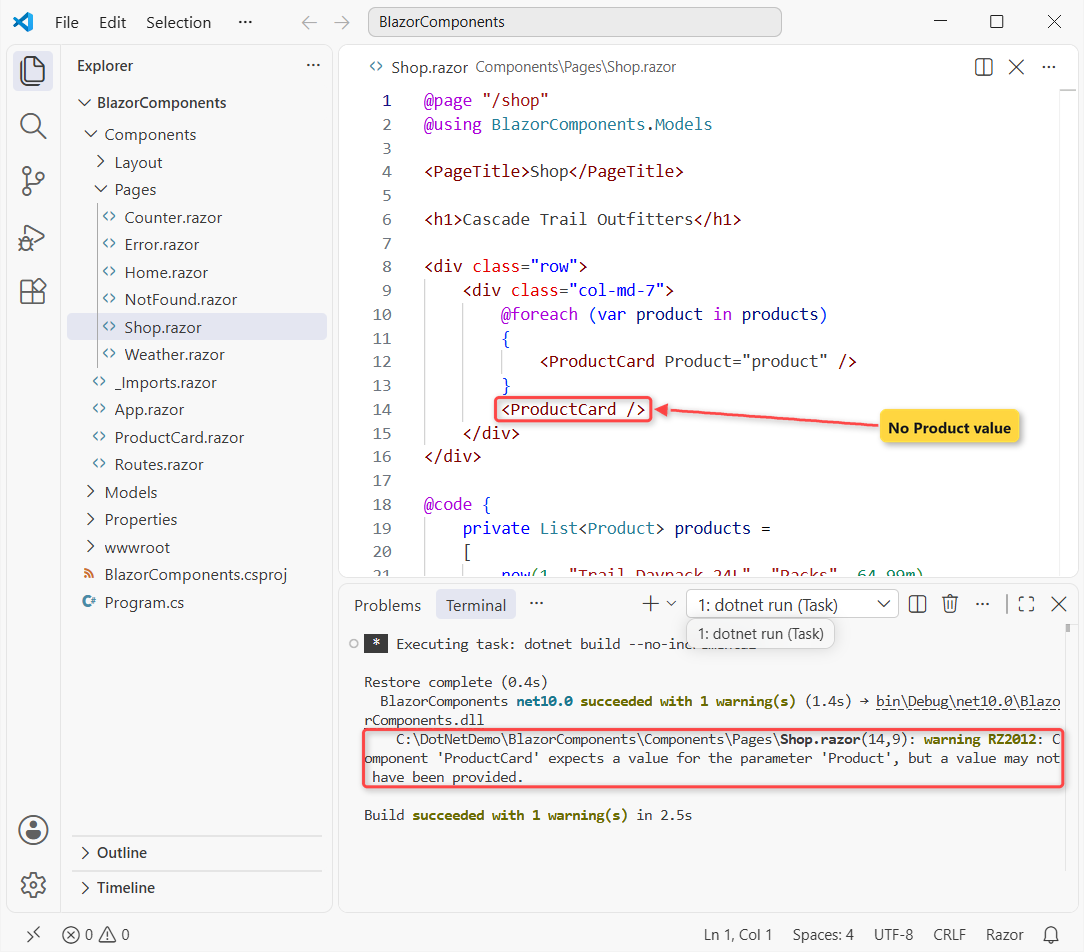
It’s only a warning, so the build still succeeds. At runtime, curl of /shop returned 500:
NullReferenceException: Object reference not set to an instance of an object.
at BlazorComponents.Components.ProductCard.BuildRenderTree(RenderTreeBuilder __builder) in C:\DotNetDemo\BlazorComponents\Components\ProductCard.razor:line 6
The attribute isn’t checked at runtime and doesn’t promise a non-null value, so null checks still matter for optional parameters. I removed the broken tag before moving on.
Checkpoint: one RZ2012 warning in the build output, and none once the tag is gone.
Step 4: Send Clicks from Child to Parent with EventCallback
The card has the Add button, but the cart lives in the page. A child can’t reach into its parent, so it exposes an EventCallback<CartLine> parameter and invokes it:
@using System.Globalization
@using BlazorComponents.Models

<div class="card mb-2">
    <div class="card-body py-2">
        <h5 class="card-title mb-1">@Product.Name</h5>
        <p class="mb-2">@Product.Category · @Product.Price.ToString("C", Us)</p>
        <button class="btn btn-outline-secondary btn-sm minus" @onclick="() => quantity = Math.Max(1, quantity - 1)">-</button>
        <span class="qty mx-2">@quantity</span>
        <button class="btn btn-outline-secondary btn-sm plus" @onclick="() => quantity++">+</button>
        <button class="btn btn-primary btn-sm ms-2 add" @onclick="Add">Add to cart</button>
    </div>
</div>

@code {
    private static readonly CultureInfo Us = new("en-US");
    private int quantity = 1;

    [Parameter, EditorRequired]
    public Product Product { get; set; } = default!;

    [Parameter]
    public EventCallback<CartLine> OnAdd { get; set; }

    private async Task Add() => await OnAdd.InvokeAsync(new CartLine(Product, quantity));
}
The quantity field is the card’s own private state. Learn recommends the typed EventCallback<TValue> over plain EventCallback, because a wrong argument type then fails at compile time.
In the page, hand the callback a method and give the page a render mode. Here’s the updated Shop.razor:
@page "/shop"
@rendermode InteractiveServer
@using BlazorComponents.Models

<PageTitle>Shop</PageTitle>

<h1>Cascade Trail Outfitters</h1>

<div class="row">
    <div class="col-md-7">
        @foreach (var product in products)
        {
            <ProductCard Product="product" OnAdd="AddToCart" />
        }
    </div>
    <div class="col-md-5">
        <p class="cart">Cart: @cart.Count line(s), @cart.Sum(l => l.Quantity) item(s)</p>
    </div>
</div>

@code {
    private List<Product> products =
    [
        new(1, "Trail Daypack 24L", "Packs", 64.99m),
        new(2, "Insulated Water Bottle", "Hydration", 24.50m),
        new(3, "Two-Person Tent", "Camping", 189.00m),
        new(4, "Headlamp 400", "Lighting", 34.95m),
        new(5, "Rain Shell Jacket", "Apparel", 119.00m),
        new(6, "Camp Stove", "Cooking", 79.99m),
    ];
    private readonly List<CartLine> cart = [];

    private void AddToCart(CartLine line) => cart.Add(line);
}
You don’t call StateHasChanged in AddToCart. Blazor rerenders the parent after an EventCallback runs, which is how it differs from a raw C# delegate like Action<T>.
I tried it first without the @rendermode InteractiveServer line. After three clicks, the page still said “Cart: 0 line(s), 0 item(s)”, because a page without a render mode is static HTML.
With the line back, the same clicks gave “Cart: 2 line(s), 3 item(s)”. My Blazor render modes guide explains what each mode does.
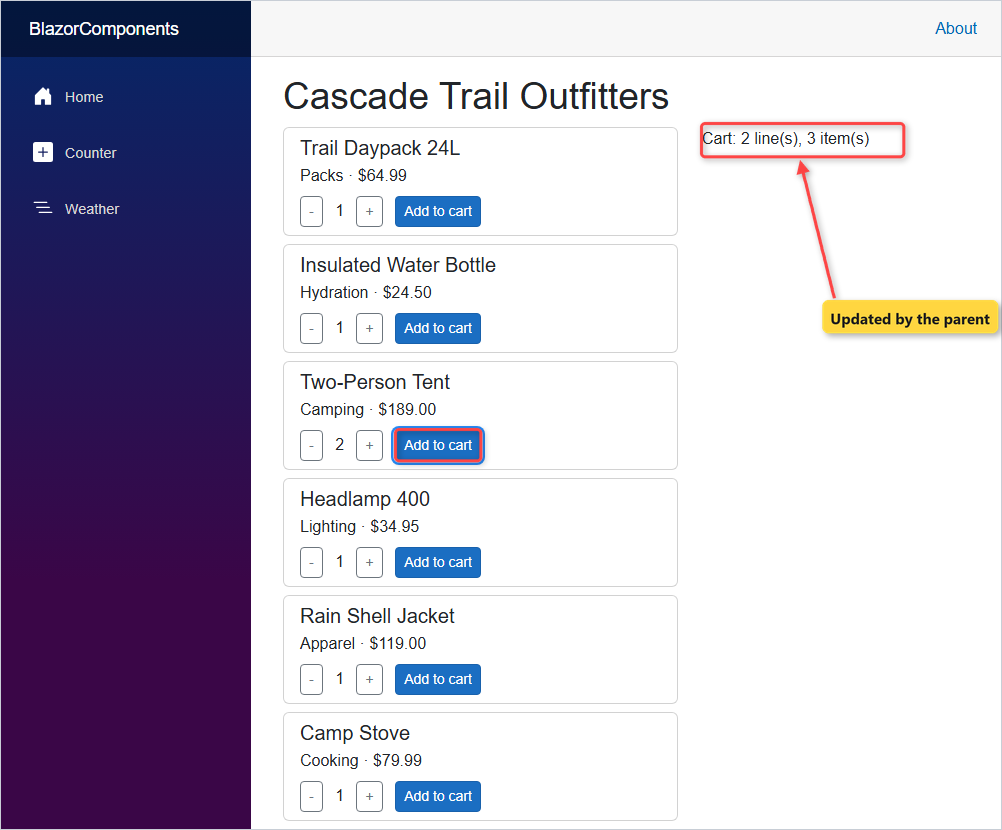
Checkpoint: Add on the Daypack, then + and Add on the Tent: “Cart: 2 line(s), 3 item(s)”.
Step 5: Pass Markup to a Blazor Component with ChildContent
A parameter can also carry markup. Name a RenderFragment parameter ChildContent, and whatever sits between the component’s tags lands there. Here’s Components/Panel.razor:
<div class="card">
    <div class="card-header fw-bold">@Title</div>
    <div class="card-body">
        @ChildContent
    </div>
</div>

@code {
    [Parameter]
    public string Title { get; set; } = "";

    [Parameter]
    public RenderFragment? ChildContent { get; set; }
}
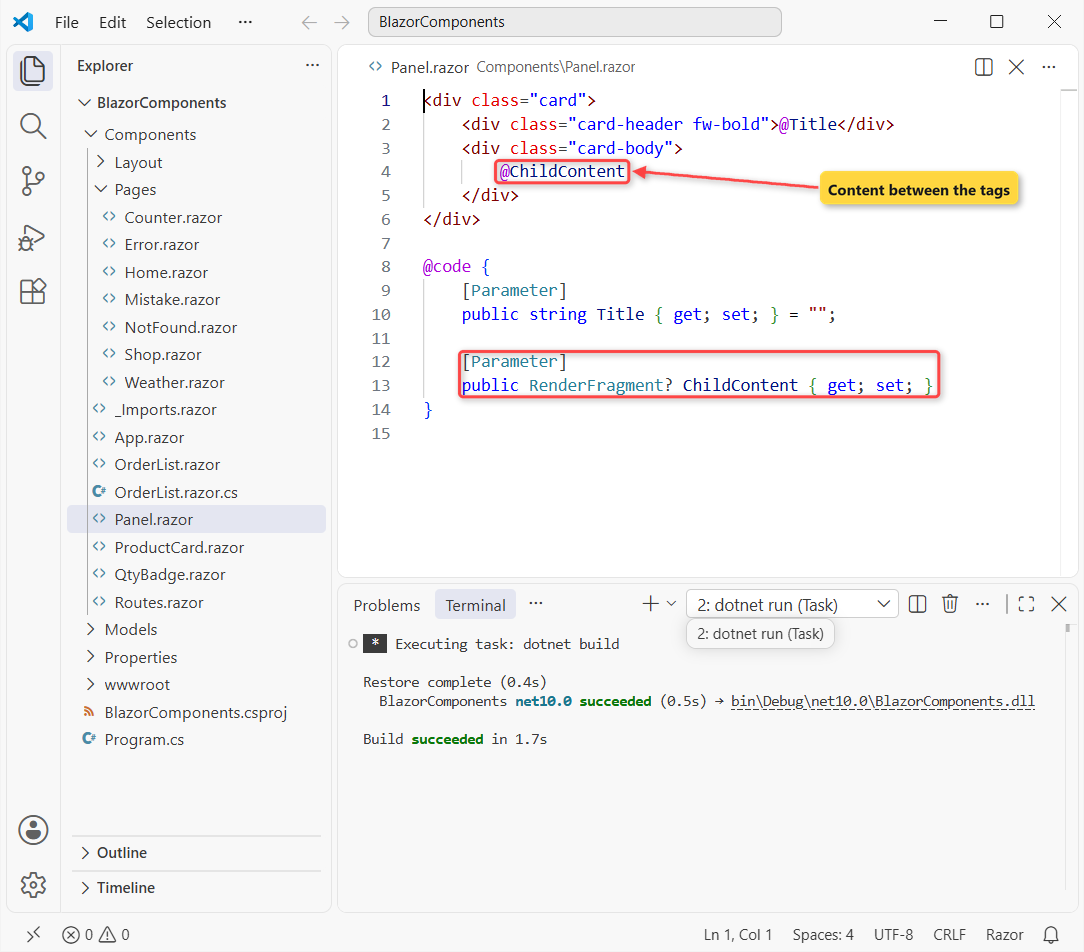
The name matters: Blazor only maps the content between the tags to a property called ChildContent. In the page, the cart text moves inside the panel:
        <Panel Title="Your order">
            <p class="cart">Cart: @cart.Count line(s), @cart.Sum(l => l.Quantity) item(s)</p>
            <p class="text-muted mb-0">Free shipping on orders over $75.</p>
        </Panel>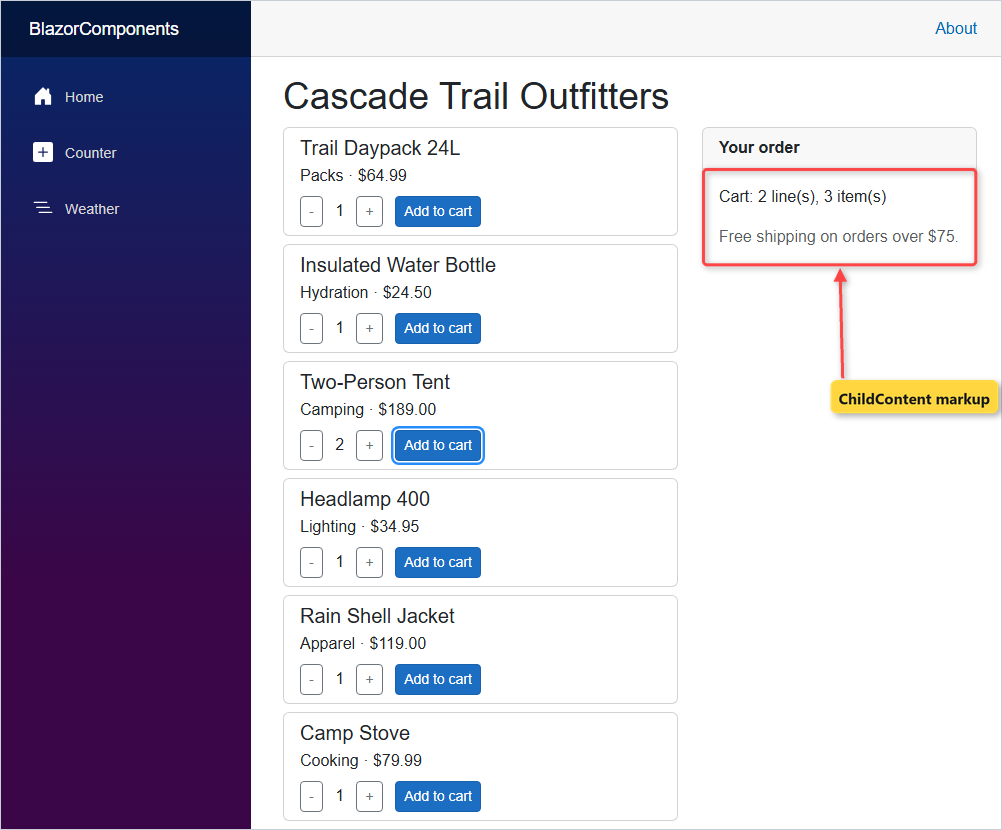
Checkpoint: the right column shows “Your order” with “Cart: 2 line(s), 3 item(s)” inside it.
Step 6: Move Component Logic to a Code-Behind Partial Class
For the cart list, I split markup and C# into two files. Components/OrderList.razor holds only markup:
@if (Lines.Count == 0)
{
    <p class="text-muted mb-0">Your cart is empty.</p>
}
else
{
    <ul class="list-group mb-2">
        @foreach (var line in Lines)
        {
            <li class="list-group-item d-flex justify-content-between align-items-center">
                <span>@line.Quantity x @line.Product.Name</span>
                <span>
                    @Money(line.Total)
                    <button class="btn btn-link btn-sm remove" @onclick="() => OnRemove.InvokeAsync(line)">Remove</button>
                </span>
            </li>
        }
    </ul>
    <p class="fw-bold mb-0 subtotal">Subtotal: @Money(Subtotal) (@ItemCount items)</p>
}
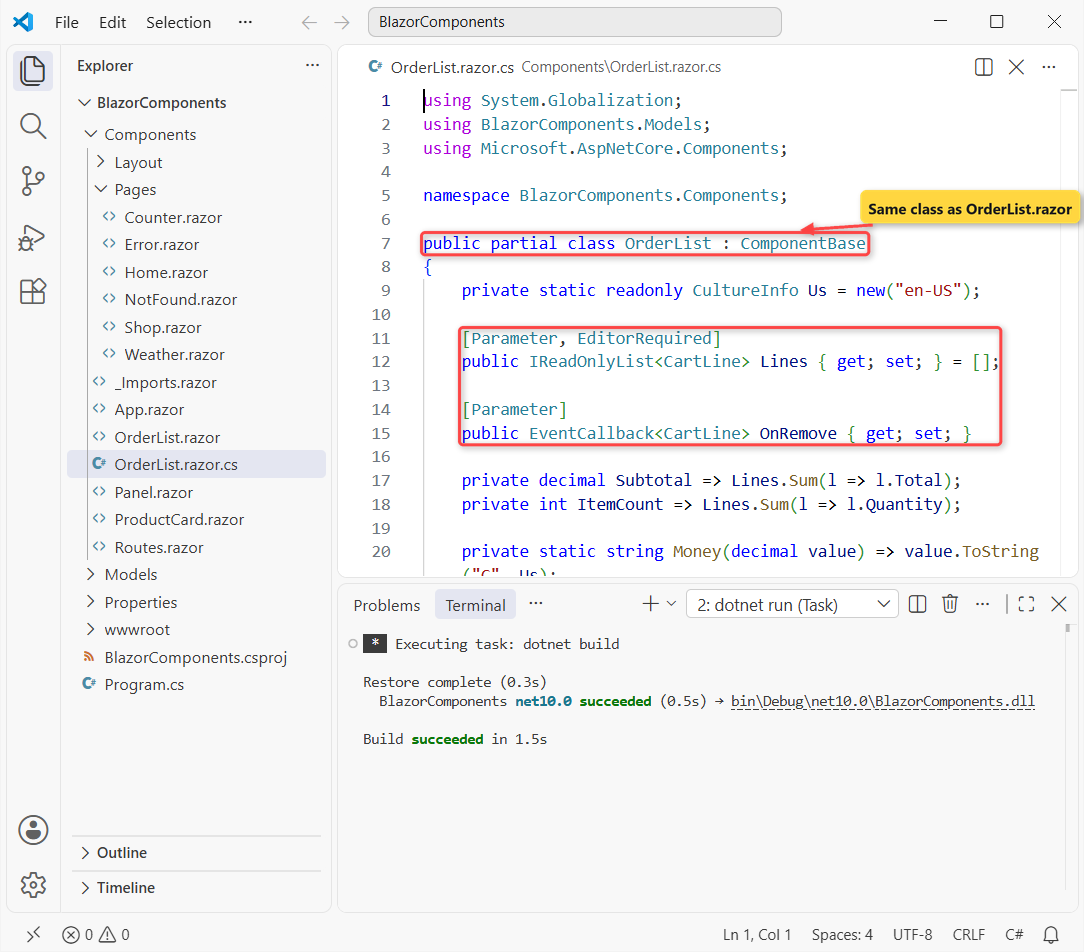
And Components/OrderList.razor.cs holds the class. It’s a partial class with the same name and namespace as the .razor file:
using System.Globalization;
using BlazorComponents.Models;
using Microsoft.AspNetCore.Components;

namespace BlazorComponents.Components;

public partial class OrderList : ComponentBase
{
    private static readonly CultureInfo Us = new("en-US");

    [Parameter, EditorRequired]
    public IReadOnlyList<CartLine> Lines { get; set; } = [];

    [Parameter]
    public EventCallback<CartLine> OnRemove { get; set; }

    private decimal Subtotal => Lines.Sum(l => l.Total);
    private int ItemCount => Lines.Sum(l => l.Quantity);

    private static string Money(decimal value) => value.ToString("C", Us);
}
Two details trip people up. _Imports.razor doesn’t apply to .cs files, so the using lines are needed, and : ComponentBase is optional because the .razor half already sets it.
The subtotal is a LINQ Sum over the lines. In the page, the panel now wraps the new component, and RemoveLine handles its callback:
        <Panel Title="Your order">
            <OrderList Lines="cart" OnRemove="RemoveLine" />
        </Panel>

@code {
    ...
    private void RemoveLine(CartLine line) => cart.Remove(line);
}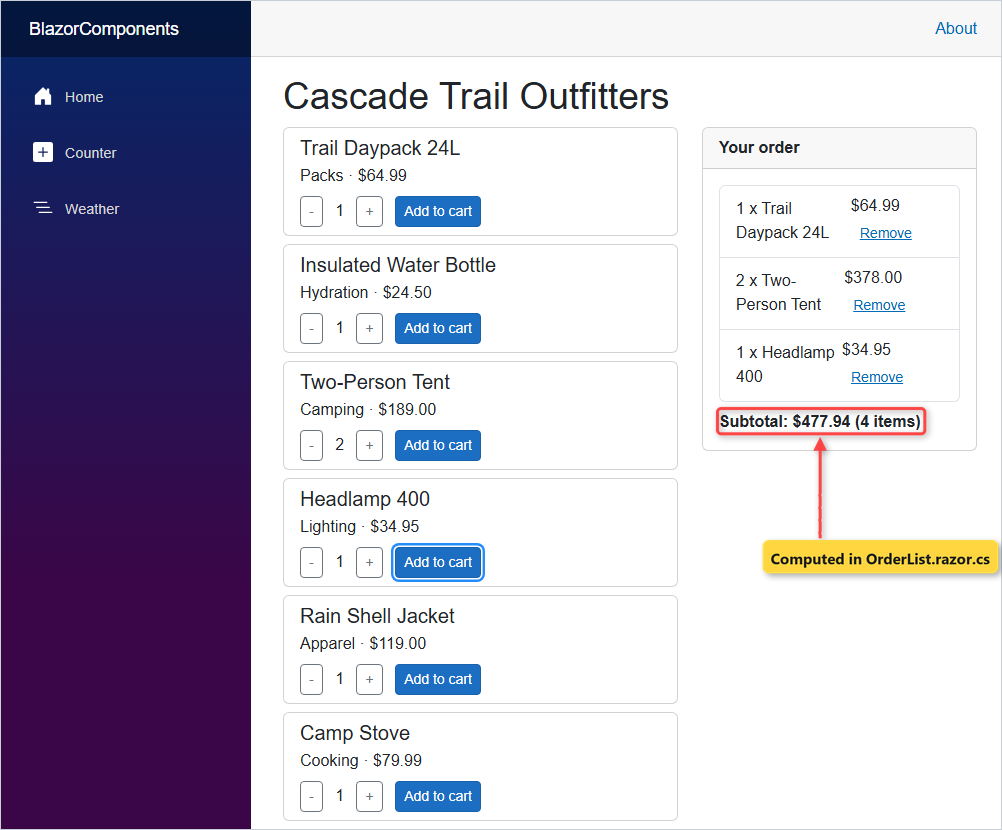
Checkpoint: after adding the Headlamp too: “Subtotal: $477.94 (4 items)”. Remove on the Tent line left “Subtotal: $99.94 (2 items)”.
Step 7: Share Values with a Blazor Cascading Parameter
Every card needs the store’s free shipping threshold, and passing it to each card by hand gets old. A CascadingValue hands a value to every component below it. The loop in Shop.razor becomes:
        <CascadingValue Value="store" IsFixed="true">
            @foreach (var product in products)
            {
                <ProductCard Product="product" OnAdd="AddToCart" />
            }
        </CascadingValue>
The page also gets a store field: new("Cascade Trail Outfitters", "Portland, OR", 75m). IsFixed="true" says it won’t change, so Blazor skips change tracking.
The card picks it up with [CascadingParameter], matched by type. Here’s the finished ProductCard.razor:
@using System.Globalization
@using BlazorComponents.Models

<div class="card mb-2">
    <div class="card-body py-2">
        <h5 class="card-title mb-1">@Product.Name</h5>
        <p class="mb-2">@Product.Category · @Product.Price.ToString("C", Us)</p>
        @if (Store is not null && Product.Price >= Store.FreeShippingOver)
        {
            <p class="mb-2"><span class="badge text-bg-success">Free shipping from @Store.City</span></p>
        }
        <button class="btn btn-outline-secondary btn-sm minus" @onclick="() => quantity = Math.Max(1, quantity - 1)">-</button>
        <span class="qty mx-2">@quantity</span>
        <button class="btn btn-outline-secondary btn-sm plus" @onclick="() => quantity++">+</button>
        <button class="btn btn-primary btn-sm ms-2 add" @onclick="Add">Add to cart</button>
    </div>
</div>

@code {
    private static readonly CultureInfo Us = new("en-US");
    private int quantity = 1;

    [Parameter, EditorRequired]
    public Product Product { get; set; } = default!;

    [Parameter]
    public EventCallback<CartLine> OnAdd { get; set; }

    [CascadingParameter]
    private StoreInfo? Store { get; set; }

    private async Task Add() => await OnAdd.InvokeAsync(new CartLine(Product, quantity));
}
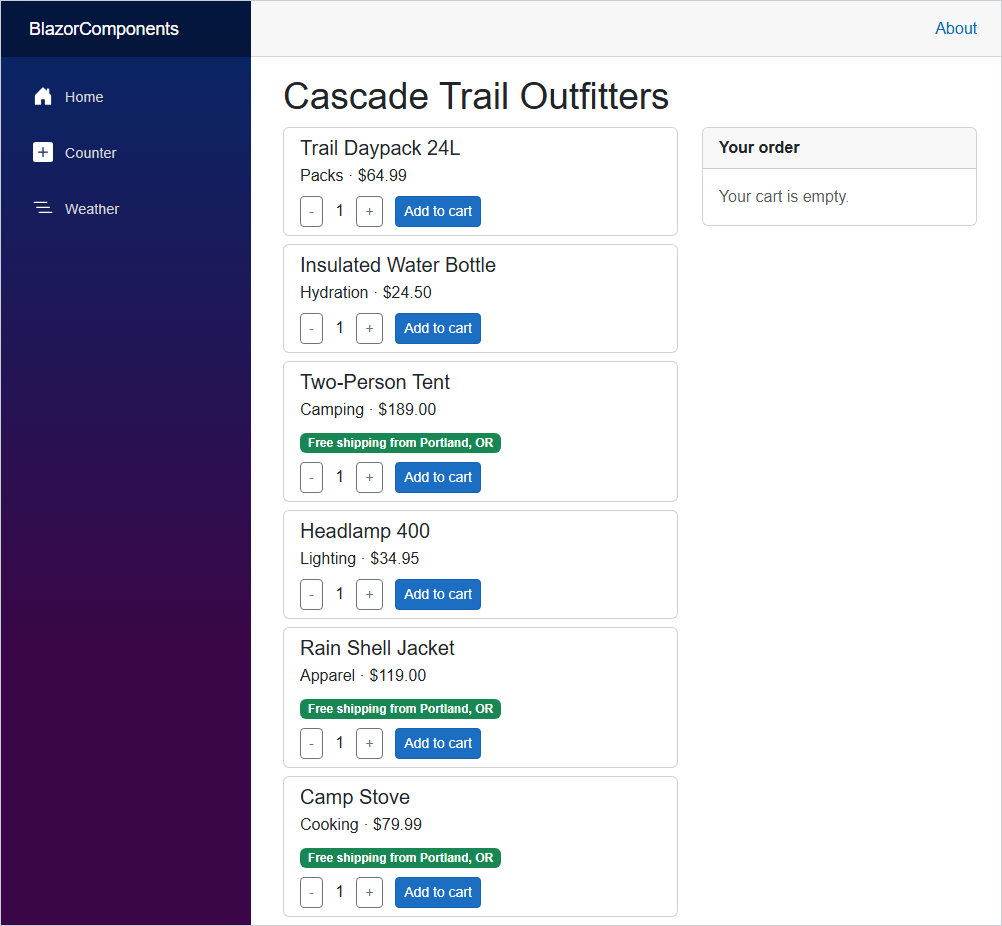
For an app-wide value, register it as a service with builder.Services.AddCascadingValue(...), the same container as in DI lifetimes in ASP.NET Core.
Important: cascading values don’t cross render mode boundaries. A CascadingValue in a static layout won’t reach an interactive page, while a root-level AddCascadingValue will.
Checkpoint: badges on 3 cards, the ones at $75 or more: Two-Person Tent, Rain Shell Jacket, Camp Stove.
Step 8: Keep Component State in Lists with @key
Last, a Sort by price button. Here’s the final Shop.razor; note @key="product.Id" on the card:
@page "/shop"
@rendermode InteractiveServer
@using BlazorComponents.Models

<PageTitle>Shop</PageTitle>

<h1>Cascade Trail Outfitters</h1>

<button class="btn btn-secondary btn-sm mb-3 sort" @onclick="SortByPrice">Sort by price</button>

<div class="row">
    <div class="col-md-7">
        <CascadingValue Value="store" IsFixed="true">
            @foreach (var product in products)
            {
                <ProductCard @key="product.Id" Product="product" OnAdd="AddToCart" />
            }
        </CascadingValue>
    </div>
    <div class="col-md-5">
        <Panel Title="Your order">
            <OrderList Lines="cart" OnRemove="RemoveLine" />
        </Panel>
    </div>
</div>

@code {
    private readonly StoreInfo store = new("Cascade Trail Outfitters", "Portland, OR", 75m);
    private List<Product> products =
    [
        new(1, "Trail Daypack 24L", "Packs", 64.99m),
        new(2, "Insulated Water Bottle", "Hydration", 24.50m),
        new(3, "Two-Person Tent", "Camping", 189.00m),
        new(4, "Headlamp 400", "Lighting", 34.95m),
        new(5, "Rain Shell Jacket", "Apparel", 119.00m),
        new(6, "Camp Stove", "Cooking", 79.99m),
    ];
    private readonly List<CartLine> cart = [];

    private void AddToCart(CartLine line) => cart.Add(line);
    private void RemoveLine(CartLine line) => cart.Remove(line);
    private void SortByPrice() => products = [.. products.OrderBy(p => p.Price)];
}
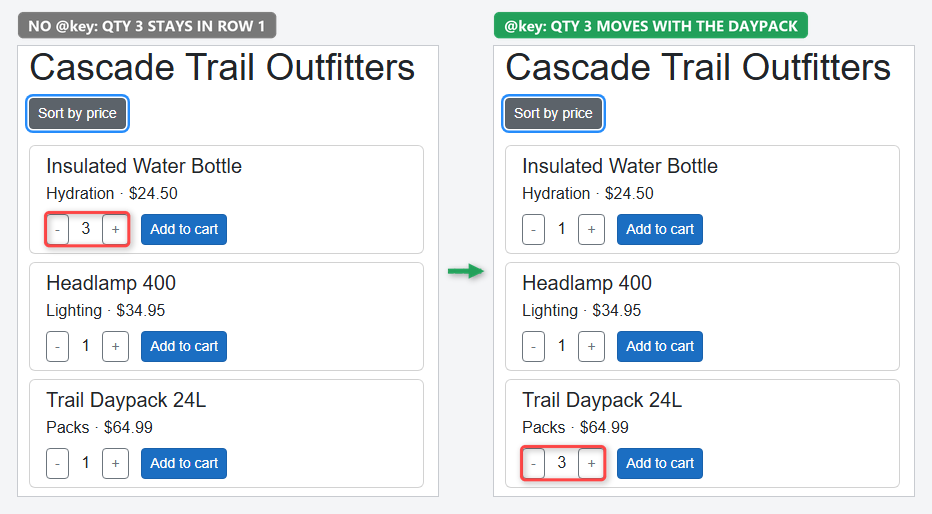
I ran the test without @key first: + twice on the Daypack, so it showed 3, then Sort. Row 1 became “Insulated Water Bottle qty 3”, and the Daypack in row 3 dropped back to 1.
Without a key, Blazor reuses the card in row 1 and only swaps its Product parameter, so the private quantity stays behind. With @key, the same clicks left “Trail Daypack 24L qty 3” in row 3.
SortByPrice builds a new List
Duplicate keys under one parent throw an exception, and keys only compare among siblings.
Checkpoint: after sorting with @key, the Daypack sits third and still shows 3.
Test the Blazor Components
Here’s every check I ran on the finished app, with the real results:
| Check | How | Result |
|---|---|---|
/shop loads | curl | 200 |
Missing [EditorRequired] value | dotnet build | warning RZ2012 |
| Add to cart, no render mode | 3 clicks, headless Edge | Cart: 0 line(s), 0 item(s) |
Add to cart, InteractiveServer | 3 clicks, headless Edge | Cart: 2 line(s), 3 item(s) |
| Final cart | 4 clicks, headless Edge | Subtotal: $477.94 (4 items) |
Sort without @key | qty 3, then Sort | Insulated Water Bottle qty 3 |
Sort with @key | qty 3, then Sort | Trail Daypack 24L qty 3 |
The page is still prerendered: curl got full HTML plus a <!--Blazor: marker. That’s why my headless runs wait 3.5 seconds before clicking, so the circuit is connected.
Troubleshooting Common Blazor Component Parameter Mistakes
Writing to a parameter inside the child. This QtyBadge.razor increments its own Quantity parameter:
@using BlazorComponents.Models

<p class="mb-2">
    @Product.Name: <span class="qty">@Quantity</span>
    <button class="btn btn-outline-secondary btn-sm plus" @onclick="() => Quantity++">+</button>
</p>

@code {
    [Parameter, EditorRequired]
    public Product Product { get; set; } = default!;

    [Parameter]
    public int Quantity { get; set; }   // the child writes to its own parameter: don't
}
I used it on a test page, Components/Pages/Mistake.razor, with a button that only rerenders the parent:
@page "/mistake"
@rendermode InteractiveServer
@using BlazorComponents.Models

<PageTitle>Mistake</PageTitle>

<h1>Writing to a parameter</h1>

<QtyBadge Product="headlamp" Quantity="1" />

<p>Parent renders: <span class="renders">@renders</span></p>
<button class="btn btn-secondary btn-sm refresh" @onclick="() => renders++">Re-render parent</button>

@code {
    private readonly Product headlamp = new(4, "Headlamp 400", "Lighting", 34.95m);
    private int renders = 1;
}
Two clicks on + showed 3. One click on Re-render parent reset it to 1, because the parent sent Quantity="1" again. Keep the value in a private field, as ProductCard does, and report changes with an EventCallback, Blazor’s take on C# events.
Buttons that do nothing. The page has no @rendermode, so it’s static SSR. Add @rendermode InteractiveServer to the page, as in Step 4.
A component tag that renders as plain HTML. The file name starts with a lowercase letter, or its namespace isn’t imported. Rename it to ProductCard.razor and check _Imports.razor.
required or init on a parameter. Learn says not to use either. Blazor sets parameters by reflection, which bypasses both, so use [EditorRequired] instead.
Where to Take It Next with Blazor Components
Swap the hard-coded list for real data and a grid. My Blazor QuickGrid tutorial sorts and pages 200 orders with the same kind of component parameters.
You can also make ProductCard generic with @typeparam, or add two-way binding with a Value parameter plus a ValueChanged callback. New posts land in the Blazor tutorials.
A few more reads for the C# behind these components:
- More ASP.NET Core tutorials for the server side
- Interfaces in C# for swappable services
- New C# 14 features you can use in @code blocks
- Upgrade a .NET 8 Blazor app to .NET 10
Frequently Asked Questions
What are Blazor components?
They’re reusable pieces of UI written as .razor files that mix HTML and C#. Each file compiles to a C# class that inherits ComponentBase, and a component becomes a page when you add an @page directive.
How do I pass parameters to a Blazor component?
Declare a public auto-property with the [Parameter] attribute in the child, then set it as an attribute where you use the component, for example . Add [EditorRequired] if the parent must always set it.
How does a child component pass data to its parent in Blazor?
Give the child an EventCallback parameter and call await OnAdd.InvokeAsync(value) from its event handler. The parent assigns a method to it, and Blazor rerenders the parent after the method runs.
What is the difference between a component parameter and a cascading parameter?
A component parameter is set by the direct parent as an attribute. A cascading parameter is supplied by a CascadingValue component, or AddCascadingValue in Program.cs, and reaches every component below it, matched by type or name.
What is ComponentBase in Blazor?
ComponentBase is the base class every .razor component inherits. It provides the lifecycle methods such as OnInitialized and OnParametersSet, StateHasChanged and the rendering logic. A code-behind partial class can inherit it explicitly.
Why doesn’t my Blazor button do anything?
The page renders with static SSR, which is the default in a Blazor Web App. Add @rendermode InteractiveServer to the page or turn on global interactivity. See ASP.NET Core Razor components on Microsoft Learn.

Bijay Kumar is a renowned software engineer, accomplished author, and distinguished Microsoft Most Valuable Professional (MVP) specializing in SharePoint. With a rich professional background spanning over 15 years, Bijay has established himself as an authority in the field of information technology. He possesses unparalleled expertise in multiple programming languages and technologies such as ASP.NET, ASP.NET MVC, C#.NET, and SharePoint, which has enabled him to develop innovative and cutting-edge solutions for clients across the globe. Read more…