
My first real project with Blazor render modes broke on one line: I put @rendermode InteractiveWebAssembly on a page in the server project. It built, but the button did nothing, and the console said the root component type could not be found.
Quick answer: WebAssembly and Auto components must live in the .Client project. Set a mode with @rendermode on a component instance, a page, or <Routes /> for the whole app.
Below, one small component runs in all four modes on .NET 10, with real RendererInfo output.
The Mistake: an InteractiveWebAssembly Page in the Server Project
Here’s the page I wrote, a Texas sales tax button, saved as Components/Pages/SalesTax.razor in the server project:
@page "/sales-tax"
@rendermode InteractiveWebAssembly

<PageTitle>Sales tax</PageTitle>

<h1>Texas sales tax</h1>

<p>Total on $80.00: @total.ToString("C", new System.Globalization.CultureInfo("en-US"))</p>
<button class="btn btn-primary" @onclick="AddTax">Add 6.25% tax</button>

@code {
    private decimal total = 80.00m;

    private void AddTax() => total = Math.Round(80.00m * 1.0625m, 2);
}
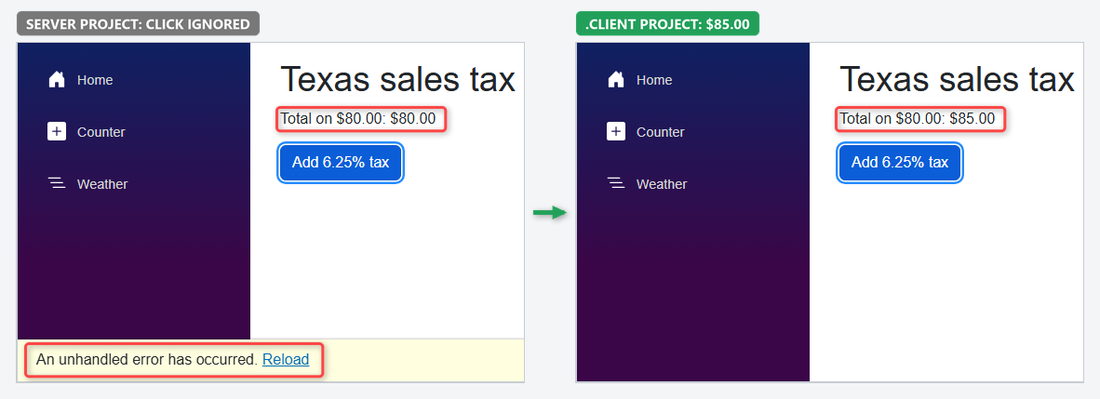
The page loads fine, because prerendering draws it on the server. Click the button and the total stays at “Total on $80.00: $80.00”. The console shows why:
Root component type 'BlazorRenderModesDemo.Components.Pages.SalesTax' could not be found in the assembly 'BlazorRenderModesDemo'.The WebAssembly runtime only loads the .Client assembly, so it can’t find a type that lives in the server project. I moved the same file to BlazorRenderModesDemo.Client/Pages/SalesTax.razor, and one click gave “Total on $80.00: $85.00”.
The new CultureInfo("en-US") argument pins the dollar format, the same approach as in formatting numbers with commas and decimals.
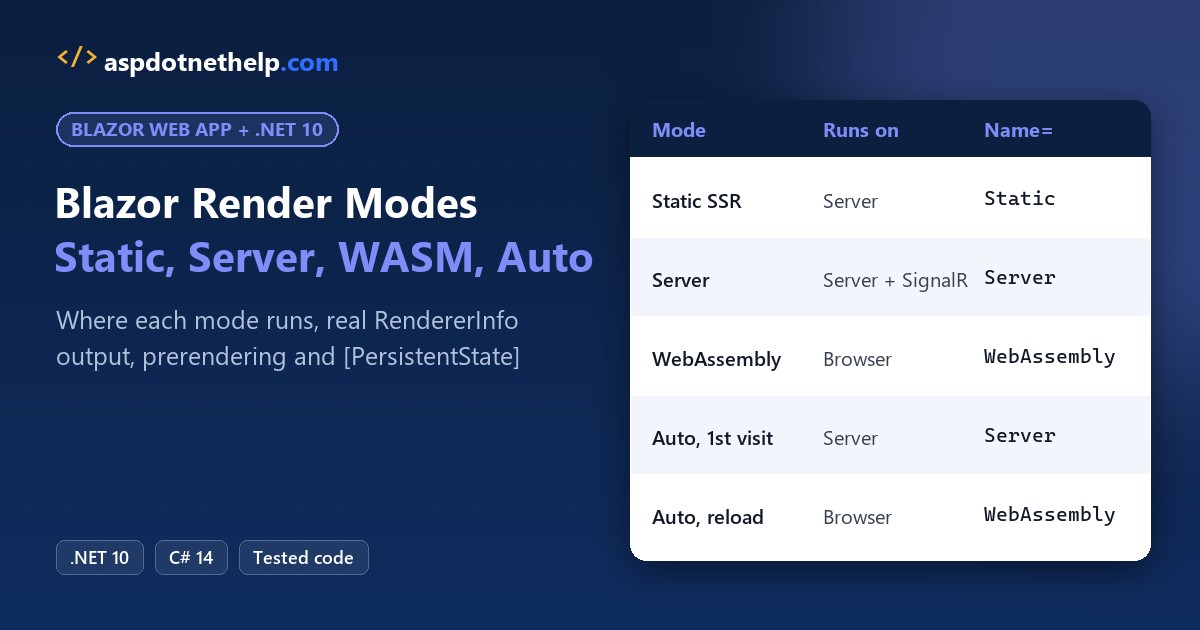
The 4 Blazor Render Modes at a Glance
A Blazor Web App has four render modes. The last column comes from my Debug build: on the first visit to an Auto page, Edge pulled 201 .wasm files, 22,582 KB, in the background.
| Render mode | @rendermode value | Where code runs | Interactive | Needs .Client | First-load cost |
|---|---|---|---|---|---|
| Static Server (static SSR) | none (the default) | Server, once per request | No | No | HTML only |
| Interactive Server | InteractiveServer | Server, over a SignalR circuit | Yes | No | HTML + a WebSocket |
| Interactive WebAssembly | InteractiveWebAssembly | Browser | Yes | Yes | .NET runtime + app (22,582 KB in Debug) |
| Interactive Auto | InteractiveAuto | Server first, then browser | Yes | Yes | Like Server, bundle downloads in the background |
A Release publish trims that bundle a lot, but it’s still the reason WebAssembly costs more on the first visit. If you’re new to the project layout, my Blazor tutorial for beginners builds a Server-only app first.
Set Up a Blazor Web App with dotnet new blazor –interactivity Auto
You need the .NET 10 SDK; I used 10.0.402 (check your .NET version if you’re not sure). The Auto option creates two projects, so every render mode is available:
dotnet new blazor --interactivity Auto -o BlazorRenderModesDemoHere’s the solution after my changes. I deleted the generated appsettings files, since this demo doesn’t need them:
BlazorRenderModesDemo/
    BlazorRenderModesDemo/
        Components/
            Layout/
                MainLayout.razor
                NavMenu.razor
                ReconnectModal.razor
            Pages/
                Deals.razor
                Error.razor
                Home.razor
                Mixed.razor
                Modes.razor
                NoPrerender.razor
                NotFound.razor
                Weather.razor
            _Imports.razor
            App.razor
            Routes.razor
        Properties/
            launchSettings.json
        wwwroot/
        BlazorRenderModesDemo.csproj
        Program.cs
    BlazorRenderModesDemo.Client/
        Pages/
            AutoDemo.razor
            Counter.razor
            SalesTax.razor
        wwwroot/
        _Imports.razor
        BlazorRenderModesDemo.Client.csproj
        ModeBadge.razor
        Program.cs
    BlazorRenderModesDemo.sln
The server Program.cs registers both interactive runtimes. AddAdditionalAssemblies is what lets the router find pages in the .Client project:
using BlazorRenderModesDemo.Client.Pages;
using BlazorRenderModesDemo.Components;

var builder = WebApplication.CreateBuilder(args);

// Add services to the container.
builder.Services.AddRazorComponents()
    .AddInteractiveServerComponents()
    .AddInteractiveWebAssemblyComponents();

var app = builder.Build();

// Configure the HTTP request pipeline.
if (app.Environment.IsDevelopment())
{
    app.UseWebAssemblyDebugging();
}
else
{
    app.UseExceptionHandler("/Error", createScopeForErrors: true);
    // The default HSTS value is 30 days. You may want to change this for production scenarios, see https://aka.ms/aspnetcore-hsts.
    app.UseHsts();
}
app.UseStatusCodePagesWithReExecute("/not-found", createScopeForStatusCodePages: true);
app.UseHttpsRedirection();

app.UseAntiforgery();

app.MapStaticAssets();
app.MapRazorComponents<App>()
    .AddInteractiveServerRenderMode()
    .AddInteractiveWebAssemblyRenderMode()
    .AddAdditionalAssemblies(typeof(BlazorRenderModesDemo.Client._Imports).Assembly);

app.Run();
The .Client project is a plain WebAssembly host. Its Program.cs is three lines:
using Microsoft.AspNetCore.Components.WebAssembly.Hosting;

var builder = WebAssemblyHostBuilder.CreateDefault(args);

await builder.Build().RunAsync();
The two project files. The server references the client project and the WebAssembly server package, both at 10.0.13:
<Project Sdk="Microsoft.NET.Sdk.Web">

  <PropertyGroup>
    <TargetFramework>net10.0</TargetFramework>
    <Nullable>enable</Nullable>
    <ImplicitUsings>enable</ImplicitUsings>
    <BlazorDisableThrowNavigationException>true</BlazorDisableThrowNavigationException>
  </PropertyGroup>

  <ItemGroup>
    <ProjectReference Include="..\BlazorRenderModesDemo.Client\BlazorRenderModesDemo.Client.csproj" />
    <PackageReference Include="Microsoft.AspNetCore.Components.WebAssembly.Server" Version="10.0.13" />
  </ItemGroup>

</Project>
<Project Sdk="Microsoft.NET.Sdk.BlazorWebAssembly">
<PropertyGroup>
<TargetFramework>net10.0</TargetFramework>
<ImplicitUsings>enable</ImplicitUsings>
<Nullable>enable</Nullable>
<NoDefaultLaunchSettingsFile>true</NoDefaultLaunchSettingsFile>
<StaticWebAssetProjectMode>Default</StaticWebAssetProjectMode>
<BlazorDisableThrowNavigationException>true</BlazorDisableThrowNavigationException>
</PropertyGroup>
<ItemGroup>
<PackageReference Include="Microsoft.AspNetCore.Components.WebAssembly" Version="10.0.13" />
</ItemGroup>
</Project>I trimmed Properties/launchSettings.json to one http profile on port 5261:
{
  "$schema": "https://json.schemastore.org/launchsettings.json",
  "profiles": {
    "http": {
      "commandName": "Project",
      "dotnetRunMessages": true,
      "launchBrowser": false,
      "applicationUrl": "http://localhost:5261",
      "environmentVariables": {
        "ASPNETCORE_ENVIRONMENT": "Development"
      }
    }
  }
}
How to Apply a Blazor Render Mode
There are three places to set it, from the smallest scope to the whole app.
On a component instance, with the render mode attribute where you use the component:
<ModeBadge Label="InteractiveServer" @rendermode="InteractiveServer" />On a component definition, with the directive under @page. The template’s Counter.razor starts like this:
@page "/counter"
@rendermode InteractiveAuto
For the whole app, on Routes and HeadOutlet in Components/App.razor. You can’t put it on App itself, because root components can’t be interactive:
<HeadOutlet @rendermode="InteractiveServer" />
...
<Routes @rendermode="InteractiveServer" />
The short names work because _Imports.razor has @using static Microsoft.AspNetCore.Components.Web.RenderMode. Without it, write RenderMode.InteractiveServer. Creating the app with --all-interactive sets the Routes version for you.
One Component in Each Blazor Render Mode
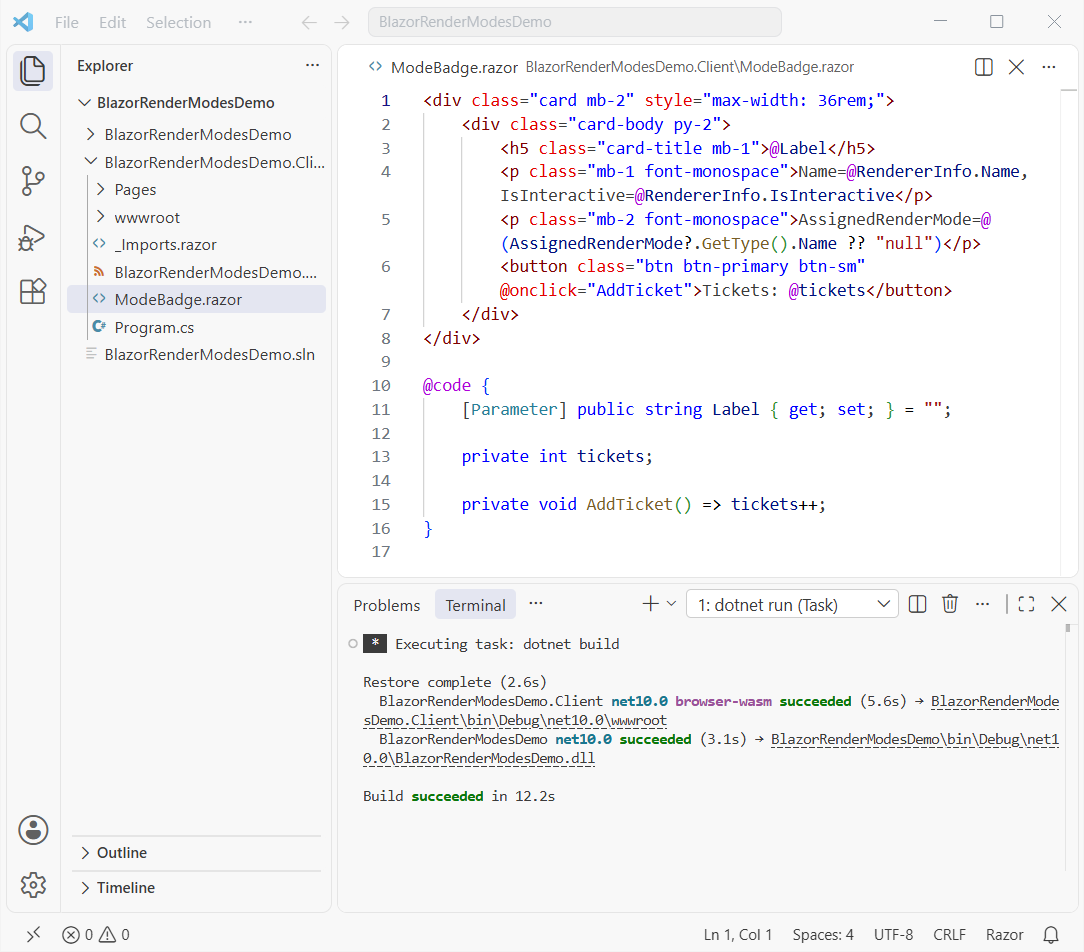
To see the modes side by side, I wrote ModeBadge.razor in the .Client project. It prints what the renderer reports and has a ticket counter to prove clicks work:
<div class="card mb-2" style="max-width: 36rem;">
    <div class="card-body py-2">
        <h5 class="card-title mb-1">@Label</h5>
        <p class="mb-1 font-monospace">Name=@RendererInfo.Name, IsInteractive=@RendererInfo.IsInteractive</p>
        <p class="mb-2 font-monospace">AssignedRenderMode=@(AssignedRenderMode?.GetType().Name ?? "null")</p>
        <button class="btn btn-primary btn-sm" @onclick="AddTicket">Tickets: @tickets</button>
    </div>
</div>

@code {
    [Parameter] public string Label { get; set; } = "";

    private int tickets;

    private void AddTicket() => tickets++;
}
Then a static page in the server project, Components/Pages/Modes.razor, uses it four times. A static parent can host children in any mode:
@page "/modes"

<PageTitle>Render modes</PageTitle>

<h1>Blazor render modes side by side</h1>

<ModeBadge Label="No render mode (static SSR)" />
<ModeBadge Label="InteractiveServer" @rendermode="InteractiveServer" />
<ModeBadge Label="InteractiveWebAssembly" @rendermode="InteractiveWebAssembly" />
<ModeBadge Label="InteractiveAuto" @rendermode="InteractiveAuto" />
I opened /modes in headless Edge, waited for WebAssembly to start and clicked each interactive button twice:
No render mode (static SSR) | Name=Static, IsInteractive=False | AssignedRenderMode=null | Tickets: 0
InteractiveServer | Name=Server, IsInteractive=True | AssignedRenderMode=InteractiveServerRenderMode | Tickets: 2
InteractiveWebAssembly | Name=WebAssembly, IsInteractive=True | AssignedRenderMode=InteractiveWebAssemblyRenderMode | Tickets: 2
InteractiveAuto | Name=WebAssembly, IsInteractive=True | AssignedRenderMode=InteractiveWebAssemblyRenderMode | Tickets: 2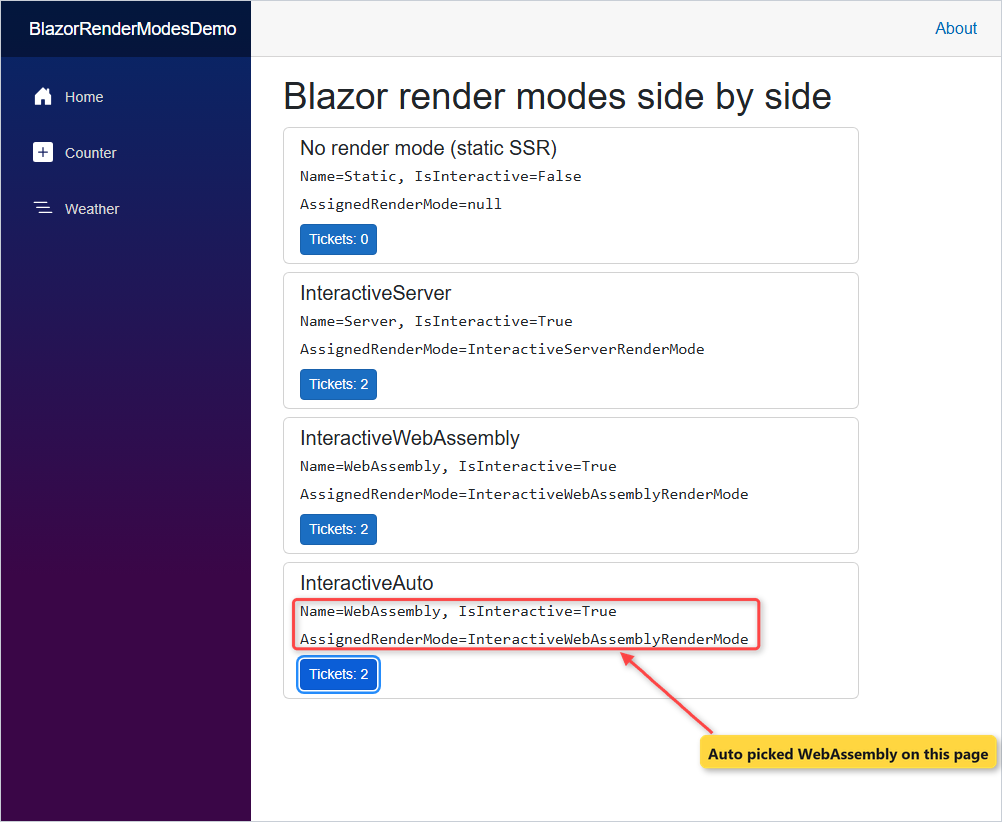
The static card ignored both clicks, and the other three counted them. The Auto card chose WebAssembly here, because a WebAssembly component was already running on the page.
Each @onclick is just a C# event handler that needs an interactive runtime behind it.
How Do You Detect the Render Mode at Runtime?
ComponentBase gives you two properties for this, and both exist in .NET 9 and .NET 10:
| Property | Values | Meaning |
|---|---|---|
RendererInfo.Name | Static, Server, WebAssembly, WebView | Where the component is running right now |
RendererInfo.IsInteractive | true / false | Can it handle events at this moment? |
AssignedRenderMode | InteractiveServerRenderMode, InteractiveWebAssemblyRenderMode, InteractiveAutoRenderMode, null | The mode the component was given |
In the prerendered HTML from curl, all four cards said Name=Static, IsInteractive=False, and the Auto card said AssignedRenderMode=InteractiveAutoRenderMode. Once it was interactive, that same card reported AssignedRenderMode=InteractiveWebAssemblyRenderMode.
So for Auto, read RendererInfo.Name when you need the real runtime. RendererInfo arrived in .NET 9 and is unchanged in .NET 10.
A common use is a button that stays disabled until the component can respond:
<button @onclick="Send" disabled="@(!RendererInfo.IsInteractive)">Send</button>What Blazor Render Mode Auto Really Does
Auto starts on the server and switches to WebAssembly on a later visit, once the bundle is cached. I tested it with a page that holds only an Auto component, .Client/Pages/AutoDemo.razor:
@page "/auto"
@rendermode InteractiveAuto

<PageTitle>Auto mode</PageTitle>

<h1>InteractiveAuto, visit by visit</h1>

<ModeBadge Label="InteractiveAuto page" />
First visit in a fresh Edge profile: the console logged WebSocket connected to ws://localhost:5261/_blazor?id=... and the card said Name=Server, IsInteractive=True. Meanwhile Edge downloaded 201 .wasm files (22,582 KB) without being asked.
Then I reloaded in the same profile. The card said Name=WebAssembly, IsInteractive=True, the 201 .wasm files came from cache (0 KB transferred), and there were 0 /_blazor requests, so no circuit at all.

Auto never switches a component that’s already on the page. It decides once per component, so a long session can stay on the server even after the bundle arrives.
Important: an Auto component runs in both places, so every service it injects must be registered in both Program.cs files. Put an interface in the .Client project, with a server version and an HttpClient version.
Blazor Prerendering: On by Default, and How to Turn It Off
All three interactive modes prerender by default. That’s why curl of /modes returned all four cards as HTML, plus 6 <!--Blazor: markers the runtime uses to take over.
To turn it off for one page, pass a new render mode object with prerender: false:
prerender: false | Name=Server, IsInteractive=True | AssignedRenderMode=InteractiveServerRenderMode | Tickets: 0Curl of /no-prerender came back 200 with no card text at all, just 1 marker. In Edge the card appeared once the circuit connected: Name=Server, IsInteractive=True.
Turn it off when a component depends on the browser, like JS interop or local storage. Keep it on for anything a search engine or a slow phone should see quickly.
Stop the Double Data Load in Blazor with [PersistentState]
Prerendering has a side effect: OnInitializedAsync runs twice, once for the HTML and once when the component goes interactive. Here’s a page that loads three deals with an async/await call:
@page "/deals"
@rendermode InteractiveServer
@inject ILogger<Deals> Logger

<PageTitle>Deals</PageTitle>

<h1>Weekend deals</h1>

@if (DealList is null)
{
    <p>Loading...</p>
}
else
{
    <ul>
        @foreach (var deal in DealList)
        {
            <li>@deal</li>
        }
    </ul>
}

@code {
    public string[]? DealList { get; set; }

    protected override async Task OnInitializedAsync()
    {
        DealList = await LoadDealsAsync();
    }

    private async Task<string[]> LoadDealsAsync()
    {
        Logger.LogInformation("Loading deals while {Name}", RendererInfo.Name);
        await Task.Delay(300);   // stands in for a database call
        return ["Denver: 20% off ski rentals", "Miami: $15 kayak tours", "Seattle: free coffee refills"];
    }
}
One browser visit, two loads in the server log:
info: BlazorRenderModesDemo.Components.Pages.Deals[0]
      Loading deals while Static
info: BlazorRenderModesDemo.Components.Pages.Deals[0]
      Loading deals while Server
In .NET 10 the fix is two edits. Mark the public property with [PersistentState] and only load when it’s still null:
[PersistentState]
public string[]? DealList { get; set; }

protected override async Task OnInitializedAsync()
{
    DealList ??= await LoadDealsAsync();
}
Same visit after the change, one load:
info: BlazorRenderModesDemo.Components.Pages.Deals[0]
      Loading deals while Static
The value is serialized with System.Text.Json into the prerendered HTML and restored when the component goes interactive. With WebAssembly and Auto it’s visible in the browser, so never persist secrets this way.
With a real database, this saves a full query per visit, like the ones in my ASP.NET Core Web API with EF Core guide.
Blazor Render Mode Propagation Rules
Render modes flow down the component tree. Microsoft Learn lists these rules:
- The default is static.
- A child without its own mode inherits the parent’s mode.
- A child can’t switch to a different interactive mode. A WebAssembly component can’t sit inside a Server component, or the reverse.
- Parameters from a static parent to an interactive child must be JSON serializable, so no RenderFragment or ChildContent.
I broke the third rule on purpose with Components/Pages/Mixed.razor:
@page "/mixed"
@rendermode InteractiveServer

<PageTitle>Mixed modes</PageTitle>

<h1>Server page, WebAssembly child</h1>

<ModeBadge Label="Child" @rendermode="InteractiveWebAssembly" />
The page prerendered, then the circuit died the moment it connected. The server log had the reason:
System.NotSupportedException: Cannot create a component of type 'BlazorRenderModesDemo.Client.ModeBadge' because its render mode 'Microsoft.AspNetCore.Components.Web.InteractiveWebAssemblyRenderMode' is not supported by interactive server-side rendering.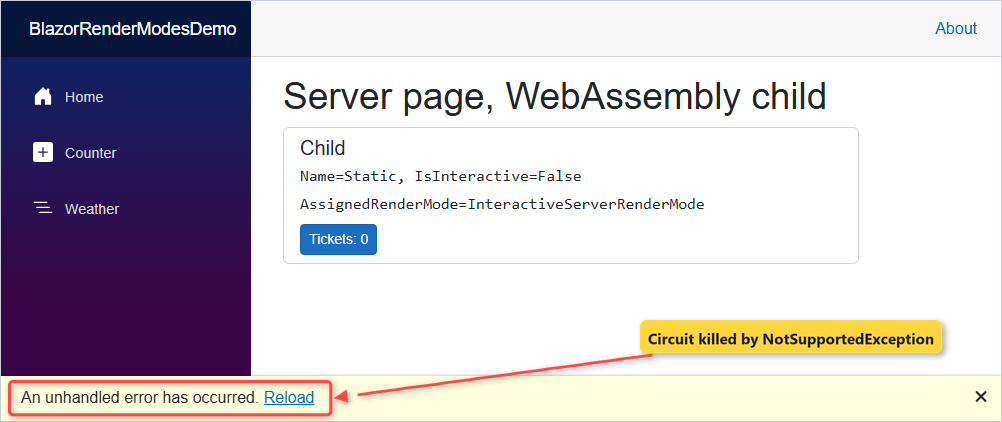
The fix is to make the parent static and give each child its own mode, as Modes.razor does, or to use the same mode for both.
ServerPrerendered vs Server: The Old Render Mode Names
If you search for ServerPrerendered, you’ll land on .NET 7 and older Blazor Server apps. That value belongs to the Component Tag Helper in _Host.cshtml, not to @rendermode:
<component type="typeof(App)" render-mode="ServerPrerendered" />| Old tag helper value (.NET 7) | Blazor Web App equivalent (.NET 8+) |
|---|---|
Static | No render mode (static SSR) |
Server | new InteractiveServerRenderMode(prerender: false) |
ServerPrerendered | InteractiveServer (prerender is on by default) |
WebAssemblyPrerendered | InteractiveWebAssembly |
The tag helper still works in Razor Pages and MVC views. For a Blazor app still on .NET 7, check the .NET support dates and plan the move to the .NET 10 LTS.
Common Blazor Render Mode Errors and How to Fix Them
“Root component type … could not be found in the assembly”. A WebAssembly or Auto component lives in the server project. Move it to the .Client project.
“Cannot create a component of type … is not supported by interactive server-side rendering”. A child asks for a different interactive mode than its parent. Remove the child’s @rendermode or make the parent static.
The button does nothing and there’s no error. The page has no render mode, so it’s static SSR. Add one, or create the app with --all-interactive.
“Cannot provide a value for property” only in Auto or WebAssembly. The service is registered on the server only. Register it in the .Client Program.cs too, and use try-catch around calls that can fail in the browser.
Data loads twice. That’s prerendering. Use [PersistentState] or turn prerendering off for that page.
Which Blazor Render Mode Should You Choose?
| Your page | Pick |
|---|---|
| Content, docs, product pages, anything SEO matters for | Static SSR |
| Internal line-of-business app, data stays on the server | Interactive Server |
| Offline-friendly or heavy client-side work, users on fast connections | Interactive WebAssembly |
| Public app that should start fast and then stop using server memory | Interactive Auto |
My default: static SSR for the site and InteractiveServer on the pages that need clicks. I add Auto only when server load per user becomes a real cost.
For the API behind those pages, see my OpenAPI and Scalar setup and the rest of my ASP.NET Core tutorials.
A few related reads for this stack:
- All Blazor tutorials on the site
- LINQ in C# for filtering component data
- Upgrade a .NET 8 Blazor app to .NET 10
- New C# 14 features you can use in components
Frequently Asked Questions
What are the render modes in Blazor?
A Blazor Web App has four: Static Server (static SSR), Interactive Server, Interactive WebAssembly and Interactive Auto. Static is the default, and the three interactive modes prerender by default.
What is the difference between render mode Server and ServerPrerendered?
Those are the old Component Tag Helper values from .NET 7 Blazor Server apps. Server sends only a marker, ServerPrerendered also sends the HTML first. In .NET 8 and later, InteractiveServer prerenders by default, and new InteractiveServerRenderMode(prerender: false) matches the old Server value.
How does Blazor render mode Auto work?
The first visit runs the component on the server over SignalR while the .NET WebAssembly bundle downloads in the background. Later visits run it in the browser from the cached bundle. A component never switches modes while it is on the page.
How do I disable prerendering in Blazor?
Use @rendermode @(new InteractiveServerRenderMode(prerender: false)) on the page, or the WebAssembly and Auto equivalents. For the whole app, pass the same kind of object to the Routes and HeadOutlet components in App.razor.
How do I check the current render mode in a Blazor component?
Read RendererInfo.Name (Static, Server, WebAssembly or WebView) and RendererInfo.IsInteractive. AssignedRenderMode shows the mode the component was given, and it is null for static SSR.
Where do I put a component that uses InteractiveWebAssembly?
In the .Client project of the Blazor Web App. The browser never loads the server project, so the runtime reports that the root component type could not be found. See ASP.NET Core Blazor render modes on Microsoft Learn.

Bijay Kumar is a renowned software engineer, accomplished author, and distinguished Microsoft Most Valuable Professional (MVP) specializing in SharePoint. With a rich professional background spanning over 15 years, Bijay has established himself as an authority in the field of information technology. He possesses unparalleled expertise in multiple programming languages and technologies such as ASP.NET, ASP.NET MVC, C#.NET, and SharePoint, which has enabled him to develop innovative and cutting-edge solutions for clients across the globe. Read more…