

Nobody enjoys typing a long folder path. In a C# Windows Forms app, the folder browser dialog fixes that: create a FolderBrowserDialog, call ShowDialog(), and read SelectedPath when it returns DialogResult.OK.
In this tutorial, I’ll put together a Report Exporter for a small Seattle accounting firm and use the folder browser dialog in C# three ways: pick one folder, show the chosen path in a TextBox, and select several folders at once.
You’ll run everything on .NET 10 under C:\DotNetDemo\FolderDialogDemo, which holds four client folders: Austin, Boston, Denver and Seattle.
What the Finished Folder Browser Dialog Tool Looks Like
Here’s where you’ll end up. You browse for a destination folder, add client folders with a multi-select dialog, and click Export reports to write one summary file per client.
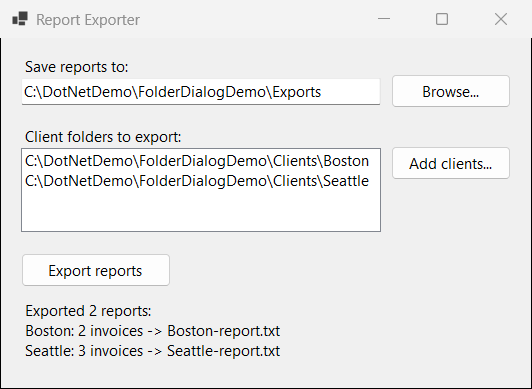
There’s no .csproj. If file-based apps are new to you, my guide to creating a console application in Visual Studio Code covers the setup.
Step 1: Show a FolderBrowserDialog and Read SelectedPath
Start with the smallest working program. The three #:property lines turn a plain .cs file into a WinForms app on .NET 10.
#:property TargetFramework=net10.0-windows
#:property UseWindowsForms=true
#:property PublishAot=false

class Program
{
    [STAThread]
    static void Main()
    {
        ApplicationConfiguration.Initialize();
        using var dialog = new FolderBrowserDialog
        {
            Description = "Choose a client folder",
            UseDescriptionForTitle = true,
            InitialDirectory = @"C:\DotNetDemo\FolderDialogDemo\Clients",
            ShowPinnedPlaces = false
        };

        DialogResult result = dialog.ShowDialog();
        Console.WriteLine($"Result: {result}");
        Console.WriteLine($"SelectedPath: {dialog.SelectedPath}");
    }
}
Output:
Result: OK
SelectedPath: C:\DotNetDemo\FolderDialogDemo\Clients\Seattle
You need PublishAot=false because file-based apps turn on Native AOT by default. Without it, I got build error NETSDK1175: Windows Forms isn’t supported with trimming.
Windows Forms expects a single-threaded apartment, and top-level statements run on an MTA thread. That’s why the dialog lives in a Main method marked [STAThread].
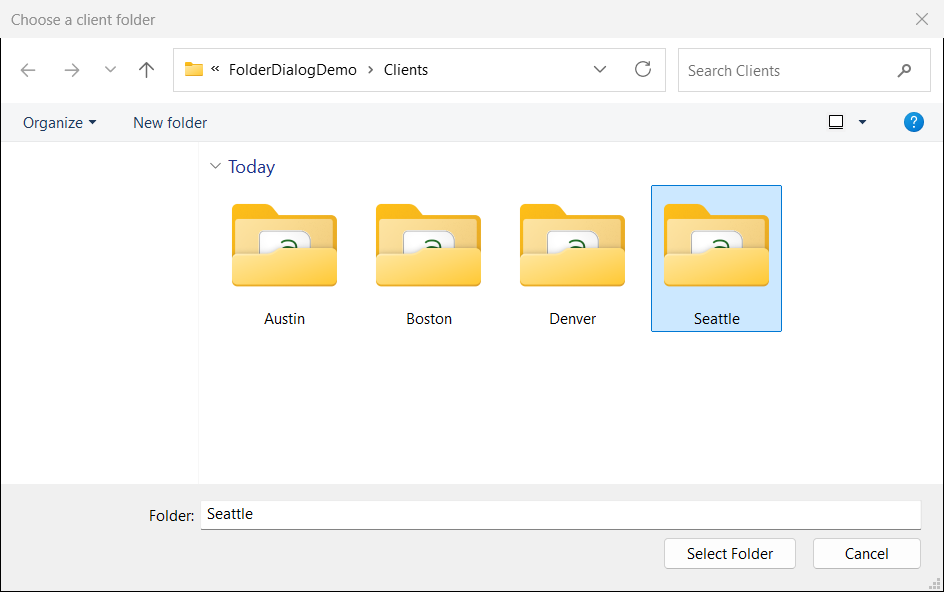
Checkpoint: Seattle was selected when Select Folder was pressed, so the output shows Result: OK and the full path. DialogResult is an enum, so you compare it like any other enum in C#.
Cancel returns DialogResult.Cancel, so check the result first. The using declaration disposes the dialog, as explained in Dispose and Finalize in C#.
Step 2: Show the Folder Browser Dialog Path in a TextBox
Now the real tool. Here’s the complete ReportExporter.cs; you’ll walk through its three button handlers in this step and the next two:
#:property TargetFramework=net10.0-windows
#:property UseWindowsForms=true
#:property PublishAot=false

class Program
{
    [STAThread]
    static void Main()
    {
        ApplicationConfiguration.Initialize();
        Application.Run(new ExportForm());
    }
}

class ExportForm : Form
{
    const string DemoRoot = @"C:\DotNetDemo\FolderDialogDemo";
    readonly TextBox txtDestination = new() { Left = 20, Top = 40, Width = 360 };
    readonly Button btnBrowse = new() { Text = "Browse...", Left = 390, Top = 36, Width = 120, Height = 34 };
    readonly ListBox lstClients = new() { Left = 20, Top = 110, Width = 360, Height = 90 };
    readonly Button btnAddClients = new() { Text = "Add clients...", Left = 390, Top = 108, Width = 120, Height = 34 };
    readonly Button btnExport = new() { Text = "Export reports", Left = 20, Top = 215, Width = 150, Height = 34 };
    readonly Label lblStatus = new() { Left = 20, Top = 262, Width = 490, Height = 80 };

    public ExportForm()
    {
        Text = "Report Exporter";
        ClientSize = new Size(530, 350);
        Controls.Add(new Label { Text = "Save reports to:", Left = 20, Top = 18, AutoSize = true });
        Controls.Add(new Label { Text = "Client folders to export:", Left = 20, Top = 88, AutoSize = true });
        Controls.AddRange([txtDestination, btnBrowse, lstClients, btnAddClients, btnExport, lblStatus]);
        btnBrowse.Click += BrowseDestination;
        btnAddClients.Click += AddClientFolders;
        btnExport.Click += ExportReports;
    }

    void BrowseDestination(object? sender, EventArgs e)
    {
        using var dialog = new FolderBrowserDialog
        {
            Description = "Choose where to save the reports",
            UseDescriptionForTitle = true,
            InitialDirectory = Directory.Exists(txtDestination.Text) ? txtDestination.Text : DemoRoot,
            ShowNewFolderButton = true,
            ShowPinnedPlaces = false
        };
        if (dialog.ShowDialog(this) == DialogResult.OK)
            txtDestination.Text = dialog.SelectedPath;
    }

    void AddClientFolders(object? sender, EventArgs e)
    {
        using var dialog = new FolderBrowserDialog
        {
            Description = "Select one or more client folders",
            UseDescriptionForTitle = true,
            InitialDirectory = Path.Combine(DemoRoot, "Clients"),
            Multiselect = true,
            ShowNewFolderButton = false,
            ShowPinnedPlaces = false
        };
        if (dialog.ShowDialog(this) != DialogResult.OK) return;
        foreach (string path in dialog.SelectedPaths)
            if (!lstClients.Items.Contains(path)) lstClients.Items.Add(path);
    }

    void ExportReports(object? sender, EventArgs e)
    {
        if (!Directory.Exists(txtDestination.Text) || lstClients.Items.Count == 0)
        {
            lblStatus.Text = "Pick a destination folder and at least one client folder.";
            return;
        }
        var lines = new List<string>();
        foreach (string folder in lstClients.Items)
        {
            string client = Path.GetFileName(folder);
            string[] invoices = Directory.GetFiles(folder, "*.csv");
            string report = Path.Combine(txtDestination.Text, $"{client}-report.txt");
            File.WriteAllLines(report, [$"Client: {client}", $"Invoices: {invoices.Length}", .. invoices.Select(f => Path.GetFileName(f))]);
            lines.Add($"{client}: {invoices.Length} invoices -> {Path.GetFileName(report)}");
        }
        lblStatus.Text = $"Exported {lines.Count} reports:\n" + string.Join("\n", lines);
    }
}
BrowseDestination opens the dialog and copies SelectedPath into txtDestination. It’s wired up with btnBrowse.Click += BrowseDestination;, a normal WinForms event in C#.
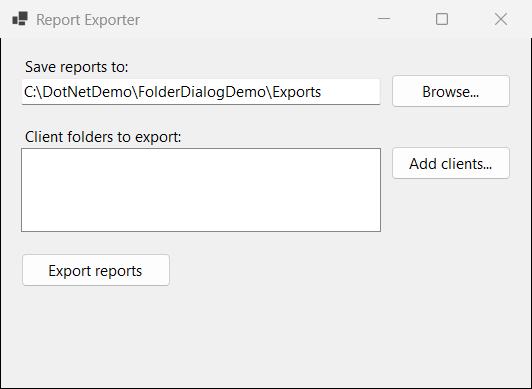
Checkpoint: the TextBox holds the Exports path. Click Browse… again and the dialog reopens there, because InitialDirectory reads the TextBox.
The TextBox stays editable, so your users can paste a path too. If a typed folder may not exist yet, create the folder if it does not exist before exporting.
Step 3: Select Multiple Folders with Multiselect and SelectedPaths
Since .NET 9, FolderBrowserDialog supports multi-select. AddClientFolders sets Multiselect = true and reads every folder from SelectedPaths.
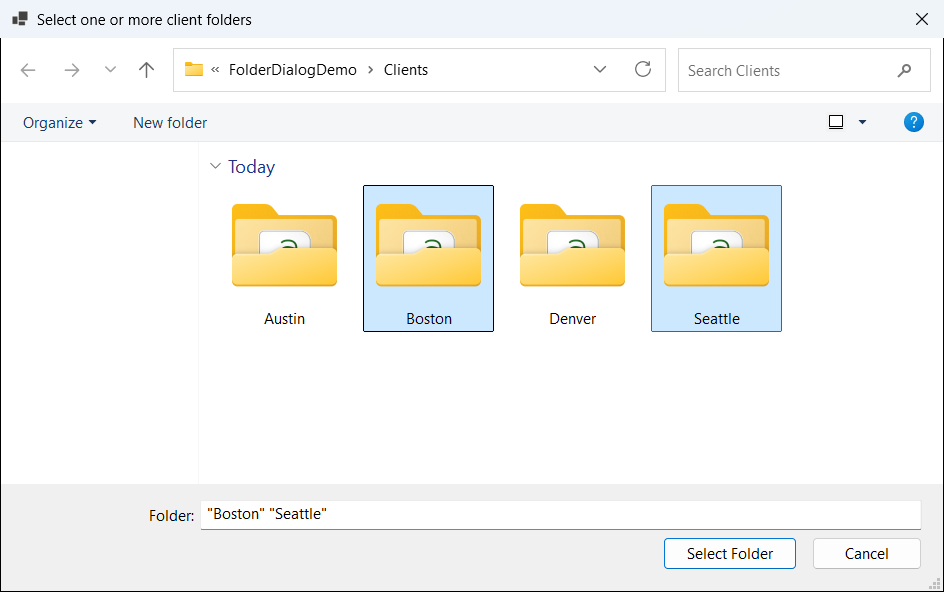
Checkpoint: the Folder box shows "Boston" "Seattle". You hold Ctrl while clicking to pick several, and the foreach loop adds each new path to the ListBox.
SelectedPath still holds just one path in multi-select mode. In my run it was Boston, so always loop over SelectedPaths.
On .NET Framework or .NET 8, these properties don’t exist. The old workaround, an OpenFileDialog that maps picked files back to folders, is clumsy; .NET 9 or later is cleaner.
Step 4: Export the Reports to the Folder from the Dialog
ExportReports checks both inputs, then writes one <City>-report.txt per client. The status text comes from a List<string>.
To confirm the export really happened, you can read the files back with a tiny console program:
string exports = @"C:\DotNetDemo\FolderDialogDemo\Exports";
foreach (string report in Directory.GetFiles(exports, "*-report.txt").Order())
{
    Console.WriteLine($"--- {Path.GetFileName(report)}");
    foreach (string line in File.ReadLines(report))
        Console.WriteLine(line);
}
Output:
--- Boston-report.txt
Client: Boston
Invoices: 2
INV-BOS-001.csv
INV-BOS-002.csv
--- Seattle-report.txt
Client: Seattle
Invoices: 3
INV-SEA-001.csv
INV-SEA-002.csv
INV-SEA-003.csv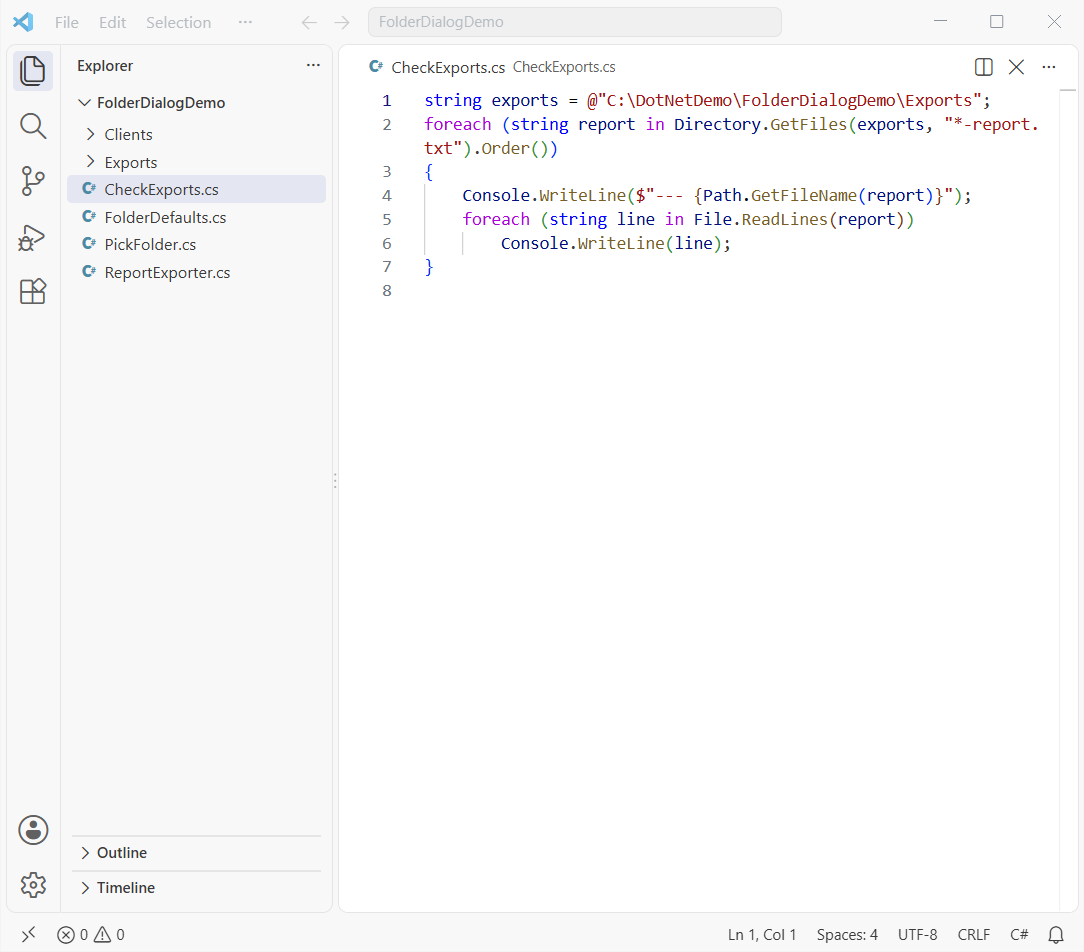
Checkpoint: both reports are in Exports with real file counts. Rerunning overwrites them; to clear old ones first, see how to delete files from a folder in C#.
How Do I Set the Default Folder in a FolderBrowserDialog?
Use InitialDirectory (added in .NET 6) for the folder the dialog opens in. SelectedPath can preselect a folder too, and it’s your only option on older versions.
SelectedPath starts as an empty string, as the defaults run below shows, so read it only after an OK result. If your tool later cleans up, here’s how to delete a folder in C#.
FolderBrowserDialog Properties and Their Defaults
This program creates a dialog without showing it and prints each default value:
#:property TargetFramework=net10.0-windows
#:property UseWindowsForms=true
#:property PublishAot=false

using var dialog = new FolderBrowserDialog();
Console.WriteLine($"SelectedPath:           \"{dialog.SelectedPath}\"");
Console.WriteLine($"InitialDirectory:       \"{dialog.InitialDirectory}\"");
Console.WriteLine($"RootFolder:             {dialog.RootFolder}");
Console.WriteLine($"ShowNewFolderButton:    {dialog.ShowNewFolderButton}");
Console.WriteLine($"Multiselect:            {dialog.Multiselect}");
Console.WriteLine($"AddToRecent:            {dialog.AddToRecent}");
Console.WriteLine($"ShowHiddenFiles:        {dialog.ShowHiddenFiles}");
Console.WriteLine($"ShowPinnedPlaces:       {dialog.ShowPinnedPlaces}");
Output:
SelectedPath:           ""
InitialDirectory:       ""
RootFolder:             Desktop
ShowNewFolderButton:    True
Multiselect:            False
AddToRecent:            True
ShowHiddenFiles:        False
ShowPinnedPlaces:       True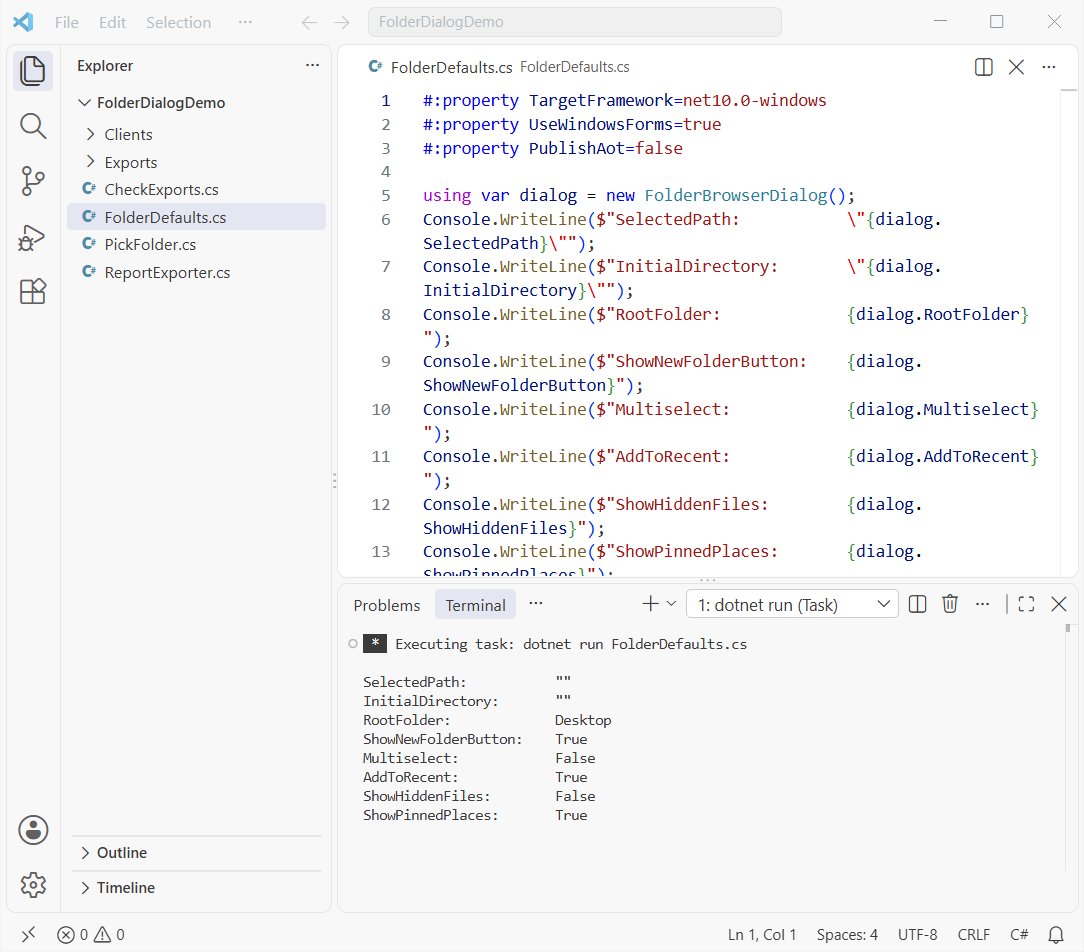
| Property | What it does | Since |
|---|---|---|
UseDescriptionForTitle | Shows Description as the title | .NET Core 3.0 |
InitialDirectory | Folder the dialog opens in | .NET 6 |
AddToRecent, ShowHiddenFiles | Recent list entry, hidden folders | .NET 7 |
OkRequiresInteraction | OK stays disabled until the user navigates | .NET 7 |
ShowPinnedPlaces | Default items in the navigation pane | .NET 7 |
Multiselect, SelectedPaths | Pick several folders | .NET 9 |
I set ShowPinnedPlaces = false so the left pane doesn’t list anyone’s pinned folders. For more window tweaks, see how to hide the minimize, maximize and close buttons.
Which Folder Browser Dialog Setup Should You Use?
One folder: Step 1 plus a TextBox on a form. Several folders: .NET 9 or later with SelectedPaths.
Ready to grow the Report Exporter? These four posts cover the next features I would add:
Frequently Asked Questions
How do I get the selected folder path from a FolderBrowserDialog?
Check that ShowDialog() returned DialogResult.OK, then read SelectedPath.
Can FolderBrowserDialog select multiple folders?
Yes, on .NET 9 and later: set Multiselect = true and loop over SelectedPaths. See the Multiselect property on Microsoft Learn.
How do I change the title of a FolderBrowserDialog?
Set Description to your text and UseDescriptionForTitle = true.
Why does my FolderBrowserDialog still look like the old tree view?
That’s the .NET Framework dialog; .NET Core 3.1 and later show the modern picker. The FolderBrowserDialog class reference lists every property.
Can I use FolderBrowserDialog in WPF or a console app?
Yes, with UseWindowsForms and an STA thread. WPF on .NET 8 and later also has OpenFolderDialog.

Bijay Kumar is a renowned software engineer, accomplished author, and distinguished Microsoft Most Valuable Professional (MVP) specializing in SharePoint. With a rich professional background spanning over 15 years, Bijay has established himself as an authority in the field of information technology. He possesses unparalleled expertise in multiple programming languages and technologies such as ASP.NET, ASP.NET MVC, C#.NET, and SharePoint, which has enabled him to develop innovative and cutting-edge solutions for clients across the globe. Read more…