
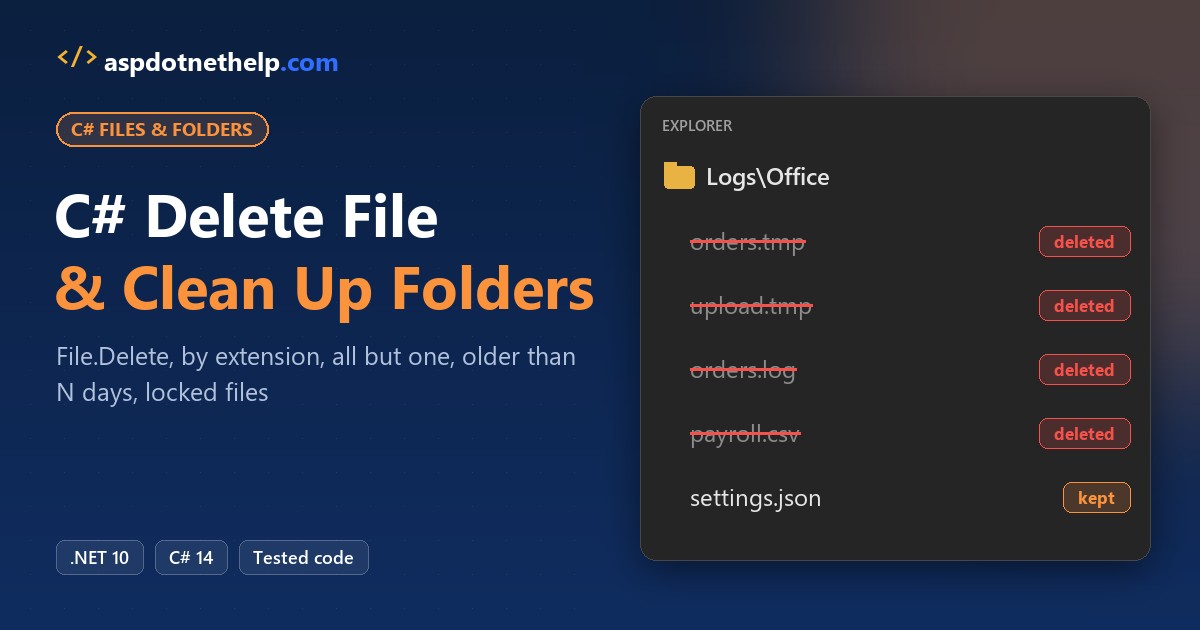
Log files pile up fast, and sooner or later your C# app has to clean them up. To delete a file in C#, call File.Delete(path) from System.IO. It removes the file and quietly does nothing if the file isn’t there.
In this tutorial, I’ll build a small log-cleanup console tool step by step and cover every C# delete file task on the way: one file, all files, by extension, all except one, older than N days, keep the newest N, subfolders, read-only and locked files.
The scenario: a Dallas plumbing shop’s point-of-sale app writes a log every day. Each program recreates its own sample files under C:\DotNetDemo\DeleteFilesDemo\Logs, so you can rerun it safely.
What the Finished C# Log Cleaner Deletes
Here’s the end result. The tool scans Logs\Dallas and its month folders, lists the .log files older than 30 days in a dry run, then deletes them. You’ll see readme.txt and October’s log stay put.
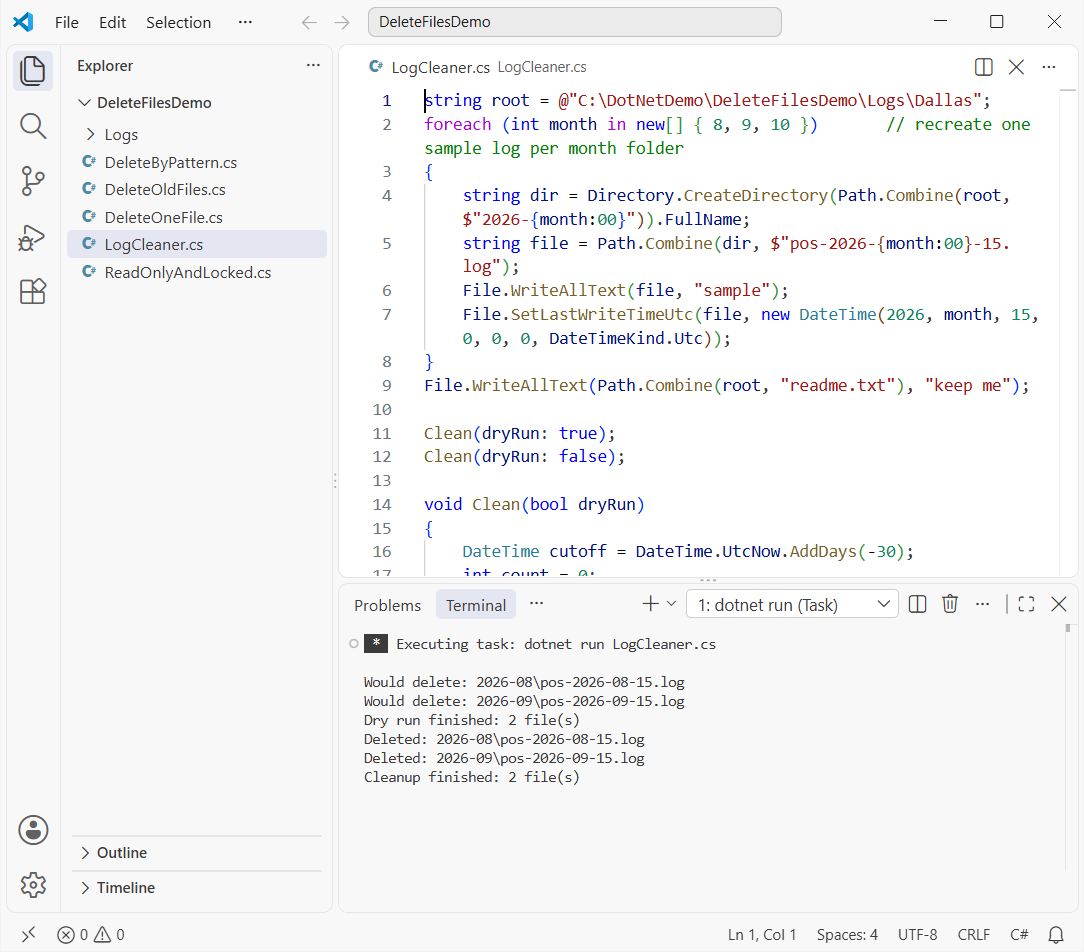
I ran each step as a .NET 10 file-based app with dotnet run File.cs, or you can create a console application in Visual Studio Code.
Step 1: Delete One File in C# with File.Delete and File.Exists
This program writes one sample log, checks it with File.Exists, deletes it, then tries two things that trip people up.
string logs = @"C:\DotNetDemo\DeleteFilesDemo\Logs\Single";
Directory.CreateDirectory(logs);
string path = Path.Combine(logs, "dallas-app-2026-10-01.log");
File.WriteAllText(path, "Sample log line");   // recreate the sample file

Console.WriteLine($"Exists before: {File.Exists(path)}");
File.Delete(path);
Console.WriteLine($"Exists after:  {File.Exists(path)}");

File.Delete(path);   // the file is already gone
Console.WriteLine("Second File.Delete on a missing file: no exception");

try
{
    File.Delete(Path.Combine(logs, "NoSuchFolder", "old.log"));
}
catch (DirectoryNotFoundException ex)
{
    Console.WriteLine($"Missing folder: {ex.GetType().Name}");
}
Output:
Exists before: True
Exists after:  False
Second File.Delete on a missing file: no exception
Missing folder: DirectoryNotFoundException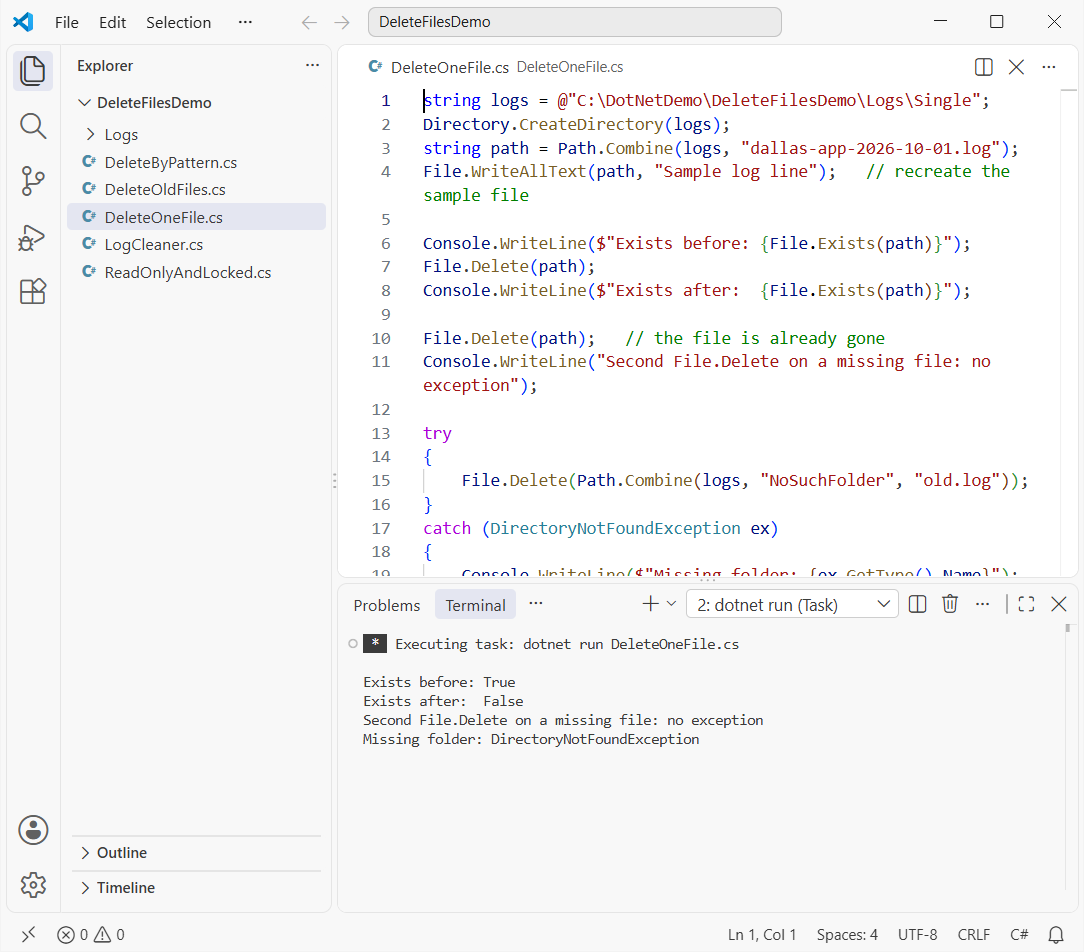
Checkpoint: the second File.Delete didn’t throw. Microsoft Learn confirms it: a missing file raises no exception, so your File.Exists check is optional.
A missing folder is different. That call threw DirectoryNotFoundException, which is why I call Directory.CreateDirectory first, the same trick from my post on how to create a folder if it does not exist in C#.
Step 2: Delete Files by Extension and Delete All Files Except One
Directory.EnumerateFiles(path, "*.tmp") returns only matching paths, while a plain EnumerateFiles(path) returns every file.
string logs = @"C:\DotNetDemo\DeleteFilesDemo\Logs\Office";
Directory.CreateDirectory(logs);
string[] samples = { "orders.log", "orders.tmp", "upload.tmp", "payroll.csv", "settings.json" };
foreach (string name in samples)
    File.WriteAllText(Path.Combine(logs, name), "sample");   // recreate sample files

// 1. Delete files with one extension
foreach (string file in Directory.EnumerateFiles(logs, "*.tmp"))
{
    File.Delete(file);
    Console.WriteLine($"*.tmp     -> deleted {Path.GetFileName(file)}");
}

// 2. Delete all files except one
string keep = "settings.json";
foreach (string file in Directory.EnumerateFiles(logs))
{
    if (Path.GetFileName(file).Equals(keep, StringComparison.OrdinalIgnoreCase)) continue;
    File.Delete(file);
    Console.WriteLine($"all but 1 -> deleted {Path.GetFileName(file)}");
}

Console.WriteLine("Left in folder: " + string.Join(", ", Directory.EnumerateFiles(logs).Select(Path.GetFileName)));
Output:
*.tmp     -> deleted orders.tmp
*.tmp     -> deleted upload.tmp
all but 1 -> deleted orders.log
all but 1 -> deleted payroll.csv
Left in folder: settings.json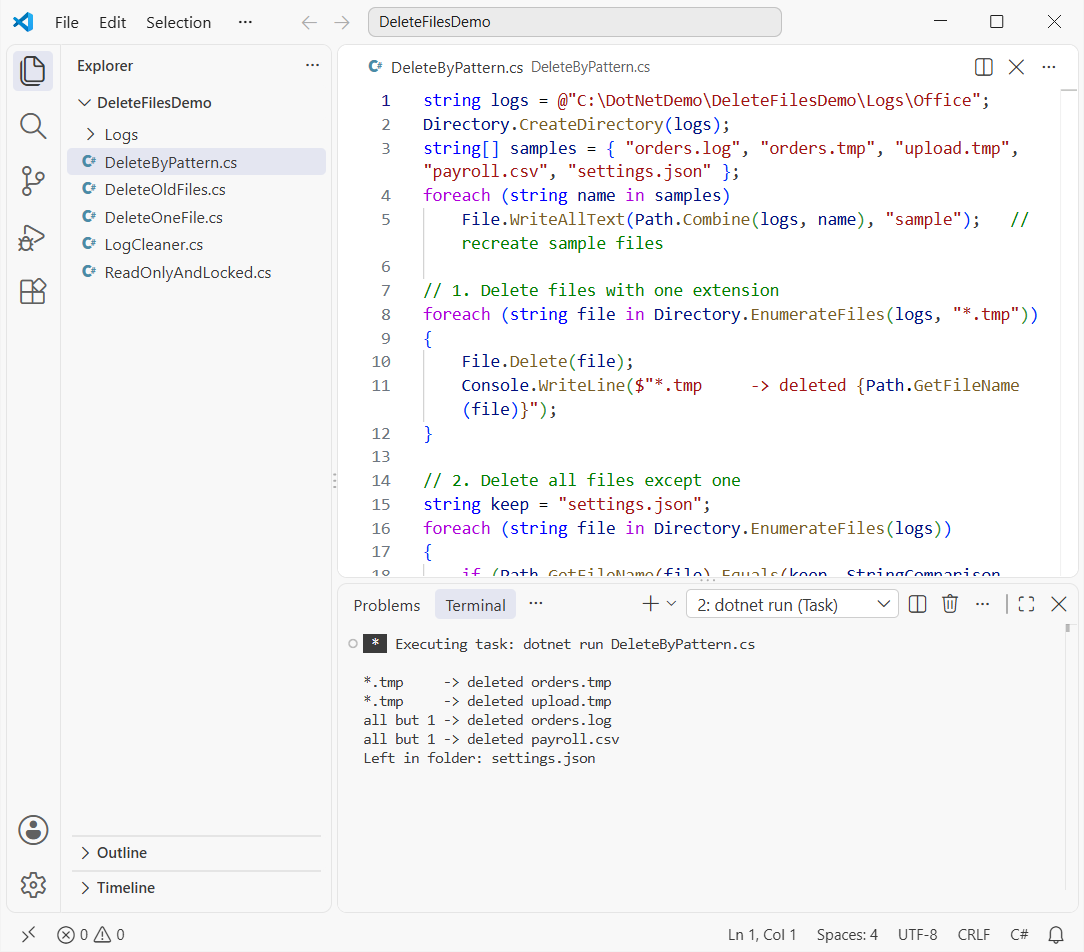
Checkpoint: only settings.json is left. Remove the if line in the second foreach loop and it deletes all files in the folder.
File.Delete itself doesn’t accept wildcards, so you always enumerate first. On .NET 10, *.xls won’t match .xlsx; that quirk is .NET Framework only.
Step 3: Delete Files Older Than 7 Days and Keep the Newest N
Daily logs need a retention rule. Here I use DirectoryInfo and FileInfo, so each file carries its own LastWriteTimeUtc.
var logs = new DirectoryInfo(@"C:\DotNetDemo\DeleteFilesDemo\Logs\Daily");
logs.Create();
for (int day = 1; day <= 8; day++)              // sample logs 2, 4, 6 ... 16 days old
{
    DateTime stamp = DateTime.UtcNow.AddDays(-2 * day);
    string path = Path.Combine(logs.FullName, $"app-{stamp:yyyy-MM-dd}.log");
    File.WriteAllText(path, "sample");
    File.SetLastWriteTimeUtc(path, stamp);
}

// 1. Delete files older than 7 days
DateTime cutoff = DateTime.UtcNow.AddDays(-7);
foreach (FileInfo file in logs.EnumerateFiles("*.log").Where(f => f.LastWriteTimeUtc < cutoff))
{
    Console.WriteLine($"Older than 7 days: {file.Name}");
    file.Delete();
}

// 2. Keep the newest 2, delete the oldest
foreach (FileInfo file in logs.EnumerateFiles("*.log").OrderByDescending(f => f.LastWriteTimeUtc).Skip(2))
{
    Console.WriteLine($"Beyond newest 2:   {file.Name}");
    file.Delete();
}
Console.WriteLine("Kept: " + string.Join(", ", logs.EnumerateFiles().Select(f => f.Name)));
Output:
Older than 7 days: app-2026-10-09.log
Older than 7 days: app-2026-10-11.log
Older than 7 days: app-2026-10-13.log
Older than 7 days: app-2026-10-15.log
Older than 7 days: app-2026-10-17.log
Beyond newest 2:   app-2026-10-19.log
Kept: app-2026-10-21.log, app-2026-10-23.log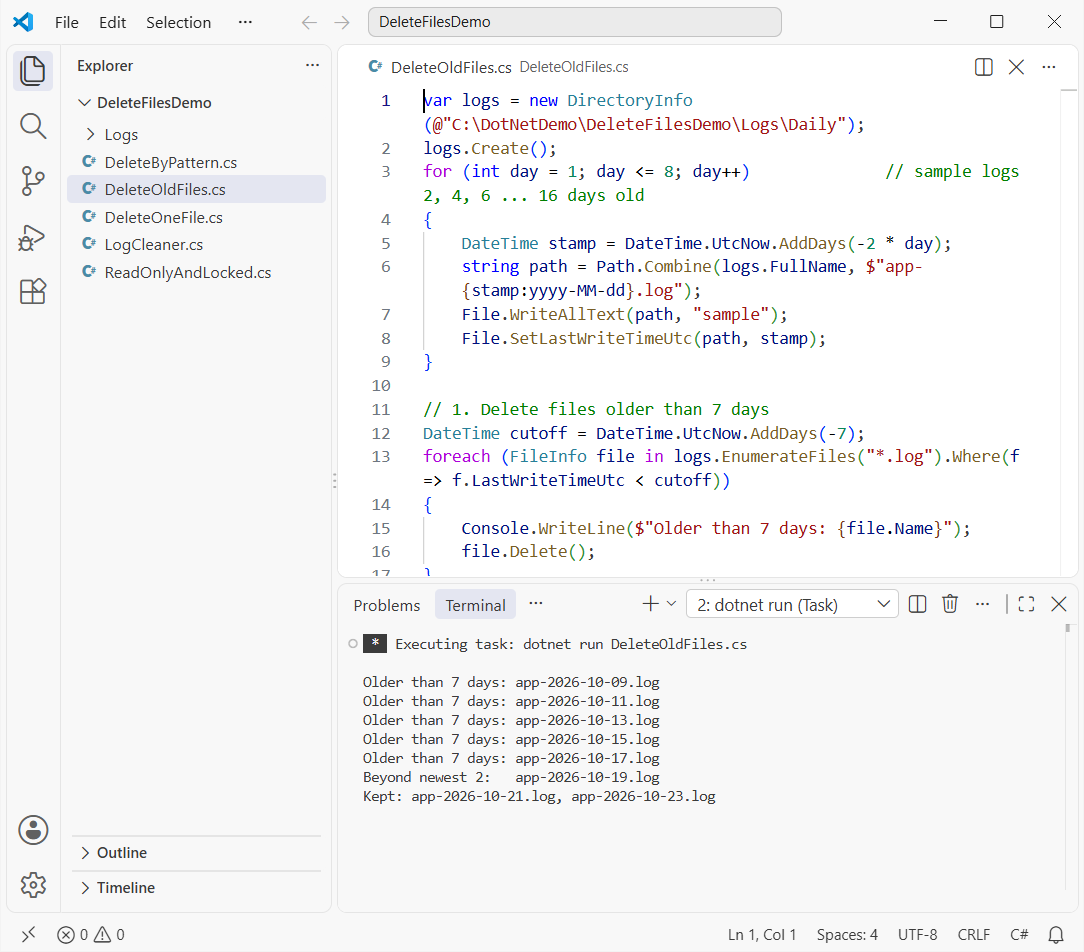
Checkpoint: five logs failed the 7-day test, and the 6-day-old one went in the keep-newest pass. Comparing UTC to UTC means daylight saving can’t shift the cutoff.
OrderByDescending(...).Skip(2) sorts newest first and skips the two you keep. If ordering is new to you, see how to sort an array in C#.
Why Can’t C# Delete a Read-Only or Locked File?
A read-only file throws UnauthorizedAccessException, and a file another process holds open throws IOException. Here’s both, plus the fix.
string logs = @"C:\DotNetDemo\DeleteFilesDemo\Logs\Locked";
Directory.CreateDirectory(logs);
string readOnly = Path.Combine(logs, "archive-2026-09.log");
string inUse = Path.Combine(logs, "today.log");
foreach (string f in new[] { readOnly, inUse })
{
    if (File.Exists(f)) File.SetAttributes(f, FileAttributes.Normal);
    File.WriteAllText(f, "sample");
}
File.SetAttributes(readOnly, File.GetAttributes(readOnly) | FileAttributes.ReadOnly);

try { File.Delete(readOnly); }
catch (UnauthorizedAccessException ex) { Console.WriteLine($"Read-only: {ex.GetType().Name}"); }

File.SetAttributes(readOnly, FileAttributes.Normal);
File.Delete(readOnly);
Console.WriteLine($"Read-only deleted after clearing the flag: {!File.Exists(readOnly)}");

using (var stream = new FileStream(inUse, FileMode.Open, FileAccess.Read, FileShare.None))
{
    try { File.Delete(inUse); }
    catch (IOException ex) { Console.WriteLine($"Locked: {ex.Message}"); }
}
File.Delete(inUse);   // the using block closed the handle
Console.WriteLine($"Locked file deleted after the handle closed: {!File.Exists(inUse)}");
Output:
Read-only: UnauthorizedAccessException
Read-only deleted after clearing the flag: True
Locked: The process cannot access the file 'C:\DotNetDemo\DeleteFilesDemo\Logs\Locked\today.log' because it is being used by another process.
Locked file deleted after the handle closed: True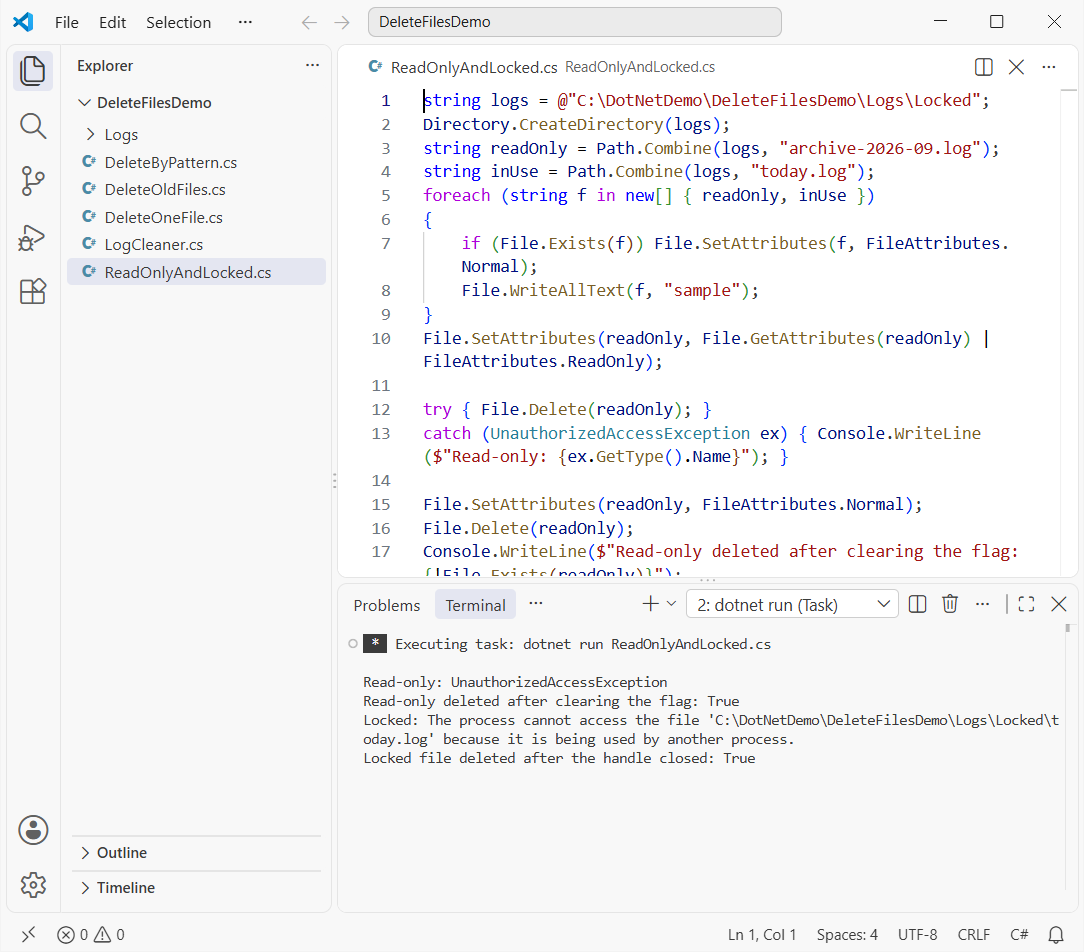
Checkpoint: clearing the flag with File.SetAttributes(path, FileAttributes.Normal) made the delete work. FileAttributes is a flags enum, which I explain in my post on enums in C#.
The locked file was deletable as soon as the using block closed the stream. In your own code, always dispose streams, as covered in Dispose and Finalize in C#.
Step 4: Delete Files Recursively with a Dry Run First
Here’s the final tool from the first screenshot. SearchOption.AllDirectories walks every subfolder, and a dryRun flag prints what would go before anything is deleted.
string root = @"C:\DotNetDemo\DeleteFilesDemo\Logs\Dallas";
foreach (int month in new[] { 8, 9, 10 })       // recreate one sample log per month folder
{
    string dir = Directory.CreateDirectory(Path.Combine(root, $"2026-{month:00}")).FullName;
    string file = Path.Combine(dir, $"pos-2026-{month:00}-15.log");
    File.WriteAllText(file, "sample");
    File.SetLastWriteTimeUtc(file, new DateTime(2026, month, 15, 0, 0, 0, DateTimeKind.Utc));
}
File.WriteAllText(Path.Combine(root, "readme.txt"), "keep me");

Clean(dryRun: true);
Clean(dryRun: false);

void Clean(bool dryRun)
{
    DateTime cutoff = DateTime.UtcNow.AddDays(-30);
    int count = 0;
    foreach (string file in Directory.EnumerateFiles(root, "*.log", SearchOption.AllDirectories))
    {
        if (File.GetLastWriteTimeUtc(file) >= cutoff) continue;
        try
        {
            if (!dryRun) File.Delete(file);
            count++;
            Console.WriteLine($"{(dryRun ? "Would delete" : "Deleted")}: {Path.GetRelativePath(root, file)}");
        }
        catch (Exception ex) when (ex is IOException or UnauthorizedAccessException)
        {
            Console.WriteLine($"Skipped {Path.GetFileName(file)}: {ex.Message}");
        }
    }
    Console.WriteLine($"{(dryRun ? "Dry run" : "Cleanup")} finished: {count} file(s)");
}
Output:
Would delete: 2026-08\pos-2026-08-15.log
Would delete: 2026-09\pos-2026-09-15.log
Dry run finished: 2 file(s)
Deleted: 2026-08\pos-2026-08-15.log
Deleted: 2026-09\pos-2026-09-15.log
Cleanup finished: 2 file(s)
Checkpoint: the dry run and the cleanup list the same two files. The catch filter skips locked or read-only files instead of stopping the job; my try-catch guide for C# explains exception filters.
The empty 2026-08 and 2026-09 folders stay behind, because File.Delete never removes folders. Use Directory.Delete for that, as shown in my post on how to delete a folder in C#.
Which C# Delete File Method Should You Pick?
| Task | Use this |
|---|---|
| Delete one file | File.Delete(path) |
| Delete by extension | Directory.EnumerateFiles(dir, "*.tmp") + File.Delete |
| Older than N days | FileInfo.LastWriteTimeUtc < DateTime.UtcNow.AddDays(-n) |
| Keep the newest N | OrderByDescending(f => f.LastWriteTimeUtc).Skip(n) |
| Read-only file | Clear FileAttributes.ReadOnly first |
My rule: run every bulk delete as a dry run first, and point it only at a folder your app owns. Deleted files don’t go to the Recycle Bin.
Want to keep building on this tool? These posts pair well with it:
Frequently Asked Questions
Does File.Delete throw an exception if the file doesn’t exist?
No, a missing file is fine. It does throw DirectoryNotFoundException when the folder in the path doesn’t exist. See the File.Delete documentation on Microsoft Learn.
How do I delete all files in a folder in C#?
Loop over Directory.EnumerateFiles(folder) and call File.Delete on each path. Add SearchOption.AllDirectories to include subfolders.
Can File.Delete use wildcards like *.txt?
No, the path can’t contain wildcards. Pass the pattern to Directory.EnumerateFiles(folder, "*.txt") and delete each result. The EnumerateFiles reference lists the pattern rules.
How do I delete files older than 30 days in C#?
Delete each file whose LastWriteTimeUtc is earlier than DateTime.UtcNow.AddDays(-30). Use CreationTimeUtc to go by creation date.
What’s the difference between File.Delete and FileInfo.Delete?
They do the same job. File.Delete takes a path; FileInfo.Delete works on a FileInfo you already have, which is handy when you filter by date or size.

Bijay Kumar is a renowned software engineer, accomplished author, and distinguished Microsoft Most Valuable Professional (MVP) specializing in SharePoint. With a rich professional background spanning over 15 years, Bijay has established himself as an authority in the field of information technology. He possesses unparalleled expertise in multiple programming languages and technologies such as ASP.NET, ASP.NET MVC, C#.NET, and SharePoint, which has enabled him to develop innovative and cutting-edge solutions for clients across the globe. Read more…