
Picture the sign-up page for a Thanksgiving 5K in Austin. Most bad entries last year were blank emails, typos like “jenna.morales@” and kids under the 14+ age limit.
Blazor form validation stops all three before your code runs: an EditForm, data annotation attributes on the model and a DataAnnotationsValidator. We’ll build that form on .NET 10, first as a static SSR form, then as an interactive one.
Here’s what we’re building:
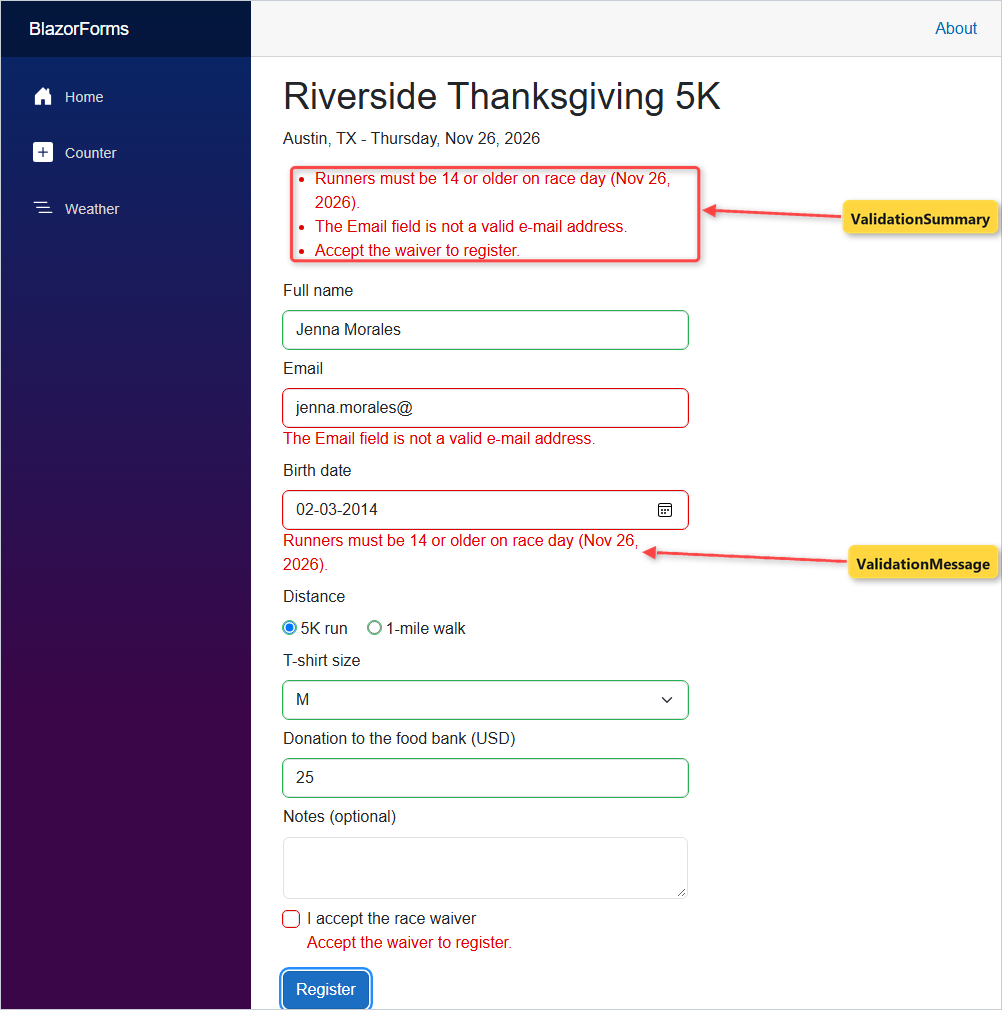
EditFormwith seven built-in input components bound to aRegistrationmodelValidationSummaryat the top,ValidationMessageunder each field- A custom
[MinimumAgeOnRaceDay(14)]attribute for the age rule
Before You Start Building the Blazor Form
You need the .NET 10 SDK (I used 10.0.402) and an editor; I use VS Code. If you’re not sure what’s installed, check your .NET version first.
New to Blazor? Start with my Blazor tutorial for beginners, which covers pages and routing.
The form collects one registration. These are the fields and the rule each one gets:
| Field | C# type | Input component | Rule |
|---|---|---|---|
| FullName | string? | InputText | Required, 2-40 characters |
string? | InputText | Required, valid email | |
| BirthDate | DateOnly? | InputDate | Required, 14+ on Nov 26, 2026 (custom) |
| Distance | string? | InputRadioGroup | Required: 5K run or 1-mile walk |
| ShirtSize | string? | InputSelect | Required: S, M, L or XL |
| Donation | decimal | InputNumber | $0 to $500 |
| AcceptWaiver | bool | InputCheckbox | Must be checked |
| Notes | string? | InputTextArea | Optional, 200 characters max |
If you want to follow along with the same data, my test runner is Jenna Morales, born May 14, 1991, running the 5K in a size M with a $25 donation.
How Does Blazor Form Validation Work?
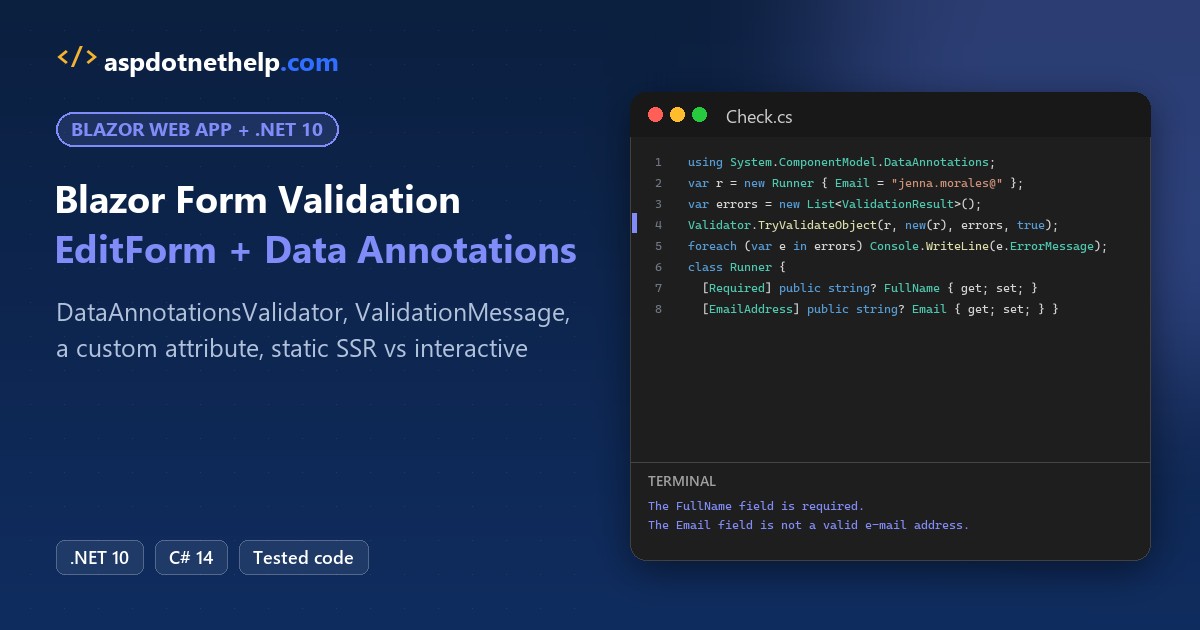
DataAnnotationsValidator hands your model to the same System.ComponentModel.DataAnnotations engine that ASP.NET Core uses everywhere. You can watch that engine work in a plain console app, no Blazor involved:
#:property PublishAot=false
using System.ComponentModel.DataAnnotations;
var r = new Runner { Email = "jenna.morales@" };
var errors = new List<ValidationResult>();
Validator.TryValidateObject(r, new(r), errors, true);
foreach (var e in errors) Console.WriteLine(e.ErrorMessage);
class Runner {
  [Required] public string? FullName { get; set; }
  [EmailAddress] public string? Email { get; set; } }
The #:property PublishAot=false line is there because .NET 10 file-based apps publish with native AOT by default, and the reflection-based Validator prints trimming warnings otherwise. Run it with dotnet run Check.cs:
Output:
The FullName field is required.
The Email field is not a valid e-mail address.
Blazor adds the UI part. The form tracks field state in an EditContext, puts each message next to its field and adds valid, invalid and modified CSS classes to the inputs.
Step 1: Create a Blazor Web App in .NET 10
Create the app from the Blazor Web App template:
dotnet new blazor -o BlazorForms
cd BlazorForms
I deleted the two appsettings files (this demo doesn’t need them) and cut Properties/launchSettings.json down to one http profile on port 5835:
{
  "$schema": "https://json.schemastore.org/launchsettings.json",
  "profiles": {
    "http": {
      "commandName": "Project",
      "dotnetRunMessages": true,
      "launchBrowser": false,
      "applicationUrl": "http://localhost:5835",
      "environmentVariables": {
        "ASPNETCORE_ENVIRONMENT": "Development"
      }
    }
  }
}
The project file and Program.cs are what the template wrote for .NET 10. AddRazorComponents() also registers the antiforgery services that form posts need, and UseAntiforgery() checks the token:
<Project Sdk="Microsoft.NET.Sdk.Web">

  <PropertyGroup>
    <TargetFramework>net10.0</TargetFramework>
    <Nullable>enable</Nullable>
    <ImplicitUsings>enable</ImplicitUsings>
    <BlazorDisableThrowNavigationException>true</BlazorDisableThrowNavigationException>
  </PropertyGroup>

</Project>
using BlazorForms.Components;
var builder = WebApplication.CreateBuilder(args);
// Add services to the container.
builder.Services.AddRazorComponents()
.AddInteractiveServerComponents();
var app = builder.Build();
// Configure the HTTP request pipeline.
if (!app.Environment.IsDevelopment())
{
app.UseExceptionHandler("/Error", createScopeForErrors: true);
// The default HSTS value is 30 days. You may want to change this for production scenarios, see https://aka.ms/aspnetcore-hsts.
app.UseHsts();
}
app.UseStatusCodePagesWithReExecute("/not-found", createScopeForStatusCodePages: true);
app.UseHttpsRedirection();
app.UseAntiforgery();
app.MapStaticAssets();
app.MapRazorComponents<App>()
.AddInteractiveServerRenderMode();
app.Run();Checkpoint: dotnet run prints Now listening on: http://localhost:5835.
Step 2: Add Data Annotations to the Form Model
The rules live on the model, not in the page. Create Models/Registration.cs:
using System.ComponentModel.DataAnnotations;

namespace BlazorForms.Models;

public class Registration
{
    [Required(ErrorMessage = "Enter your full name.")]
    [StringLength(40, MinimumLength = 2, ErrorMessage = "Name must be 2-40 characters.")]
    public string? FullName { get; set; }

    [Required, EmailAddress]
    public string? Email { get; set; }

    [Required(ErrorMessage = "Enter your birth date.")]
    public DateOnly? BirthDate { get; set; }

    [Required(ErrorMessage = "Pick a distance.")]
    public string? Distance { get; set; }

    [Required(ErrorMessage = "Pick a T-shirt size.")]
    public string? ShirtSize { get; set; }

    [Range(0, 500, ErrorMessage = "Donation must be $0 to $500.")]
    public decimal Donation { get; set; }

    [Range(typeof(bool), "true", "true", ErrorMessage = "Accept the waiver to register.")]
    public bool AcceptWaiver { get; set; }

    [StringLength(200)]
    public string? Notes { get; set; }
}
The properties are nullable (nullable reference types are on in the template), so an empty field stays null and [Required] can catch it.
DateOnly? works with InputDate out of the box. The waiver uses [Range(typeof(bool), "true", "true")], because [Required] on a bool always passes.
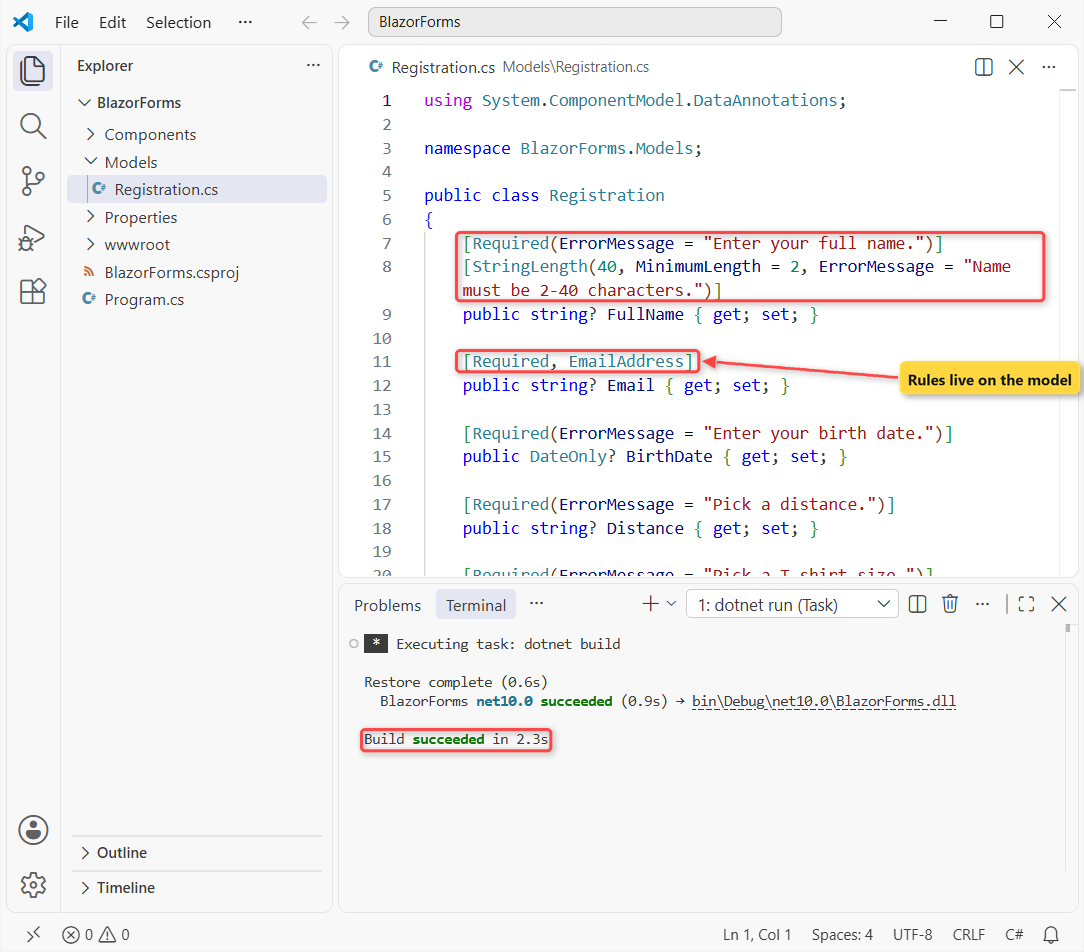
Checkpoint: dotnet build reports 0 warnings and 0 errors.
Step 3: Build the EditForm with Blazor Input Components
Now the page, Components/Pages/Register.razor. There’s no @rendermode, so it’s a static SSR page: the browser posts the form and the server renders the answer.
@page "/register"
@using System.Globalization
@using BlazorForms.Models

<PageTitle>Register</PageTitle>

<h1>Riverside Thanksgiving 5K</h1>
<p>Austin, TX - Thursday, Nov 26, 2026</p>

@if (saved is not null)
{
    <div class="alert alert-success">@saved</div>
}

<div class="col-md-7">
<EditForm Model="Model" OnValidSubmit="Submit" FormName="register">
    <div class="mb-2">
        <label for="name" class="form-label">Full name</label>
        <InputText id="name" @bind-Value="Model!.FullName" class="form-control" />
    </div>
    <div class="mb-2">
        <label for="email" class="form-label">Email</label>
        <InputText id="email" @bind-Value="Model!.Email" class="form-control" />
    </div>
    <div class="mb-2">
        <label for="birth" class="form-label">Birth date</label>
        <InputDate id="birth" @bind-Value="Model!.BirthDate" DisplayName="Birth date" class="form-control" />
    </div>
    <div class="mb-2">
        <span class="form-label d-block">Distance</span>
        <InputRadioGroup @bind-Value="Model!.Distance">
            <label class="me-3"><InputRadio id="d5k" Value="@("5K run")" /> 5K run</label>
            <label><InputRadio id="d1m" Value="@("1-mile walk")" /> 1-mile walk</label>
        </InputRadioGroup>
    </div>
    <div class="mb-2">
        <label for="shirt" class="form-label">T-shirt size</label>
        <InputSelect id="shirt" @bind-Value="Model!.ShirtSize" class="form-select">
            <option value="">Choose a size</option>
            <option value="S" selected="@(Model!.ShirtSize == "S")">S</option>
            <option value="M" selected="@(Model!.ShirtSize == "M")">M</option>
            <option value="L" selected="@(Model!.ShirtSize == "L")">L</option>
            <option value="XL" selected="@(Model!.ShirtSize == "XL")">XL</option>
        </InputSelect>
    </div>
    <div class="mb-2">
        <label for="donation" class="form-label">Donation to the food bank (USD)</label>
        <InputNumber id="donation" @bind-Value="Model!.Donation" DisplayName="Donation" class="form-control" />
    </div>
    <div class="mb-2">
        <label for="notes" class="form-label">Notes (optional)</label>
        <InputTextArea id="notes" @bind-Value="Model!.Notes" rows="2" class="form-control" />
    </div>
    <div class="form-check mb-3">
        <InputCheckbox id="waiver" @bind-Value="Model!.AcceptWaiver" class="form-check-input" />
        <label for="waiver" class="form-check-label">I accept the race waiver</label>
    </div>
    <button type="submit" class="btn btn-primary">Register</button>
</EditForm>
</div>

@code {
    private static readonly CultureInfo Us = new("en-US");
    private string? saved;

    [SupplyParameterFromForm]
    private Registration? Model { get; set; }

    protected override void OnInitialized() => Model ??= new();

    private void Submit() =>
        saved = $"Registered {Model!.FullName} for the {Model.Distance}, size {Model.ShirtSize}, " +
                $"donation {Model.Donation.ToString("C", Us)}.";
}
Three lines make a static form work:
FormName="register"names the form. Microsoft Learn says to always set a unique one.[SupplyParameterFromForm]fillsModelfrom the posted fields.Model ??= new()creates an empty model on the first GET and keeps the posted one on a POST.
The selected="@(...)" on each option isn’t decoration. Without it, a static form forgets the chosen size when it re-renders (more in Troubleshooting).
Submit formats the donation with an en-US culture, so it prints dollars on any PC (see formatting numbers in C#).
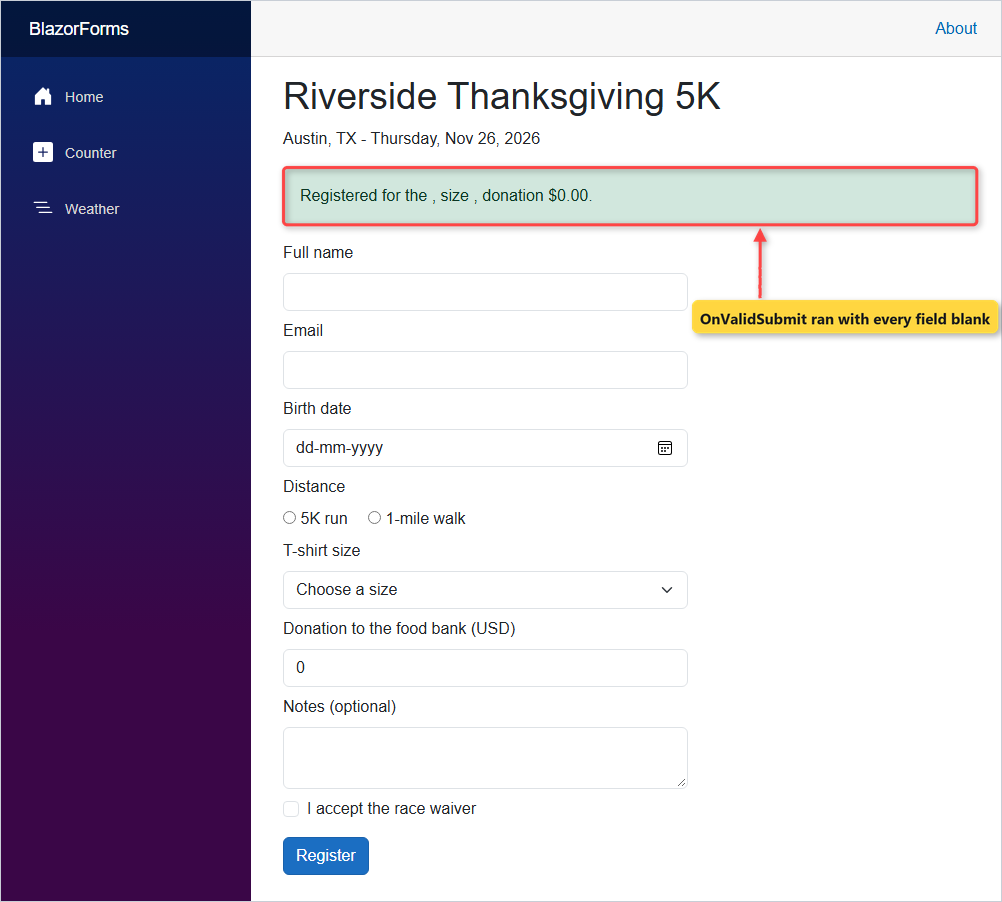
I clicked Register with every field empty. The page answered “Registered for the , size , donation $0.00.” because nothing checks the attributes yet.
Checkpoint: curl of /register returned 200, with <form method="post" action="/register"> and 1 hidden antiforgery token field that EditForm added on its own.
Step 4: Add DataAnnotationsValidator, ValidationSummary and ValidationMessage
Add the two components right inside the EditForm, and a ValidationMessage under each input:
<EditForm Model="Model" OnValidSubmit="Submit" FormName="register">
    <DataAnnotationsValidator />
    <ValidationSummary />

    <div class="mb-2">
        <label for="name" class="form-label">Full name</label>
        <InputText id="name" @bind-Value="Model!.FullName" class="form-control" />
        <ValidationMessage For="() => Model!.FullName" />
    </div>
    ...
</EditForm>
DataAnnotationsValidator turns the attributes on. ValidationSummary lists every message, and ValidationMessage shows only the messages of the field in its For expression.
The same blank submit now stops. OnValidSubmit doesn’t run, and the server sends back 6 messages:
Enter your full name.
The Email field is required.
Enter your birth date.
Pick a distance.
Pick a T-shirt size.
Accept the waiver to register.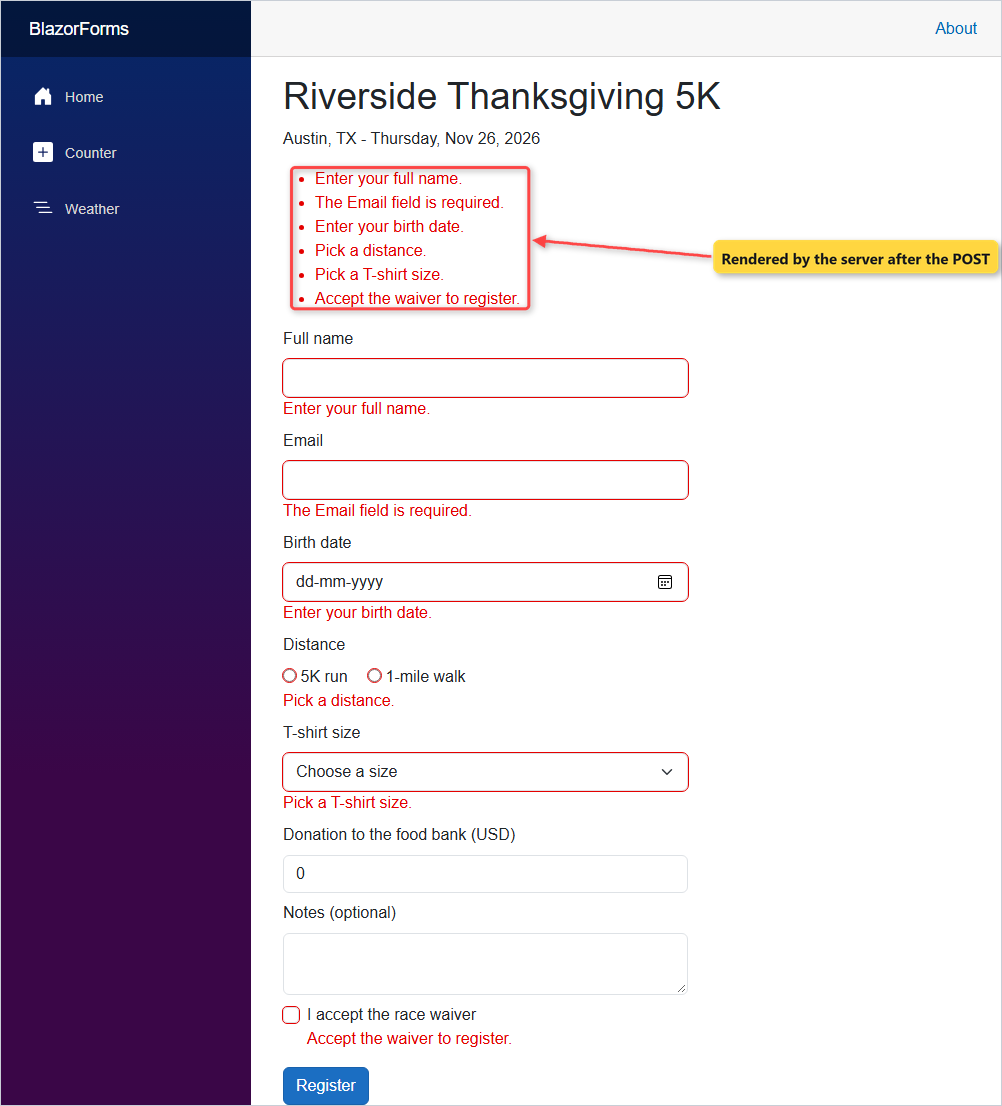
Donation isn’t on the list: a blank decimal posts as 0, which is inside [Range(0, 500)]. Notes has no [Required], so blank is fine.
Checkpoint: 6 messages in the summary and the same 6 under the fields.
Step 5: Write a Custom Validation Attribute
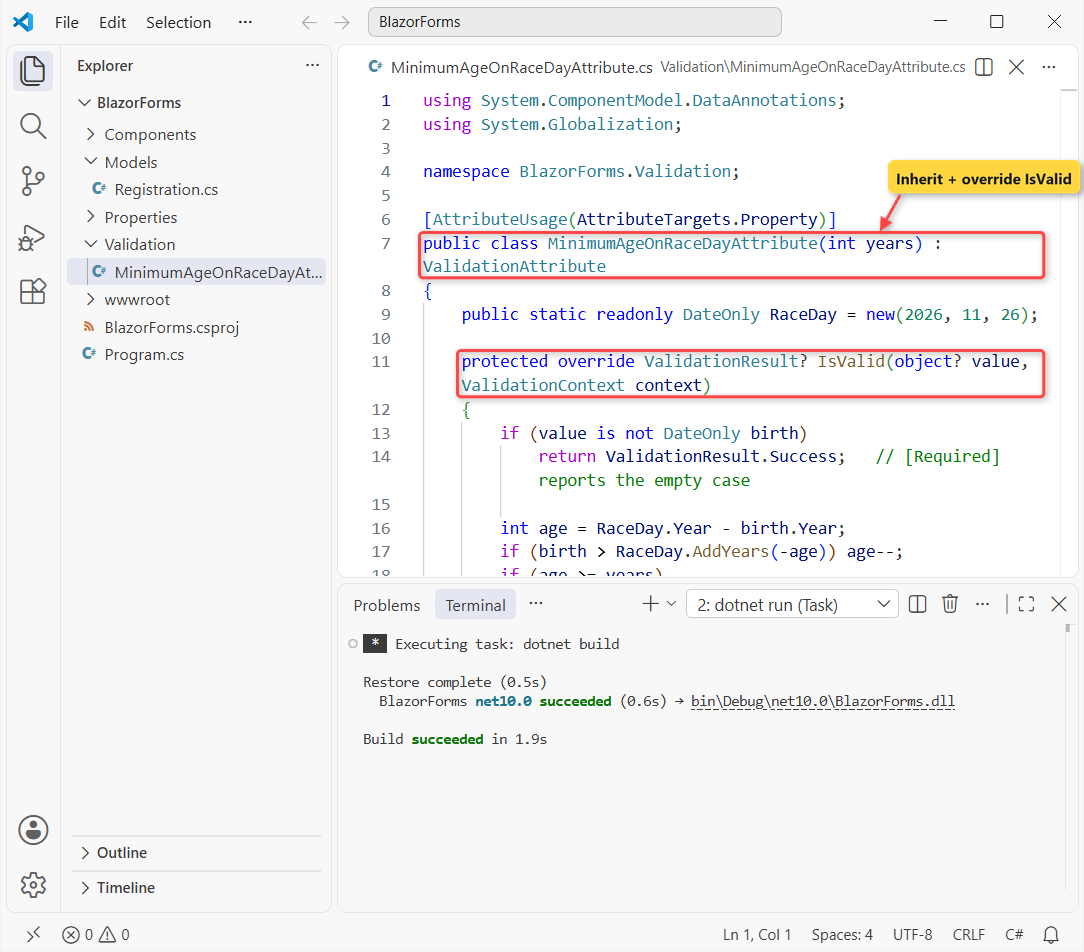
No built-in attribute knows the race rule: 14 or older on race day, not today. A custom attribute is a class that inherits ValidationAttribute and overrides IsValid. Create Validation/MinimumAgeOnRaceDayAttribute.cs:
using System.ComponentModel.DataAnnotations;
using System.Globalization;

namespace BlazorForms.Validation;

[AttributeUsage(AttributeTargets.Property)]
public class MinimumAgeOnRaceDayAttribute(int years) : ValidationAttribute
{
    public static readonly DateOnly RaceDay = new(2026, 11, 26);

    protected override ValidationResult? IsValid(object? value, ValidationContext context)
    {
        if (value is not DateOnly birth)
            return ValidationResult.Success;   // [Required] reports the empty case

        int age = RaceDay.Year - birth.Year;
        if (birth > RaceDay.AddYears(-age)) age--;
        if (age >= years)
            return ValidationResult.Success;

        string day = RaceDay.ToString("MMM d, yyyy", CultureInfo.InvariantCulture);
        return new ValidationResult($"Runners must be {years} or older on race day ({day}).",
            [context.MemberName!]);
    }
}
Two details you shouldn’t skip. It returns Success for an empty value and lets [Required] report that. And it passes [context.MemberName!] as the member names, so Blazor can put the message under the right field.
Then put it on BirthDate. Here’s the final Models/Registration.cs:
using System.ComponentModel.DataAnnotations;
using BlazorForms.Validation;

namespace BlazorForms.Models;

public class Registration
{
    [Required(ErrorMessage = "Enter your full name.")]
    [StringLength(40, MinimumLength = 2, ErrorMessage = "Name must be 2-40 characters.")]
    public string? FullName { get; set; }

    [Required, EmailAddress]
    public string? Email { get; set; }

    [Required(ErrorMessage = "Enter your birth date.")]
    [MinimumAgeOnRaceDay(14)]
    public DateOnly? BirthDate { get; set; }

    [Required(ErrorMessage = "Pick a distance.")]
    public string? Distance { get; set; }

    [Required(ErrorMessage = "Pick a T-shirt size.")]
    public string? ShirtSize { get; set; }

    [Range(0, 500, ErrorMessage = "Donation must be $0 to $500.")]
    public decimal Donation { get; set; }

    [Range(typeof(bool), "true", "true", ErrorMessage = "Accept the waiver to register.")]
    public bool AcceptWaiver { get; set; }

    [StringLength(200)]
    public string? Notes { get; set; }
}
I filled in Jenna’s details with a birth date of March 2, 2014. Everything else was valid, so the only message was: “Runners must be 14 or older on race day (Nov 26, 2026).”
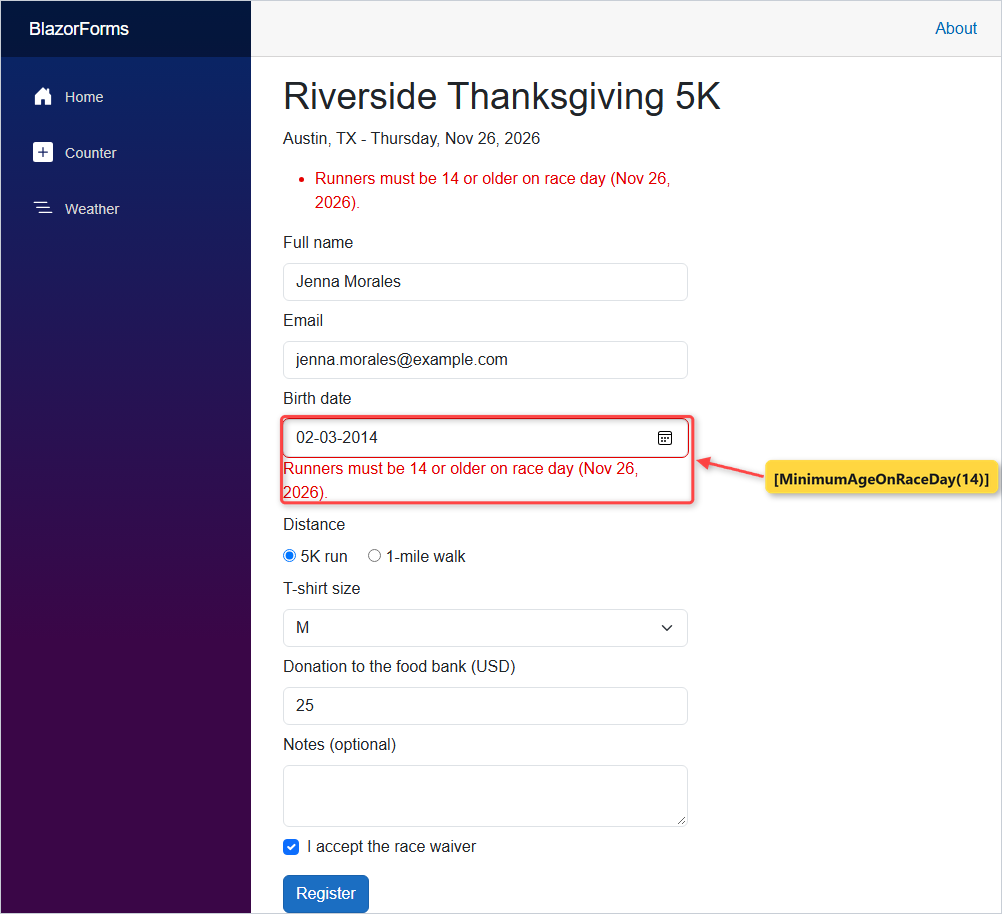
Note: the browser draws the date box in the PC’s regional date format, so yours may show 03/02/2014. Blazor still binds a DateOnly, and the browser posts it as yyyy-MM-dd.
Checkpoint: a birth date of Nov 26, 2012 (exactly 14 on race day) passed and showed “Registered Jenna Morales for the 5K run, size M, donation $25.00.”
Step 6: Switch the Blazor Form to Interactive Server Rendering
A static form only validates when it’s posted. With an interactive render mode, Blazor checks each field as soon as it changes. My Blazor render modes guide explains the modes; here we just add @rendermode InteractiveServer.
I kept the static page and added a second one, Components/Pages/RegisterLive.razor, so you can compare them:
@page "/register-live"
@rendermode InteractiveServer
@using System.Globalization
@using BlazorForms.Models

<PageTitle>Register (live)</PageTitle>

<h1>Riverside Thanksgiving 5K</h1>
<p>Austin, TX - Thursday, Nov 26, 2026</p>

@if (saved is not null)
{
    <div class="alert alert-success">@saved</div>
}

<div class="col-md-7">
<EditForm Model="Model" OnValidSubmit="Submit">
    <DataAnnotationsValidator />
    <ValidationSummary />

    <div class="mb-2">
        <label for="name" class="form-label">Full name</label>
        <InputText id="name" @bind-Value="Model.FullName" class="form-control" />
        <ValidationMessage For="() => Model.FullName" />
    </div>
    <div class="mb-2">
        <label for="email" class="form-label">Email</label>
        <InputText id="email" @bind-Value="Model.Email" class="form-control" />
        <ValidationMessage For="() => Model.Email" />
    </div>
    <div class="mb-2">
        <label for="birth" class="form-label">Birth date</label>
        <InputDate id="birth" @bind-Value="Model.BirthDate" DisplayName="Birth date" class="form-control" />
        <ValidationMessage For="() => Model.BirthDate" />
    </div>
    <div class="mb-2">
        <span class="form-label d-block">Distance</span>
        <InputRadioGroup @bind-Value="Model.Distance">
            <label class="me-3"><InputRadio id="d5k" Value="@("5K run")" /> 5K run</label>
            <label><InputRadio id="d1m" Value="@("1-mile walk")" /> 1-mile walk</label>
        </InputRadioGroup>
        <ValidationMessage For="() => Model.Distance" />
    </div>
    <div class="mb-2">
        <label for="shirt" class="form-label">T-shirt size</label>
        <InputSelect id="shirt" @bind-Value="Model.ShirtSize" class="form-select">
            <option value="">Choose a size</option>
            <option value="S">S</option>
            <option value="M">M</option>
            <option value="L">L</option>
            <option value="XL">XL</option>
        </InputSelect>
        <ValidationMessage For="() => Model.ShirtSize" />
    </div>
    <div class="mb-2">
        <label for="donation" class="form-label">Donation to the food bank (USD)</label>
        <InputNumber id="donation" @bind-Value="Model.Donation" DisplayName="Donation" class="form-control" />
        <ValidationMessage For="() => Model.Donation" />
    </div>
    <div class="mb-2">
        <label for="notes" class="form-label">Notes (optional)</label>
        <InputTextArea id="notes" @bind-Value="Model.Notes" rows="2" class="form-control" />
    </div>
    <div class="form-check mb-3">
        <InputCheckbox id="waiver" @bind-Value="Model.AcceptWaiver" class="form-check-input" />
        <label for="waiver" class="form-check-label">I accept the race waiver</label>
        <ValidationMessage For="() => Model.AcceptWaiver" />
    </div>
    <button type="submit" class="btn btn-primary">Register</button>
</EditForm>
</div>

@code {
    private static readonly CultureInfo Us = new("en-US");
    private Registration Model { get; set; } = new();
    private string? saved;

    private void Submit() =>
        saved = $"Registered {Model.FullName} for the {Model.Distance}, size {Model.ShirtSize}, " +
                $"donation {Model.Donation.ToString("C", Us)}.";
}
What changed: no FormName, no [SupplyParameterFromForm], no selected attributes and a plain Model property. Learn says interactive forms don’t need a form name, and the model just lives in the component.
I typed “J” as the name and “jenna.morales@” as the email, then clicked into Notes. Both messages appeared before I pressed Register:
Name must be 2-40 characters.
The Email field is not a valid e-mail address.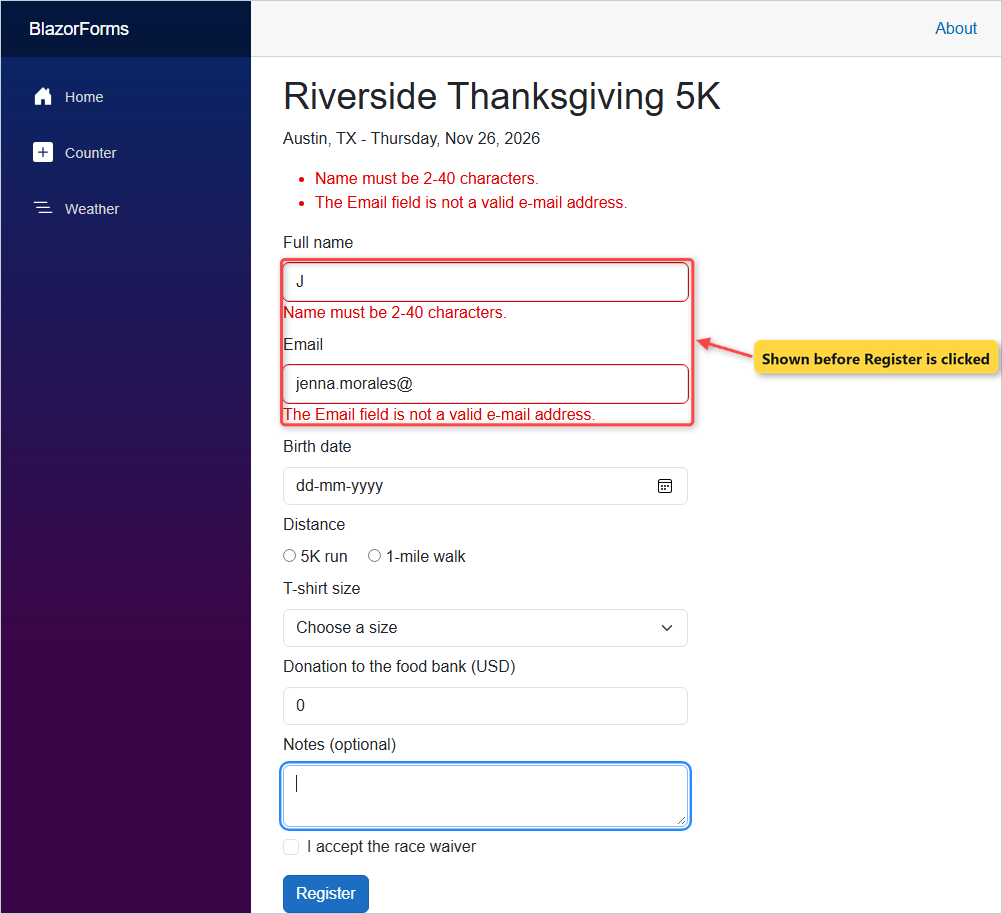
Checkpoint: both inputs carry the classes form-control modified invalid, which the template’s app.css draws as a red outline.
Test the Blazor Form Validation
Here’s every check I ran with headless Edge against both pages, with the real results:
| Test | Page | Result |
|---|---|---|
| Blank submit, no validator | /register | Accepted (blank alert) |
| Blank submit, with validator | /register | 6 messages |
| Born Mar 2, 2014 | /register | Age message only |
| Born Nov 26, 2012 | /register | Accepted |
| “J” + “jenna.morales@”, no submit | /register-live | 2 field messages |
| Bad email, 2014, no waiver, submit | /register-live | 3 messages |
| Jenna’s valid data | both | Accepted |
With valid data, both pages ran Submit and showed “Registered Jenna Morales for the 5K run, size M, donation $25.00.”
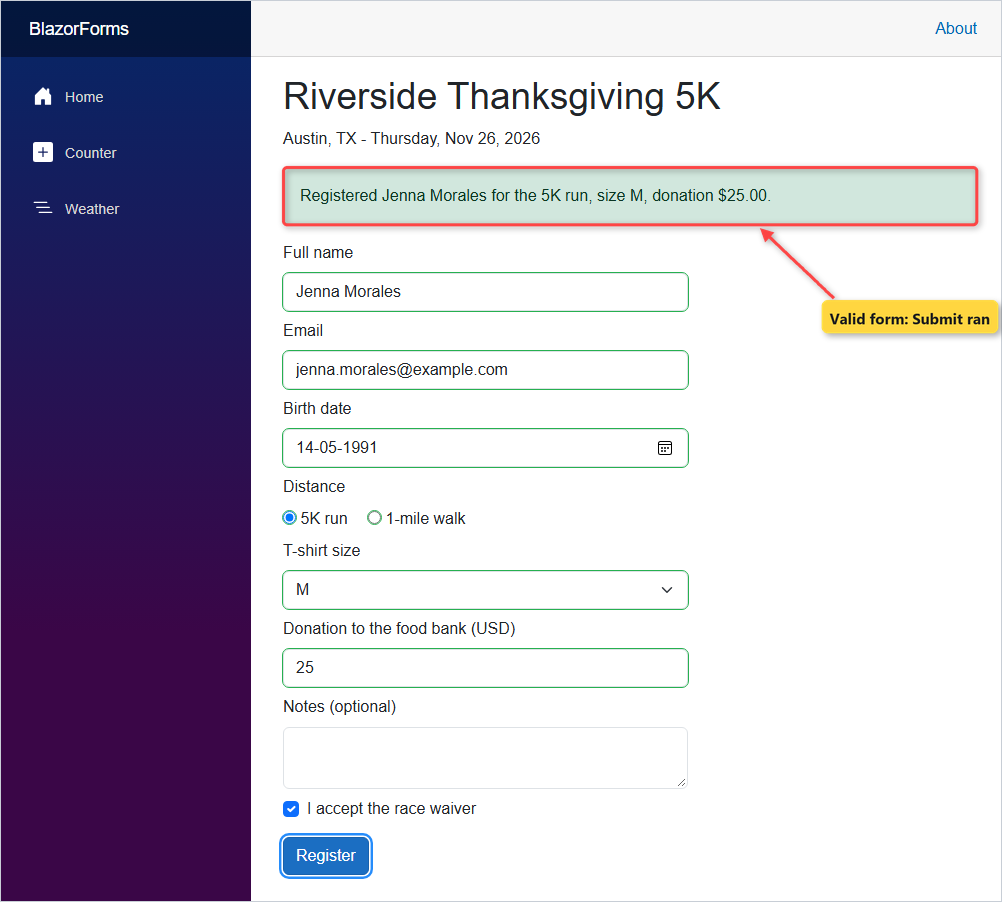
Important: in .NET 10, a static SSR form gets no live checks in the browser. The server validates it on each POST, so keep the rules on the model and they’ll run in both modes.
Troubleshooting Blazor Form Validation
Validation attributes are ignored. The form has no <DataAnnotationsValidator />. Step 3 proved it: a blank form went straight to OnValidSubmit.
The custom message shows in the summary but not under the field. I removed the member names from the ValidationResult to check. The summary still said “Runners must be 14 or older on race day (Nov 26, 2026).”, but the Birth date field showed nothing.
The T-shirt size resets after a failed submit. On the static page without the selected attributes, I picked M and submitted without the waiver. The model kept M (no size error), but the drop-down went back to “Choose a size”.
A child model isn’t validated. In .NET 10, register the validation services with builder.Services.AddValidation() (the same container as in DI lifetimes in ASP.NET Core) and declare the models in .cs files; without that generated metadata, only top-level properties are validated.
Where to Take It Next with Blazor Forms
Save the registration instead of printing it. My ASP.NET Core Web API CRUD with EF Core post builds the API and database side, and Blazor QuickGrid can list the runners afterward.
You can also wrap each label, input and message in a reusable field component, as in my Blazor components guide. That cuts the page down to one line per field.
More reading for the C# side of this form:
- Every Blazor tutorial on the site, in one place
- More ASP.NET Core tutorials for the server side
- C# 14 features that show up in models like this one
- How to move a .NET 8 Blazor app to .NET 10
Frequently Asked Questions
What is the difference between a form and EditForm in Blazor?
A plain HTML form with @onsubmit and @formname works, but you add the AntiforgeryToken yourself and get no validation support. EditForm creates an EditContext for the model, adds the antiforgery token automatically and gives you OnValidSubmit, OnInvalidSubmit and the validation components.
How do I validate a Blazor form on submit?
Put DataAnnotationsValidator inside the EditForm and handle OnValidSubmit, which only runs when every rule passes. If you need control, use OnSubmit instead and call editContext.Validate() yourself. Don’t combine OnSubmit with OnValidSubmit or OnInvalidSubmit.
Why does my Blazor EditForm need a FormName?
In static server-side rendering, Blazor uses the form name to match a POST to the right form and bind it to the [SupplyParameterFromForm] property. Each form needs a unique name. Forms in components with an interactive render mode don’t need one.
Which input components does Blazor have?
InputText, InputTextArea, InputNumber, InputDate, InputCheckbox, InputSelect, InputRadio with InputRadioGroup, and InputFile. .NET 10 also has InputHidden for hidden string values. Each one binds with @bind-Value and gets valid or invalid CSS classes inside an EditForm.
How do I create a custom validation attribute in Blazor?
Inherit ValidationAttribute, override IsValid(object? value, ValidationContext context) and return ValidationResult.Success or a new ValidationResult with the message and [context.MemberName]. Then put the attribute on the model property; DataAnnotationsValidator runs it like any built-in one.
Does Blazor validate forms in the browser with static SSR?
Not in .NET 10. Client-side validation needs an interactive render mode, so a static SSR form is validated on the server after it’s posted. See ASP.NET Core Blazor forms validation on Microsoft Learn.

Bijay Kumar is a renowned software engineer, accomplished author, and distinguished Microsoft Most Valuable Professional (MVP) specializing in SharePoint. With a rich professional background spanning over 15 years, Bijay has established himself as an authority in the field of information technology. He possesses unparalleled expertise in multiple programming languages and technologies such as ASP.NET, ASP.NET MVC, C#.NET, and SharePoint, which has enabled him to develop innovative and cutting-edge solutions for clients across the globe. Read more…