
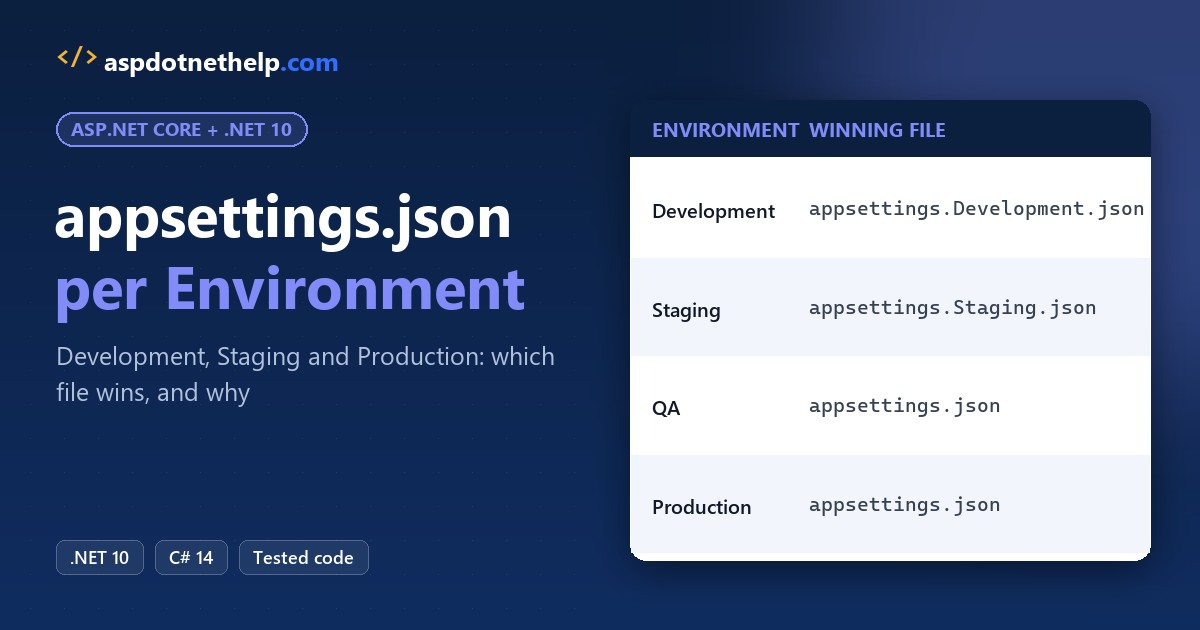
Your orders API should hit the sandbox billing service on your laptop and the real one in production, and nobody should have to edit a JSON file before a deploy.
Quick answer: ASP.NET Core appsettings per environment works by file name. Set ASPNETCORE_ENVIRONMENT=Staging and the app loads appsettings.Staging.json on top of appsettings.json, so its keys win:
set "ASPNETCORE_ENVIRONMENT=Staging"
dotnet run --no-launch-profile
We ran one small .NET 10 API as Development, Staging, QA and Production and printed which source supplied every value.
What You Need Before You Start with Per-Environment appsettings
- The .NET 10 SDK. I used 10.0.402; check your installed .NET version if you aren’t sure.
- No NuGet packages. The JSON, environment variable, command-line and user secrets providers all ship with the ASP.NET Core shared framework.
- An ASP.NET Core project. Ours is a trimmed
dotnet new webapp called AppSettingsEnv, served on http://localhost:5888.
Here’s the project file. We’ll add one line to it in Step 4:
<Project Sdk="Microsoft.NET.Sdk.Web">

  <PropertyGroup>
    <TargetFramework>net10.0</TargetFramework>
    <Nullable>enable</Nullable>
    <ImplicitUsings>enable</ImplicitUsings>
  </PropertyGroup>

</Project>
Step 1: Create appsettings.json and One File per Environment
The base file holds every setting with its production-safe value. Each environment file holds only the keys that differ, because ASP.NET Core merges them key by key instead of swapping whole files.
appsettings.json (the Urls key just pins the port to 5888 when no launch profile runs):
{
  "Logging": {
    "LogLevel": {
      "Default": "Information",
      "Microsoft.AspNetCore": "Warning"
    }
  },
  "AllowedHosts": "*",
  "Urls": "http://localhost:5888",
  "Billing": {
    "ApiBaseUrl": "https://billing.example.com",
    "SendEmails": true
  },
  "ConnectionStrings": {
    "Orders": ""
  }
}appsettings.Development.json:
{
  "Billing": {
    "ApiBaseUrl": "https://localhost:7101",
    "SendEmails": false
  }
}appsettings.Staging.json:
{
  "Billing": {
    "ApiBaseUrl": "https://billing-staging.example.com",
    "SendEmails": false
  }
}
Notice there’s no connection string in either override file. Development gets it from user secrets and Staging from an environment variable. When you’re ready to read these values through typed classes, the options pattern in ASP.NET Core binds them.
Step 2: Add a /config Endpoint That Shows Which appsettings Value Wins
Guessing which file won is how teams lose an afternoon. This endpoint prints the effective value of three keys and the provider that supplied it, using IConfigurationRoot.Providers.
var builder = WebApplication.CreateBuilder(args);
var app = builder.Build();
var config = (IConfigurationRoot)app.Configuration;
string[] keys = ["Billing:ApiBaseUrl", "Billing:SendEmails", "ConnectionStrings:Orders"];

// Demo endpoint: each effective value + the provider that supplied it
app.MapGet("/config", (IHostEnvironment env) =>
{
    var lines = keys.Select(k =>
        $"{k} = {config[k]}\n  from {config.Providers.Last(p => p.TryGet(k, out _))}");
    return $"Environment: {env.EnvironmentName} (IsDevelopment={env.IsDevelopment()}, " +
           $"IsStaging={env.IsStaging()}, QA={env.IsEnvironment("QA")})\n" +
           string.Join("\n", lines);
});

app.Run();
Providers are stored in load order, so the last one whose TryGet finds the key is the one that won. Run it with plain dotnet run and call the endpoint from a second terminal:
curl -s http://localhost:5888/configEnvironment: Development (IsDevelopment=True, IsStaging=False, QA=False)
Billing:ApiBaseUrl = https://localhost:7101
from JsonConfigurationProvider for 'appsettings.Development.json' (Optional)
Billing:SendEmails = False
from JsonConfigurationProvider for 'appsettings.Development.json' (Optional)
ConnectionStrings:Orders = Server=(localdb)\MSSQLLocalDB;Database=Orders_Dev;Trusted_Connection=True
from JsonConfigurationProvider for 'secrets.json' (Optional)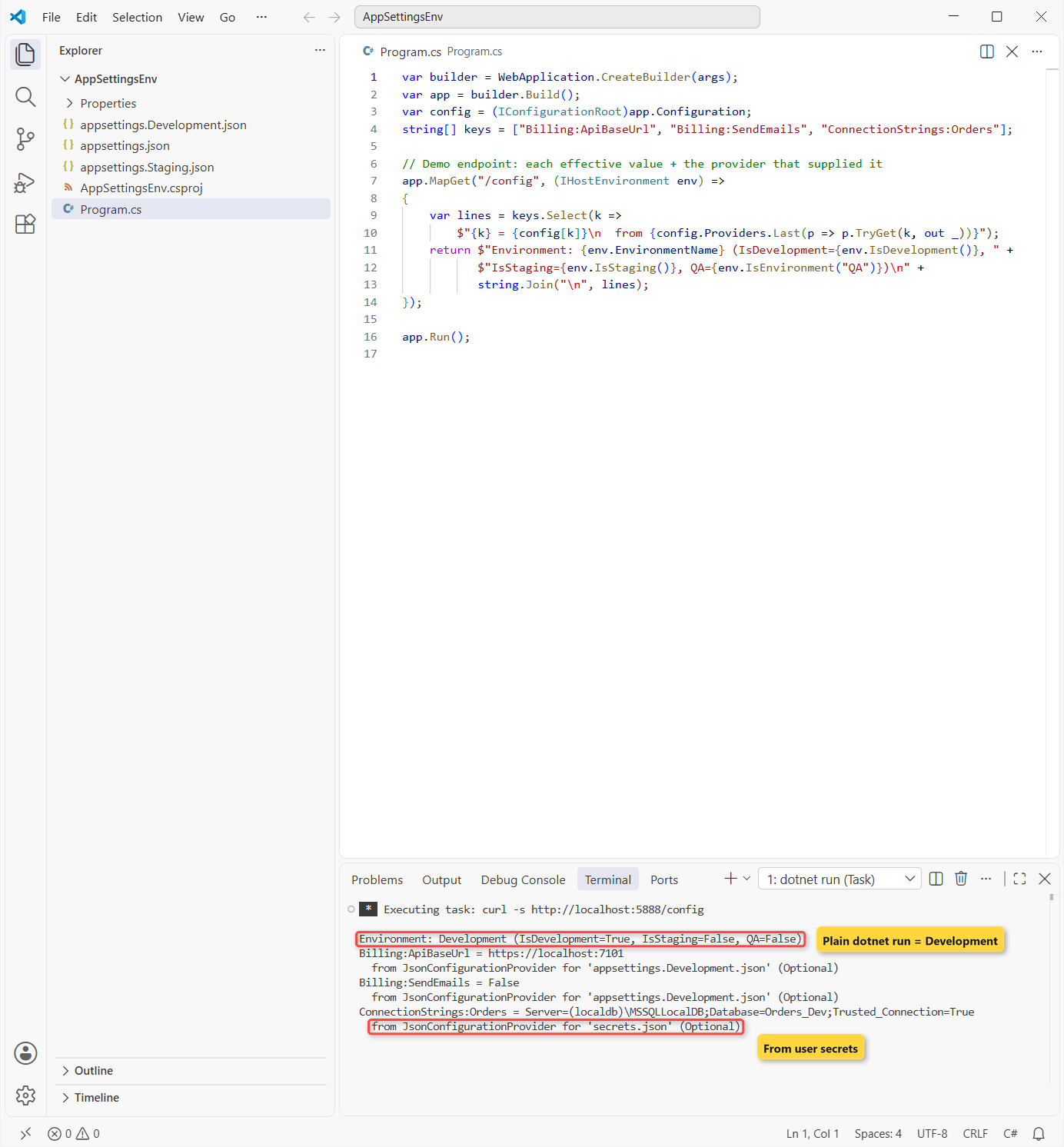
Important: this endpoint is a diagnostic tool. Wrap its MapGet in if (!app.Environment.IsProduction()) before it leaves your machine, the same way the template only maps OpenAPI in Development (see the OpenAPI and Scalar setup).
Step 3: Pick the Environment with launchSettings.json Profiles
Why Development in Step 2? dotnet run uses the first Project profile in Properties\launchSettings.json, and ours sets ASPNETCORE_ENVIRONMENT to Development. We added a second profile for Staging:
{
  "$schema": "https://json.schemastore.org/launchsettings.json",
  "profiles": {
    "http": {
      "commandName": "Project",
      "dotnetRunMessages": true,
      "launchBrowser": false,
      "applicationUrl": "http://localhost:5888",
      "environmentVariables": {
        "ASPNETCORE_ENVIRONMENT": "Development"
      }
    },
    "Staging": {
      "commandName": "Project",
      "launchBrowser": false,
      "applicationUrl": "http://localhost:5888",
      "environmentVariables": {
        "ASPNETCORE_ENVIRONMENT": "Staging"
      }
    }
  }
}
Start the Staging profile with --launch-profile (short form -lp):
dotnet run --launch-profile StagingEnvironment: Staging (IsDevelopment=False, IsStaging=True, QA=False)
Billing:ApiBaseUrl = https://billing-staging.example.com
from JsonConfigurationProvider for 'appsettings.Staging.json' (Optional)
Billing:SendEmails = False
from JsonConfigurationProvider for 'appsettings.Staging.json' (Optional)
ConnectionStrings:Orders =
from JsonConfigurationProvider for 'appsettings.json' (Optional)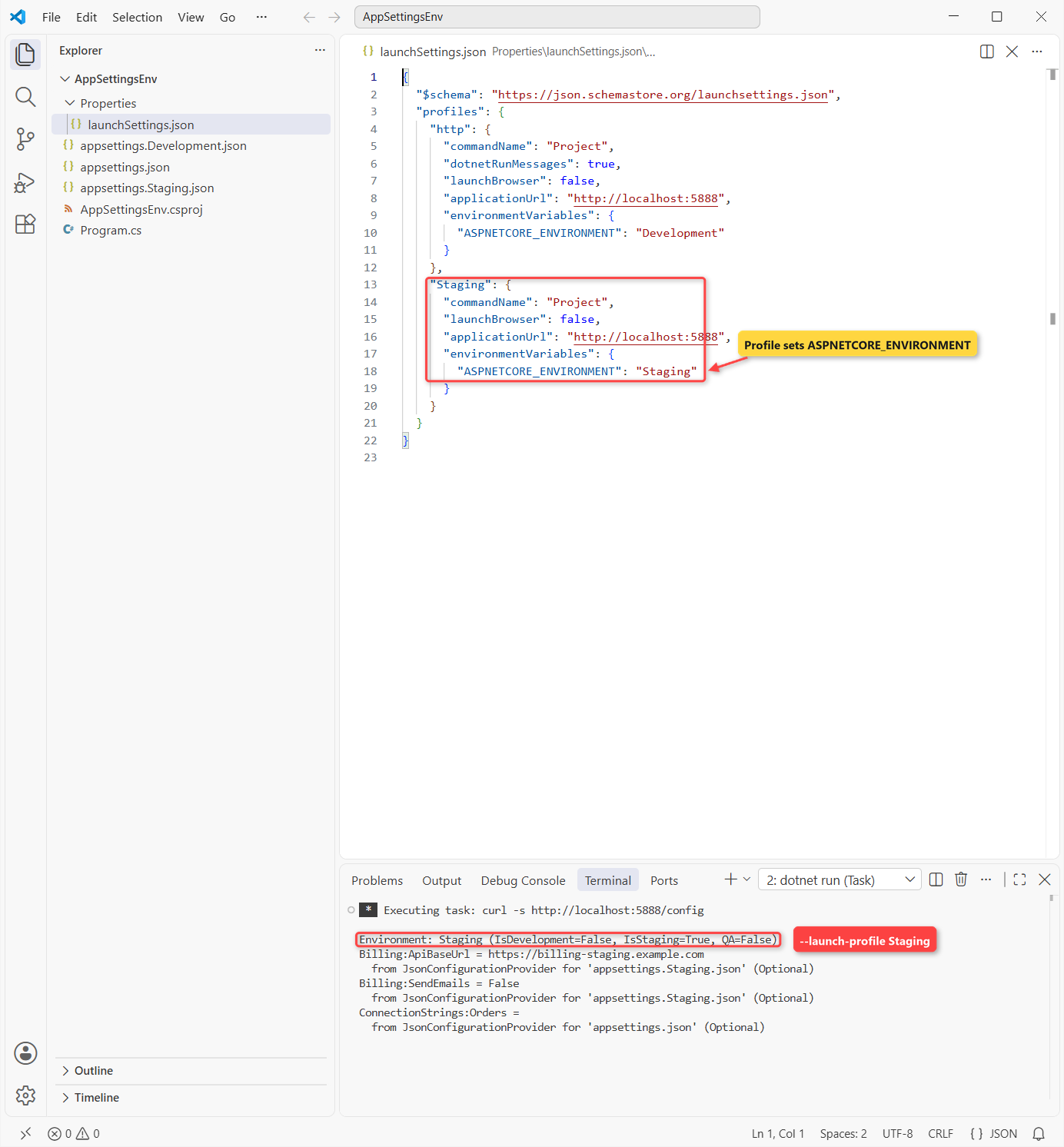
I like this check: the connection string is empty now, because user secrets only load in Development. That’s the behavior you want on a shared server.
launchSettings.json is only used on your machine and isn’t published, so it never sets the environment on a server. File-based apps get the same feature through an [AppName].run.json file, covered in file-based apps with dotnet run.
Step 4: Keep Development Secrets in User Secrets, Not appsettings.Development.json
appsettings.Development.json gets committed with everything else. Anything that’s a password, key or connection string with credentials goes into the Secret Manager instead:
dotnet user-secrets init
dotnet user-secrets set "ConnectionStrings:Orders" "Server=(localdb)\MSSQLLocalDB;Database=Orders_Dev;Trusted_Connection=True"
Set UserSecretsId to 'e0f39d14-e70f-462a-bce9-0015004884a1' for MSBuild project 'C:\DotNetDemo\AppSettingsEnv\AppSettingsEnv.csproj'.
Successfully saved ConnectionStrings:Orders to the secret store.init adds a UserSecretsId to the project file, and the value lands in a secrets.json file in your user profile, outside the repo:
<Project Sdk="Microsoft.NET.Sdk.Web">

  <PropertyGroup>
    <TargetFramework>net10.0</TargetFramework>
    <Nullable>enable</Nullable>
    <ImplicitUsings>enable</ImplicitUsings>
    <UserSecretsId>e0f39d14-e70f-462a-bce9-0015004884a1</UserSecretsId>
  </PropertyGroup>

</Project>
That’s the secrets.json provider you saw in the Step 2 output. In staging and production, use environment variables or a vault such as Azure Key Vault. Signing keys follow the same rule in JWT authentication in ASP.NET Core.
Step 5: Override appsettings with Environment Variables and the Command Line
On a real server we skip launch profiles and set variables. Nested keys use a double underscore, so ConnectionStrings__Orders maps to ConnectionStrings:Orders on every OS:
set "ASPNETCORE_ENVIRONMENT=Staging"
set "ConnectionStrings__Orders=Server=sql-staging;Database=Orders"
dotnet run --no-launch-profile
curl -s http://localhost:5888/config
Environment: Staging (IsDevelopment=False, IsStaging=True, QA=False)
Billing:ApiBaseUrl = https://billing-staging.example.com
from JsonConfigurationProvider for 'appsettings.Staging.json' (Optional)
Billing:SendEmails = False
from JsonConfigurationProvider for 'appsettings.Staging.json' (Optional)
ConnectionStrings:Orders = Server=sql-staging;Database=Orders
from EnvironmentVariablesConfigurationProvider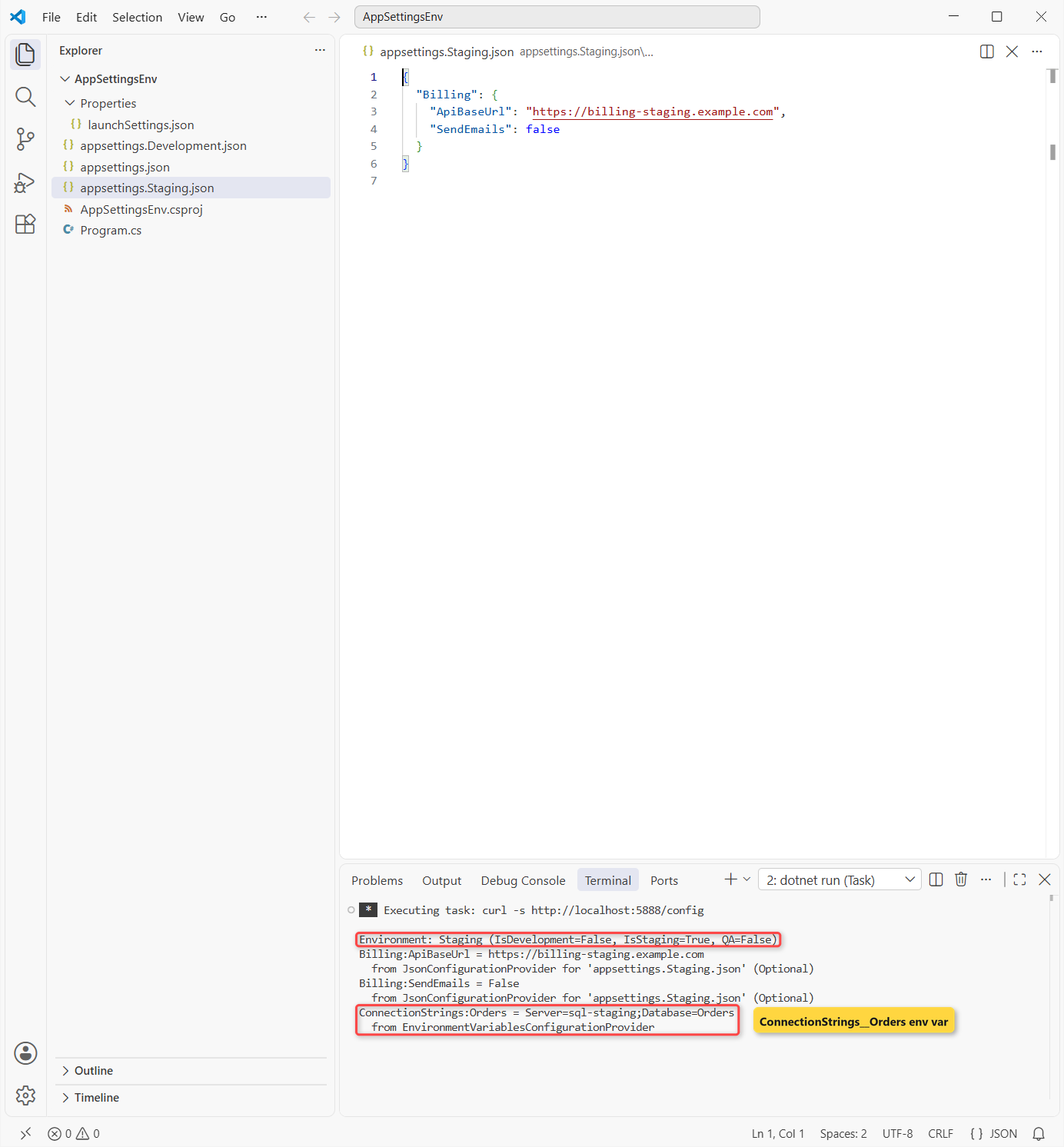
--no-launch-profile matters here: without it, the profile’s Development value would replace the variable you just set. That connection string is what an EF Core app reads, as in this ASP.NET Core Web API CRUD with EF Core build.
Command-line arguments sit on top of everything. After --, you can set the environment and any key:
dotnet run --no-launch-profile -- --environment Staging --Billing:SendEmails=trueEnvironment: Staging (IsDevelopment=False, IsStaging=True, QA=False)
Billing:ApiBaseUrl = https://billing-staging.example.com
from JsonConfigurationProvider for 'appsettings.Staging.json' (Optional)
Billing:SendEmails = true
from CommandLineConfigurationProvider
ConnectionStrings:Orders =
from JsonConfigurationProvider for 'appsettings.json' (Optional)For a one-off run that keeps your profile, dotnet run -e ASPNETCORE_ENVIRONMENT=Staging also worked. The -e value beat the profile and printed Environment: Staging.
Step 6: Check What Happens When No Environment Is Set
I cleared both variables and ran without a profile. That’s what a fresh server or container looks like:
dotnet run --no-launch-profileEnvironment: Production (IsDevelopment=False, IsStaging=False, QA=False)
Billing:ApiBaseUrl = https://billing.example.com
from JsonConfigurationProvider for 'appsettings.json' (Optional)
Billing:SendEmails = True
from JsonConfigurationProvider for 'appsettings.json' (Optional)
ConnectionStrings:Orders =
from JsonConfigurationProvider for 'appsettings.json' (Optional)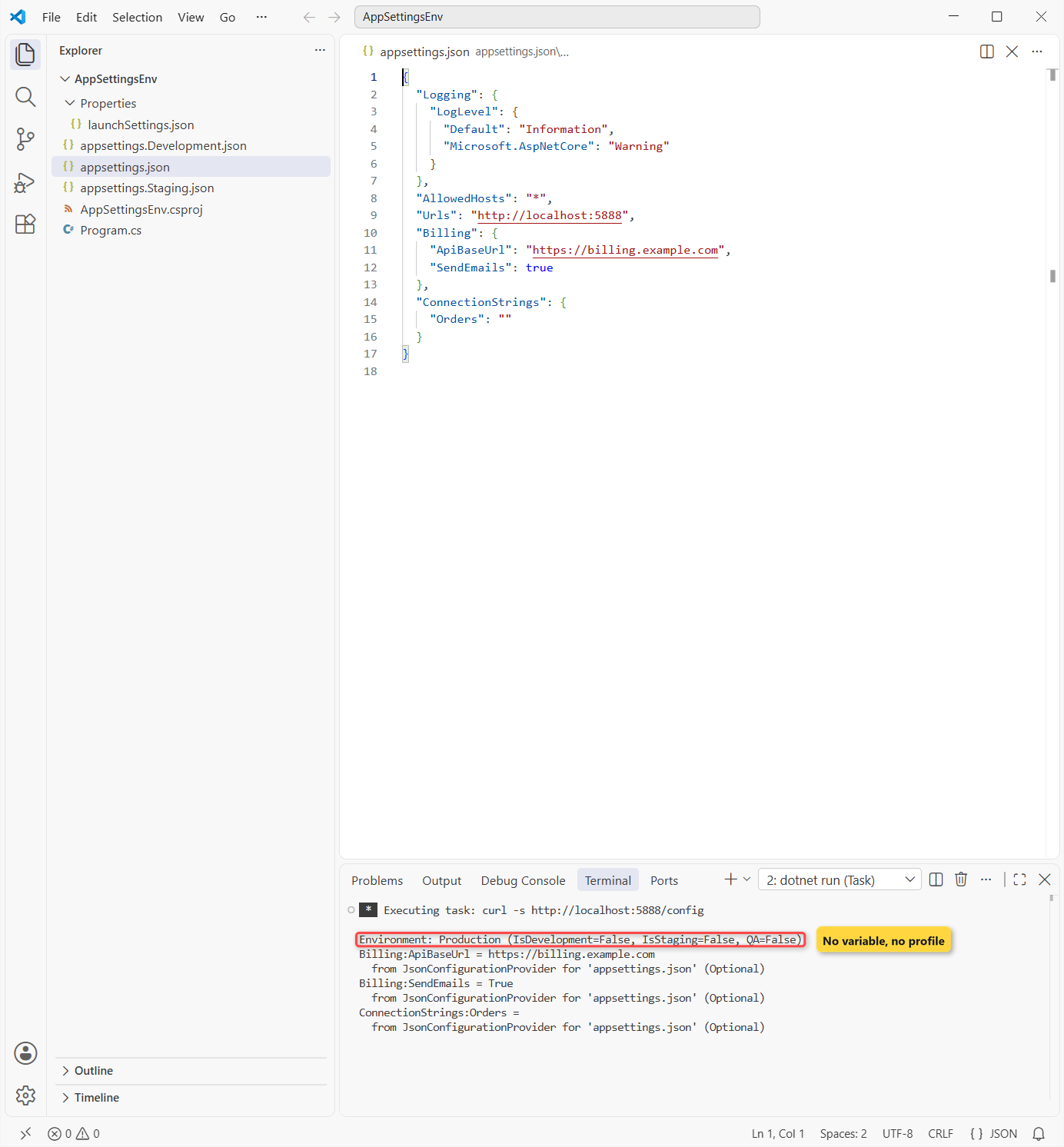
The startup log said Hosting environment: Production. Azure App Service also defaults to Production, so put your production values in appsettings.json or variables and never rely on a Development fallback. Settings such as allowed origins often differ per environment; see CORS in ASP.NET Core.
ASP.NET Core Configuration Order and Environment Cheat Sheet
Highest priority first, for the default web app. This is the order we watched win in the runs above:
| Priority | Source | Loaded when | Our run |
|---|---|---|---|
| 1 | Command-line arguments | Always | --Billing:SendEmails=true won |
| 2 | Environment variables (not ASPNETCORE_/DOTNET_ prefixed) | Always | ConnectionStrings__Orders won |
| 3 | User secrets (secrets.json) | Development only | Empty in Staging |
| 4 | appsettings.{Environment}.json | If the file exists | Staging and Development overrides |
| 5 | appsettings.json | Always | Production values |
And the ways to set the environment itself:
| Method | Command or setting | Use it for |
|---|---|---|
| Launch profile | dotnet run -lp Staging | Local runs only |
| -e option (SDK 9.0.200+) | dotnet run -e ASPNETCORE_ENVIRONMENT=Staging | One-off local runs |
| Environment variable | ASPNETCORE_ENVIRONMENT=Staging | Servers, containers, App Service |
| Command line | dotnet run -- --environment Staging | Scripts and tests |
| Code | new WebApplicationOptions { EnvironmentName = ... } | Test hosts |
Does DOTNET_ENVIRONMENT or ASPNETCORE_ENVIRONMENT Win?
For a web app built with WebApplication.CreateBuilder, DOTNET_ENVIRONMENT wins. We set Staging in one and QA in the other:
set "ASPNETCORE_ENVIRONMENT=Staging"
set "DOTNET_ENVIRONMENT=QA"
dotnet run --no-launch-profile
Environment: QA (IsDevelopment=False, IsStaging=False, QA=True)QA is a custom name, so IsEnvironment("QA") returned True and only appsettings.json loaded. Set just ASPNETCORE_ENVIRONMENT for web apps; worker and console apps with dependency injection read DOTNET_ENVIRONMENT.
Common Mistakes to Avoid with appsettings.{Environment}.json
Setting the variable but keeping the launch profile. With ASPNETCORE_ENVIRONMENT=Staging set and plain dotnet run, I still got Environment: Development. Profile values override the system environment.
Typing dotnet run --environment Staging. In SDK 10, --environment is the long form of -e, which expects KEY=VALUE, so our run silently stayed in Development. Put it after -- or use -e ASPNETCORE_ENVIRONMENT=Staging.
Mismatched case. With staging in lowercase, Windows still loaded the file (it reported appsettings.staging.json) and IsStaging() was True. Linux file names are case-sensitive, so match the file name exactly.
Secrets in appsettings files. They end up in Git and in every published build. Use user secrets locally and variables or Key Vault elsewhere, and keep diagnostic pages out of Production with global error handling in ASP.NET Core.
Next Steps for ASP.NET Core Environment Configuration
Once each environment loads the right values, bind them to typed settings classes and validate them at startup. Registering those classes correctly depends on DI lifetimes in ASP.NET Core.
A few more we’d read next:
- All ASP.NET Core tutorials on AspDotnetHelp
- Custom ASP.NET Core middleware
- Minimal API validation in ASP.NET Core
- What’s new in .NET 10
Frequently Asked Questions
What is appsettings.Development.json used for?
It overrides keys in appsettings.json when the environment is Development, which is what the default launch profile sets. Keep only the values that differ on a dev machine, and no secrets.
Do I need an appsettings.Production.json file?
No. The environment file is optional; our output lists each JSON provider as (Optional). Many teams keep production values in appsettings.json and override the rest with environment variables.
What environment does ASP.NET Core use if none is set?
Production. If neither DOTNET_ENVIRONMENT nor ASPNETCORE_ENVIRONMENT is set, the app runs as Production, as described in ASP.NET Core runtime environments on Microsoft Learn.
Can I use a custom environment name like QA?
Yes. Any string works. Check it with IsEnvironment("QA") and add appsettings.QA.json if QA needs its own values.
Are user secrets loaded in Staging or Production?
No. The default builder adds user secrets only in Development. In our Staging run the connection string was empty until we set an environment variable.

Bijay Kumar is a renowned software engineer, accomplished author, and distinguished Microsoft Most Valuable Professional (MVP) specializing in SharePoint. With a rich professional background spanning over 15 years, Bijay has established himself as an authority in the field of information technology. He possesses unparalleled expertise in multiple programming languages and technologies such as ASP.NET, ASP.NET MVC, C#.NET, and SharePoint, which has enabled him to develop innovative and cutting-edge solutions for clients across the globe. Read more…