
Say the sales manager at a Dallas furniture store wants this year’s 200 orders on one screen, sorted by total, searchable by customer and ten rows a page. In Web Forms you’d drag in a GridView. Blazor doesn’t have one.
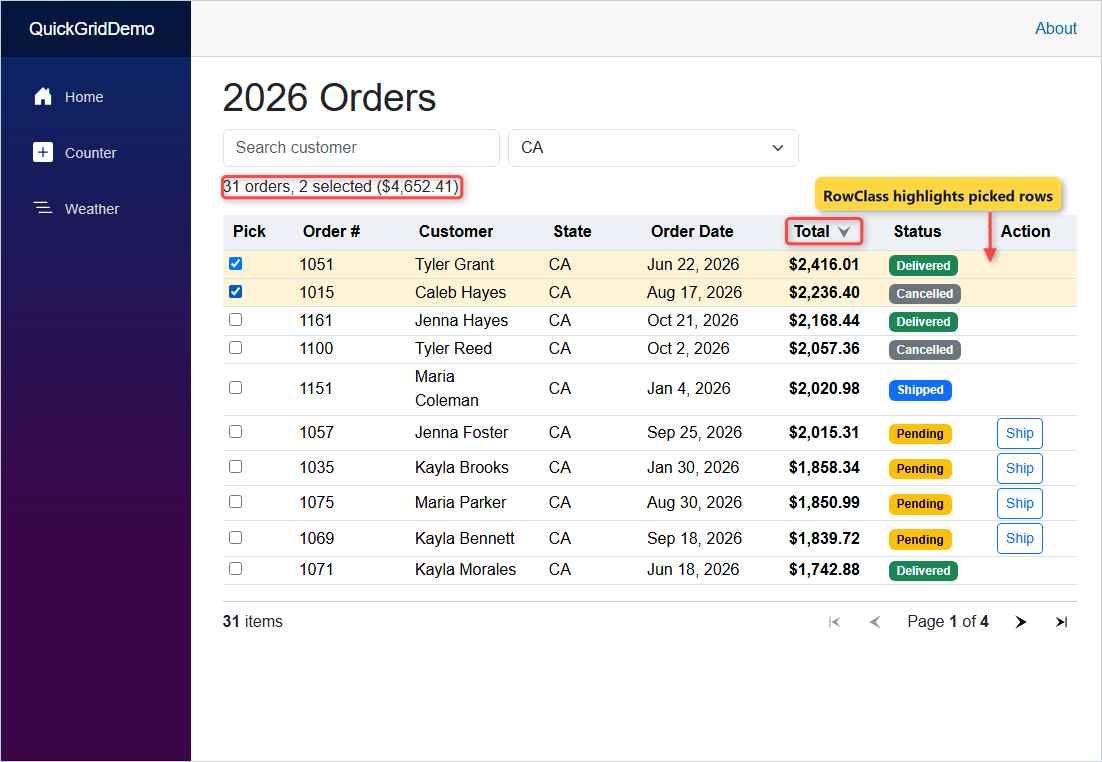
The built-in answer is Blazor QuickGrid, Microsoft’s free grid component. Give it an IQueryable, mark columns Sortable, add a Paginator and a bound search box, and you’re done. Here’s what we’re building on .NET 10:
Before You Start with Blazor QuickGrid
You need the .NET 10 SDK (I used 10.0.402; check your .NET version first) and any editor. If Blazor itself is new to you, my Blazor tutorial for beginners covers pages and components.
Our sample data is 200 made-up orders from 2026. Each order has these fields:
| Field | Type | Notes |
|---|---|---|
Id | int | Order number, 1001 to 1200 |
Customer | string | US names such as Tyler Bennett |
State | string | CA, CO, FL, GA, IL, NY, TX or WA |
OrderDate | DateOnly | Jan 1 to Oct 27, 2026 |
Total | decimal | $25 to $2,425, shown in USD |
Status | string | Pending, Shipped, Delivered or Cancelled |
Step 1: Create the Blazor App and Add the QuickGrid Package
QuickGrid ships as its own NuGet package. Create a Blazor Web App and add it (10.0.14 was the current version on November 1, 2026):
dotnet new blazor -o QuickGridDemo
cd QuickGridDemo
dotnet add package Microsoft.AspNetCore.Components.QuickGrid --version 10.0.14
I deleted the two appsettings files (this demo doesn’t need them) and trimmed Properties/launchSettings.json to one http profile on port 5737:
{
  "$schema": "https://json.schemastore.org/launchsettings.json",
  "profiles": {
    "http": {
      "commandName": "Project",
      "dotnetRunMessages": true,
      "launchBrowser": false,
      "applicationUrl": "http://localhost:5737",
      "environmentVariables": {
        "ASPNETCORE_ENVIRONMENT": "Development"
      }
    }
  }
}
My PC isn’t set to US regional settings, so I pinned the app to en-US at the top of Program.cs. Without it, Format="C" would print the local currency:
using System.Globalization;
using QuickGridDemo.Components;

// Show prices and dates the US way, whatever the server's regional settings are
CultureInfo.DefaultThreadCurrentCulture = new CultureInfo("en-US");
CultureInfo.DefaultThreadCurrentUICulture = new CultureInfo("en-US");
The project targets net10.0, the .NET 10 LTS release. Its full project file is in the EF Core section, after all three packages are added.
Step 2: Add the Order Model and 200 Sample Orders
Create Models/Order.cs. It’s a class, not a record, because Step 6 changes Status in place:
namespace QuickGridDemo.Models;

public class Order
{
    public int Id { get; set; }
    public string Customer { get; set; } = "";
    public string State { get; set; } = "";
    public DateOnly OrderDate { get; set; }
    public decimal Total { get; set; }
    public string Status { get; set; } = "Pending";
}
Then Services/OrderData.cs builds the orders. A fixed Random seed returns the same List of orders on every run, so your numbers will match mine:
using QuickGridDemo.Models;

namespace QuickGridDemo.Services;

public static class OrderData
{
    private static readonly string[] First = ["Jenna", "Tyler", "Maria", "Derek", "Ashley", "Marcus", "Kayla", "Brandon", "Lauren", "Caleb"];
    private static readonly string[] Last = ["Morales", "Brooks", "Bennett", "Hayes", "Foster", "Coleman", "Reed", "Parker", "Sullivan", "Grant"];
    private static readonly string[] States = ["CA", "TX", "NY", "FL", "WA", "IL", "CO", "GA"];
    private static readonly string[] Statuses = ["Pending", "Shipped", "Delivered", "Cancelled"];

    // Same seed = the same orders on every run
    public static List<Order> Create(int count, int seed = 2026)
    {
        var rng = new Random(seed);
        var start = new DateOnly(2026, 1, 1);
        return Enumerable.Range(1, count).Select(i => new Order
        {
            Id = 1000 + i,
            Customer = $"{First[rng.Next(First.Length)]} {Last[rng.Next(Last.Length)]}",
            State = States[rng.Next(States.Length)],
            OrderDate = start.AddDays(rng.Next(0, 300)),
            Total = Math.Round((decimal)(rng.NextDouble() * 2400 + 25), 2),
            Status = Statuses[rng.Next(Statuses.Length)]
        }).ToList();
    }
}
Step 3: Render Your First QuickGrid with PropertyColumn
Create Components/Pages/Orders.razor. Items takes an IQueryable<Order>, and each PropertyColumn shows one property:
@page "/orders"
@rendermode InteractiveServer
@using Microsoft.AspNetCore.Components.QuickGrid
@using QuickGridDemo.Models
@using QuickGridDemo.Services

<PageTitle>Orders</PageTitle>

<h1>2026 Orders</h1>

<QuickGrid Items="orders">
    <PropertyColumn Property="@(o => o.Id)" />
    <PropertyColumn Property="@(o => o.Customer)" />
    <PropertyColumn Property="@(o => o.State)" />
    <PropertyColumn Property="@(o => o.OrderDate)" />
    <PropertyColumn Property="@(o => o.Total)" />
    <PropertyColumn Property="@(o => o.Status)" />
</QuickGrid>

@code {
    private IQueryable<Order> orders = OrderData.Create(200).AsQueryable();
}
Don’t skip @rendermode InteractiveServer. Microsoft Learn says QuickGrid needs an interactive render mode for sorting and paging, which my Blazor render modes guide explains in detail.
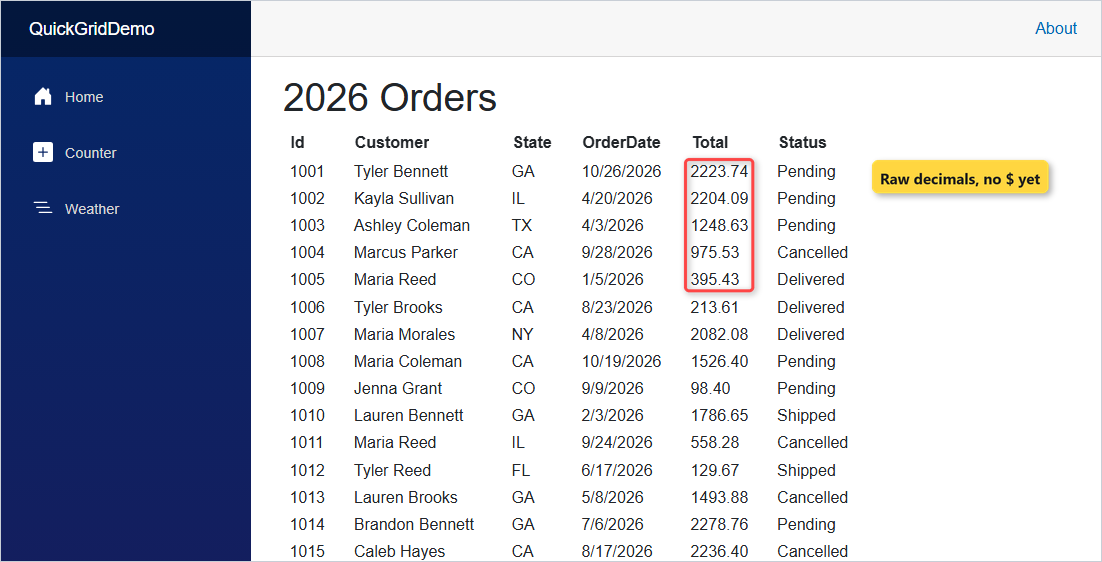
Checkpoint: you should see a long, plain table. curl returned 200 with 201 <tr> rows (header + 200 orders), and the first row reads 1001 | Tyler Bennett | GA | 10/26/2026 | 2223.74 | Pending.
Step 4: Format QuickGrid Currency and Dates and Set a Default Sort
Raw 2223.74 isn’t money yet. Replace the columns with these (the Status column stays for now):
    <PropertyColumn Property="@(o => o.Id)" Title="Order #" Sortable="true" />
    <PropertyColumn Property="@(o => o.Customer)" Sortable="true" />
    <PropertyColumn Property="@(o => o.State)" Sortable="true" />
    <PropertyColumn Property="@(o => o.OrderDate)" Title="Order Date" Format="MMM d, yyyy" Sortable="true"
                    IsDefaultSortColumn="true" InitialSortDirection="SortDirection.Descending" />
    <PropertyColumn Property="@(o => o.Total)" Format="C" Sortable="true" Align="Align.Right" Class="total" />
Format works on any IFormattable type, so "C" gives US dollars, the same format string from formatting numbers with commas in C#. Title renames a header, and Align.Right lines up the cents.
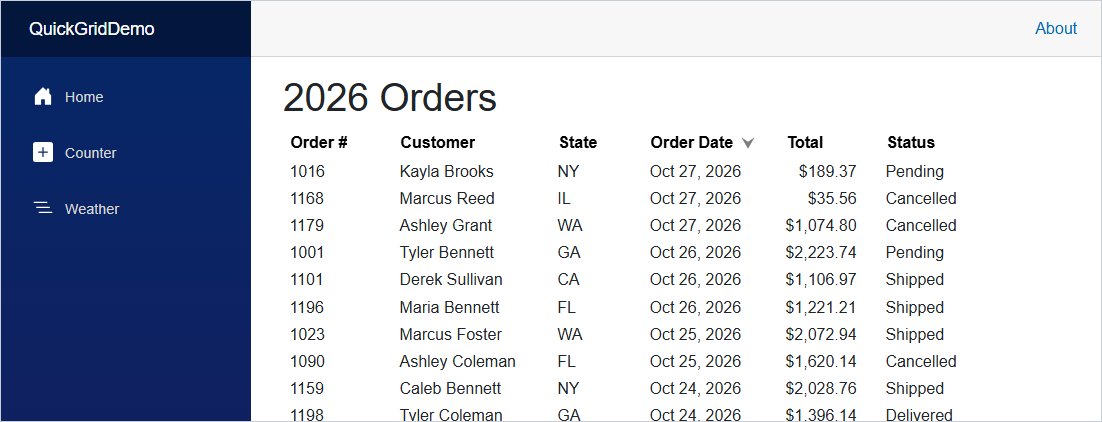
IsDefaultSortColumn plus InitialSortDirection="SortDirection.Descending" puts the newest orders on top. The date pattern works like any DateTime format string in C#.
Step 5: Sort QuickGrid Columns by Clicking a Header
Every column in Step 4 already has Sortable="true", so each header is now a button. Click Total once for ascending and again for descending.
In headless Edge, the first click put $35.56 (order 1168) on top. The second click gave $2,416.01, order 1051 from CA. The header’s aria-sort switched from ascending to descending.
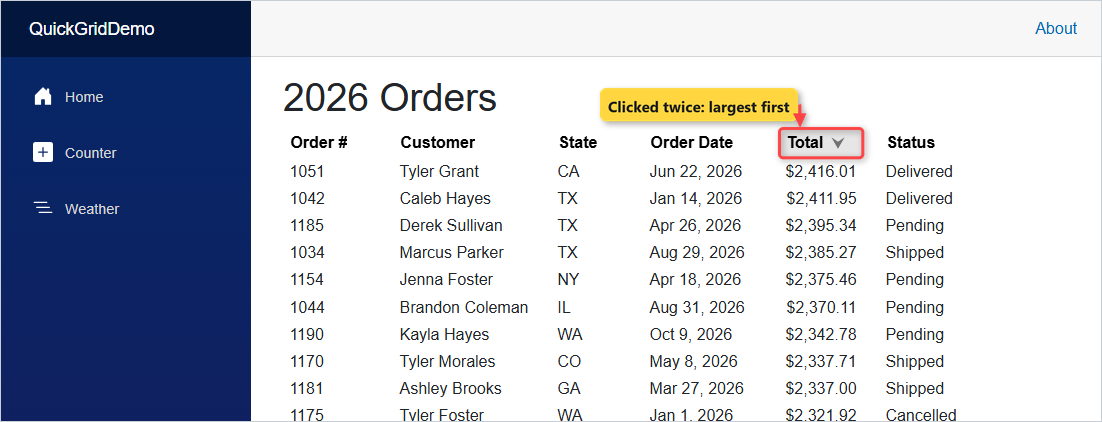
Checkpoint: after two clicks on Total, you see $2,416.01, $2,411.95 and $2,395.34 at the top.
Step 6: Add a QuickGrid TemplateColumn with a Status Badge and a Button
A TemplateColumn renders any markup you like, with the row in context. Swap the Status PropertyColumn for these two columns:
    <TemplateColumn Title="Status" SortBy="byStatus">
        <span class="badge @BadgeCss(context.Status)">@context.Status</span>
    </TemplateColumn>
    <TemplateColumn Title="Action">
        @if (context.Status == "Pending")
        {
            <button class="btn btn-sm btn-outline-primary ship" @onclick="@(() => Ship(context))">Ship</button>
        }
    </TemplateColumn>
Template columns can’t guess how to sort, so SortBy takes a GridSort<Order>. Change the grid to Items="orders.AsQueryable()" and add this to @code:
    private readonly List<Order> orders = OrderData.Create(200);
    private readonly GridSort<Order> byStatus = GridSort<Order>.ByAscending(o => o.Status);

    private void Ship(Order order) => order.Status = "Shipped";

    private static string BadgeCss(string status) => status switch
    {
        "Pending" => "text-bg-warning",
        "Shipped" => "text-bg-primary",
        "Delivered" => "text-bg-success",
        _ => "text-bg-secondary"
    };
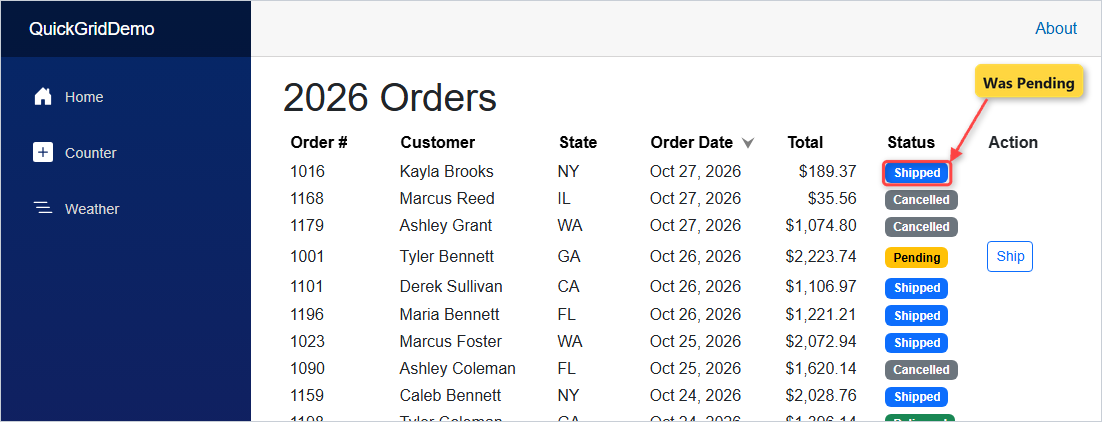
The badge color comes from a C# switch expression. I clicked the first Ship button, on order 1016, and its row changed to 1016 | Kayla Brooks | NY | Oct 27, 2026 | $189.37 | Shipped.
Step 7: Add a QuickGrid Filter with a Search Box and a State Dropdown
QuickGrid has no filter row. You filter the IQueryable yourself and hand the result to Items. Add this markup above the grid:
<div class="d-flex gap-2 mb-2" style="max-width: 36rem;">
    <input id="search" class="form-control" placeholder="Search customer"
           @bind="search" @bind:event="oninput" />
    <select id="state" class="form-select" @bind="state">
        <option value="">All states</option>
        @foreach (var s in States)
        {
            <option value="@s">@s</option>
        }
    </select>
</div>

<p id="summary">@Filtered.Count() orders</p>
Then point the grid at Items="Filtered" and add the fields. Filtered is plain LINQ Where over the list:
    private static readonly string[] States = ["CA", "CO", "FL", "GA", "IL", "NY", "TX", "WA"];
    private string search = "";
    private string state = "";

    private IQueryable<Order> Filtered => orders.AsQueryable()
        .Where(o => o.Customer.Contains(search, StringComparison.OrdinalIgnoreCase))
        .Where(o => state == "" || o.State == state);
@bind:event="oninput" filters on every keystroke, and StringComparison.OrdinalIgnoreCase makes “brooks” match “Brooks” (more on Contains checks in C#).
The summary went from 200 orders to 22 orders after typing “brooks”, then 5 orders with TX picked.
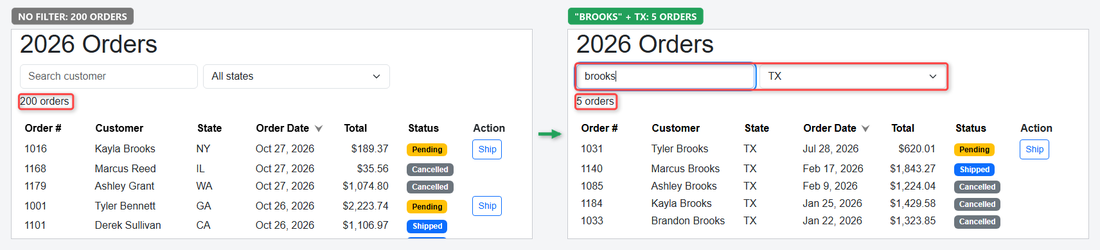
Checkpoint: “brooks” + TX leaves 5 rows, starting with Tyler Brooks.
Step 8: Add QuickGrid Pagination with Paginator
Paging needs a PaginationState with ItemsPerPage, the grid’s Pagination parameter and a <Paginator> under it:
<QuickGrid Items="Filtered" Pagination="pagination">
    ...
</QuickGrid>

<Paginator State="pagination" />
private readonly PaginationState pagination = new() { ItemsPerPage = 10 };
// Back to page 1 whenever the filter changes
private Task ResetPage() => pagination.SetCurrentPageIndexAsync(0);Why ResetPage? A filter shrinks the list, and a reader on page 3 should land back on page 1 instead of a page that may no longer exist. So both inputs get @bind:after="ResetPage":
@bind="search" @bind:event="oninput" @bind:after="ResetPage"
@bind="state" @bind:after="ResetPage"
I went to page 3 and typed “a”: the pager went from 200 items Page 3 of 20 to 185 items Page 1 of 19. SetCurrentPageIndexAsync returns a Task, the kind of method my async/await guide covers.
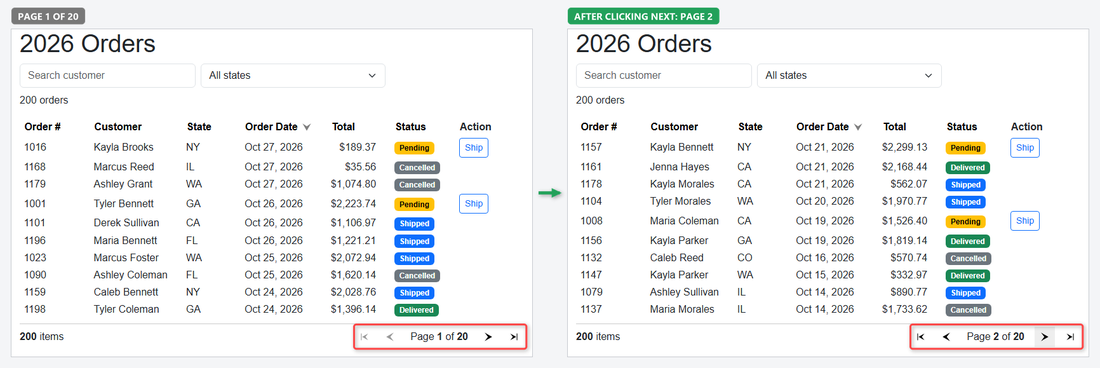
Checkpoint: your pager reads 200 items Page 1 of 20, and one click on next shows 200 items Page 2 of 20 starting at order 1157.
Step 9: Style the QuickGrid with Class, CSS Isolation and Alignment
Out of the box, QuickGrid renders a bare table. Wrap it in a div and give it Bootstrap classes through Class:
<div class="grid">
<QuickGrid Items="Filtered" Pagination="pagination" Class="table table-sm align-middle">
    ...
</QuickGrid>
</div>
In the browser, the table’s class became quickgrid table table-sm align-middle, and it kept theme="default", the Theme value QuickGrid’s built-in styles match.
For your own rules, add Components/Pages/Orders.razor.css. The grid is a child component, so isolated CSS needs ::deep to reach its cells:
.grid ::deep table {
    min-width: 52rem;
}

.grid ::deep thead th {
    background: #eef2f7;
}

.grid ::deep td.total {
    font-variant-numeric: tabular-nums;
    font-weight: 600;
}

.grid ::deep tr.picked > td {
    background: #fff4d6;
}
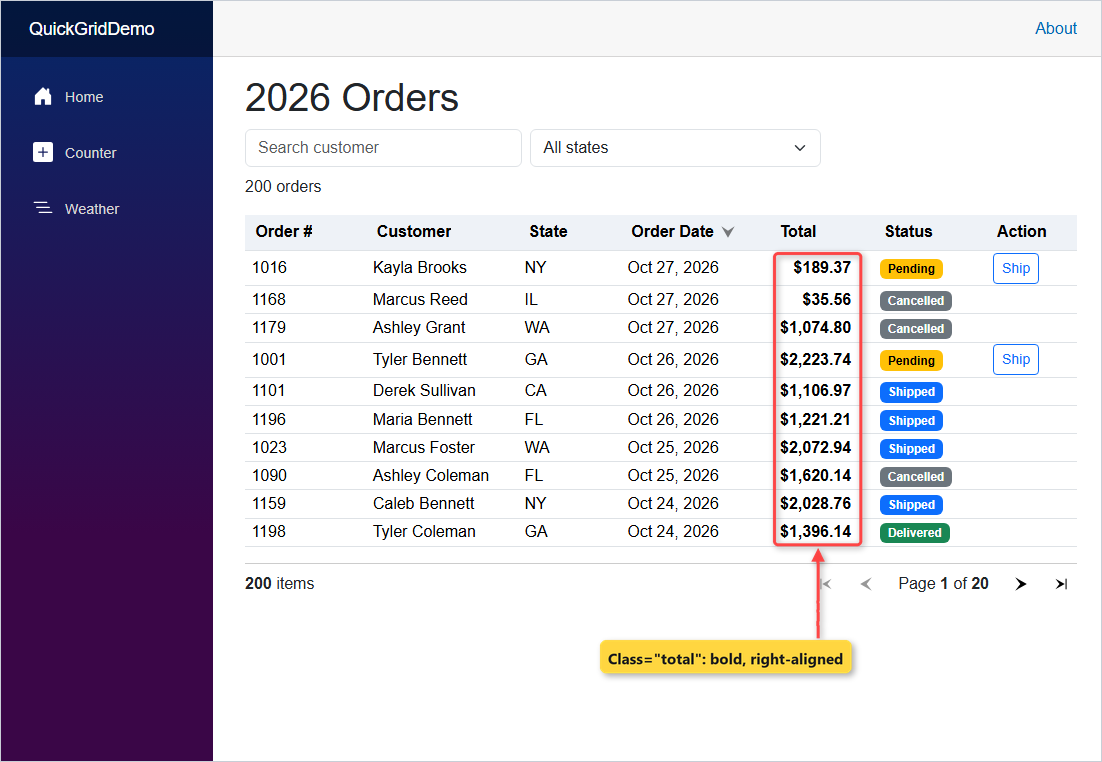
td.total works because the column’s Class="total" lands on its header and every cell. Align.Right added col-justify-right to the same th.
Step 10: Select QuickGrid Rows with a Checkbox TemplateColumn
QuickGrid in .NET 10 has no built-in row selection (a row click event, OnRowClick, only shows up in the .NET 11 docs). A checkbox TemplateColumn and a HashSet do the job.
Add a first column to the grid, plus RowClass="RowCss" on the <QuickGrid> tag. RowClass, new in .NET 10, adds a CSS class to each row you return one for:
    <TemplateColumn Title="Pick">
        <input type="checkbox" checked="@selected.Contains(context.Id)"
               @onchange="@(() => Toggle(context.Id))" />
    </TemplateColumn>
Then change the summary line and add the selection code to @code. The picked class is the pale yellow rule from Step 9’s CSS file:
<p id="summary">@Filtered.Count() orders, @selected.Count selected (@SelectedTotal.ToString("C"))</p> private readonly HashSet<int> selected = [];
private decimal SelectedTotal => orders.Where(o => selected.Contains(o.Id)).Sum(o => o.Total);
private void Toggle(int id)
{
if (!selected.Remove(id)) selected.Add(id);
}
private string? RowCss(Order order) => selected.Contains(order.Id) ? "picked" : null;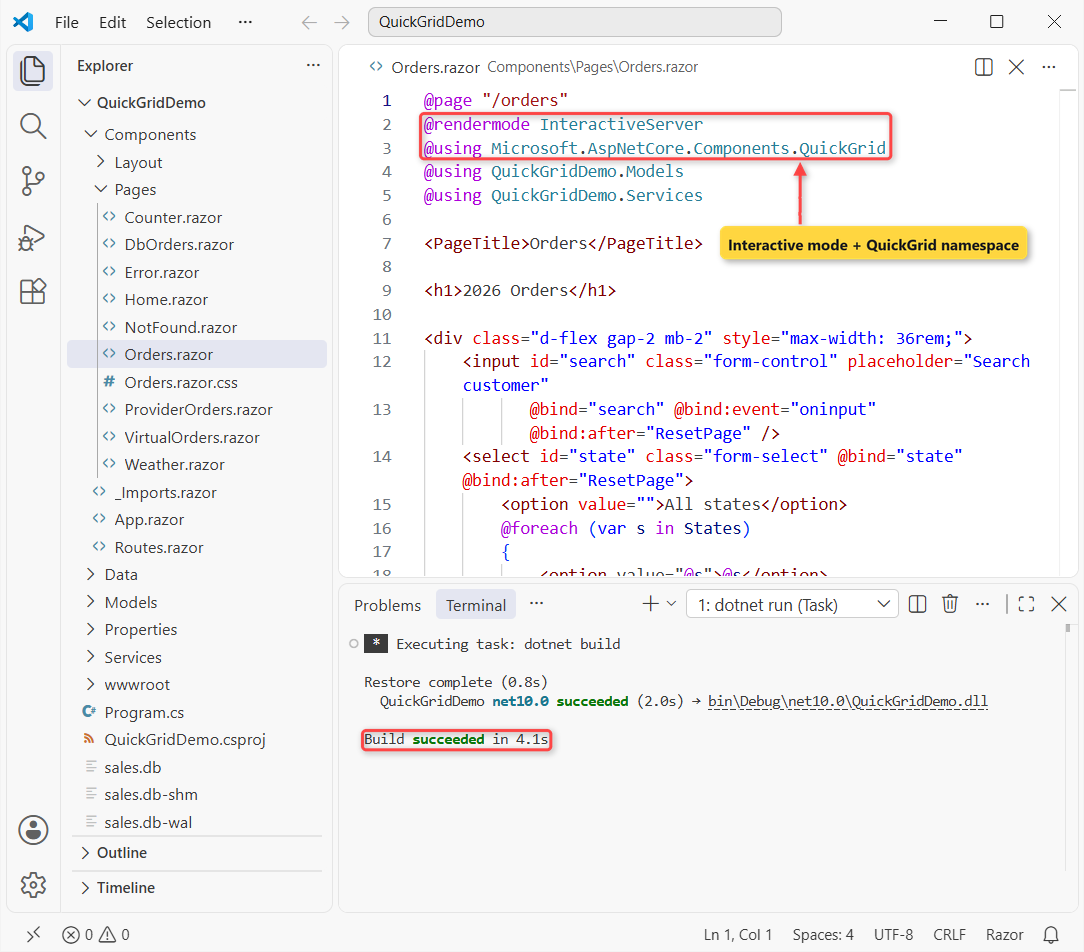
Selection is by order Id, so it survives paging. After ticking rows 2 and 4, the summary read 200 orders, 2 selected ($2,259.30), and still 200 orders, 2 selected ($2,259.30) after a trip to page 2.
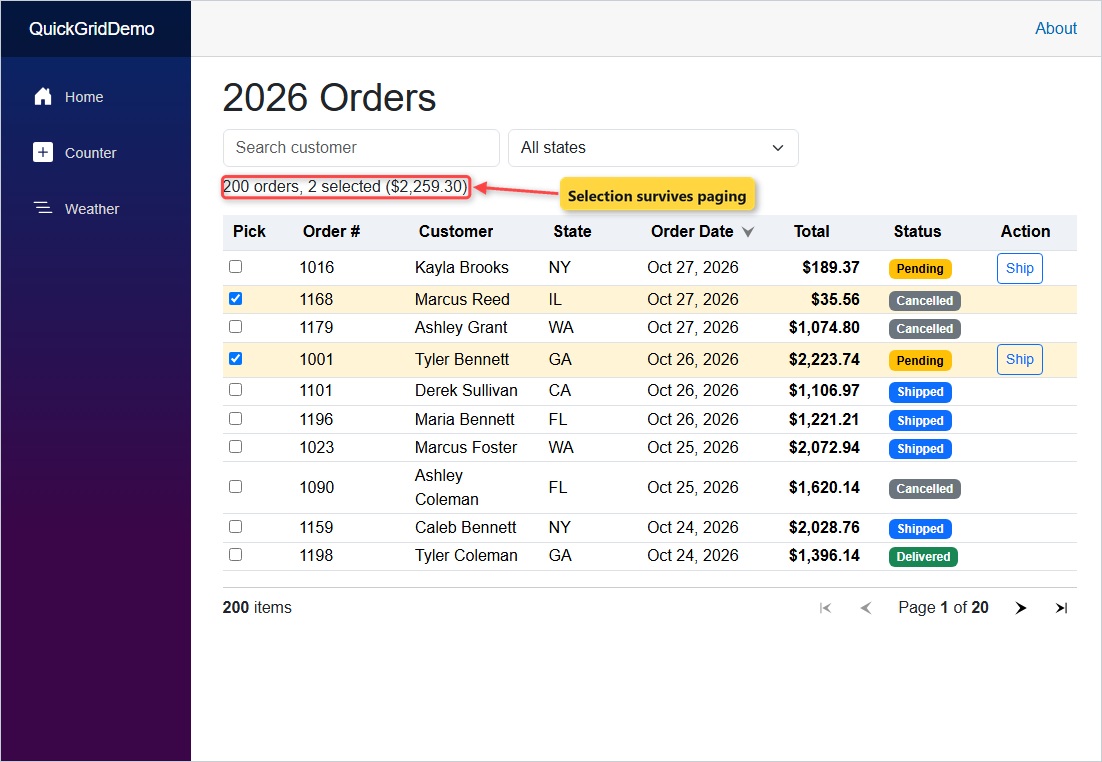
Checkpoint: when you tick two rows, they turn pale yellow and the summary shows 200 orders, 2 selected ($2,259.30).
Test the Blazor QuickGrid
Here’s every check I ran on the finished page in headless Edge, with real clicks and typing:
| Check | Action | Result |
|---|---|---|
| Default sort | Load /orders | Order 1016, Oct 27, 2026, on top |
| Sort | Click Total twice | $2,416.01 first |
| Filter | “brooks” + TX | 5 orders |
| Paging | Next | 200 items Page 2 of 20 |
| Reset on filter | Page 3, type “a” | 185 items Page 1 of 19 |
| Last page | Go to last page | 185 items Page 19 of 19, 5 orders + 5 empty rows |
| Selection | Tick 2 rows | 200 orders, 2 selected ($2,259.30) |
| Intro shot | CA, Total high to low, tick 2 | 31 orders, 2 selected ($4,652.41) |
The empty rows on the last page are on purpose. Learn says the Paginator pads the final page so rows keep the same height on every page.
Virtualize QuickGrid for 10,000 Rows
If you have thousands of rows, paging isn’t your only option. Virtualize="true" renders only the rows near the scroll position. Set ItemSize to your row height in pixels and keep every row the same height:
@page "/orders-virtual"
@rendermode InteractiveServer
@using Microsoft.AspNetCore.Components.QuickGrid
@using QuickGridDemo.Models
@using QuickGridDemo.Services

<PageTitle>10,000 orders</PageTitle>

<h1>10,000 orders, virtualized</h1>

<div class="virtual-grid" style="height: 420px; overflow-y: auto;">
    <QuickGrid Items="orders" Virtualize="true" ItemSize="35" Class="table table-sm">
        <PropertyColumn Property="@(o => o.Id)" Title="Order #" Sortable="true" />
        <PropertyColumn Property="@(o => o.Customer)" Sortable="true" />
        <PropertyColumn Property="@(o => o.State)" Sortable="true" />
        <PropertyColumn Property="@(o => o.Total)" Format="C" Sortable="true" Align="Align.Right" />
    </QuickGrid>
</div>

@code {
    private IQueryable<Order> orders = OrderData.Create(10_000).AsQueryable();
}
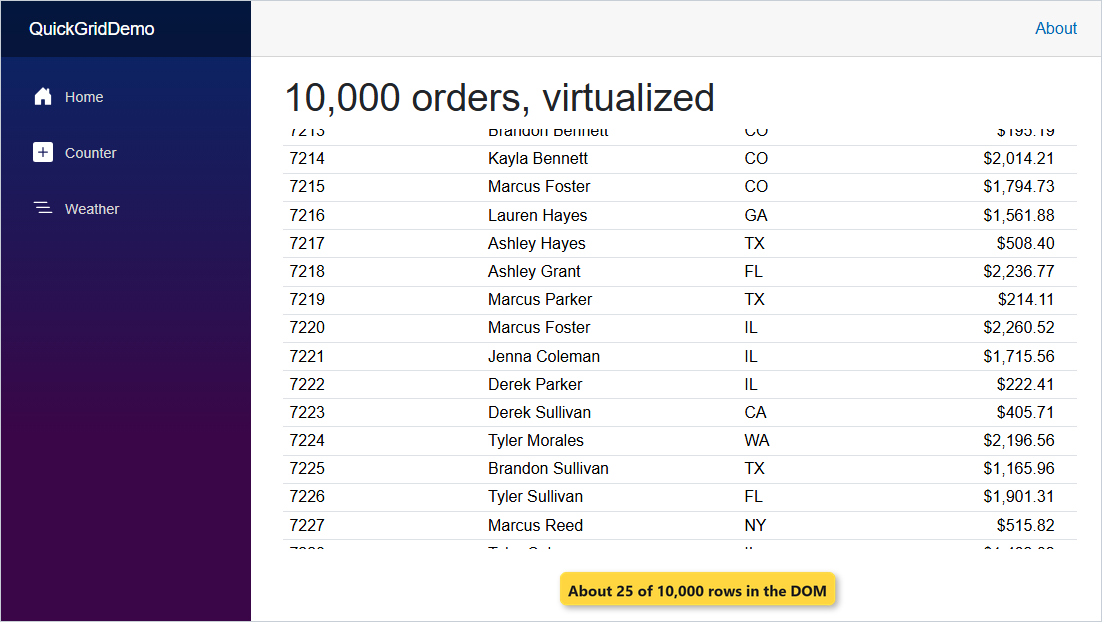
With 10,000 orders, the DOM held 21 <tr> elements on load and 25 after I scrolled the box down, showing orders 7209 to 7233.
Important: pick paging or virtualization. I set both on a test page, and the grid showed 10 rows a page (10000 items Page 1 of 1000), so virtualization did nothing. Learn advises against the mix too.
Load Server-Side Data with QuickGrid ItemsProvider
When the data lives behind an API, use ItemsProvider instead of Items. QuickGrid calls it with the start index, row count and sort for each page:
@page "/orders-provider"
@rendermode InteractiveServer
@using Microsoft.AspNetCore.Components.QuickGrid
@using QuickGridDemo.Models
@using QuickGridDemo.Services
@inject ILogger<ProviderOrders> Logger

<PageTitle>Orders (ItemsProvider)</PageTitle>

<h1>Orders from an ItemsProvider</h1>

<QuickGrid ItemsProvider="provider" Pagination="pagination">
    <PropertyColumn Property="@(o => o.Id)" Title="Order #" Sortable="true" />
    <PropertyColumn Property="@(o => o.Customer)" Sortable="true" />
    <PropertyColumn Property="@(o => o.Total)" Format="C" Sortable="true" Align="Align.Right" Class="total" />
</QuickGrid>

<Paginator State="pagination" />

@code {
    private static readonly List<Order> all = OrderData.Create(200);
    private readonly PaginationState pagination = new() { ItemsPerPage = 10 };
    private GridItemsProvider<Order> provider = default!;

    protected override void OnInitialized()
    {
        // In a real app, this is where you'd call your web API with skip/take/sort parameters
        provider = request =>
        {
            Logger.LogInformation("StartIndex={Start}, Count={Count}, SortBy={Sort}", request.StartIndex,
                request.Count, string.Join(",", request.GetSortByProperties().Select(p => $"{p.PropertyName} {p.Direction}")));
            var page = request.ApplySorting(all.AsQueryable())
                .Skip(request.StartIndex)
                .Take(request.Count ?? 10)
                .ToList();
            return ValueTask.FromResult(GridItemsProviderResult.From(page, all.Count));
        };
    }
}
My logger printed these three requests: page 1, then next, then a click on Total:
StartIndex=0, Count=10, SortBy=
StartIndex=10, Count=10, SortBy=
StartIndex=10, Count=10, SortBy=Total Ascending
Notice the grid stayed on page 2 after sorting. In a real app, you’d send those values to your API with HttpClient in C# and return the rows plus the total count.
Use QuickGrid with EF Core and the EntityFrameworkAdapter
With EF Core, QuickGrid can page and sort in the database. Add the adapter and a provider (SQLite here, both 10.0.14):
dotnet add package Microsoft.AspNetCore.Components.QuickGrid.EntityFrameworkAdapter --version 10.0.14
dotnet add package Microsoft.EntityFrameworkCore.Sqlite --version 10.0.14
Here’s the project file after all three packages:
<Project Sdk="Microsoft.NET.Sdk.Web">

  <PropertyGroup>
    <TargetFramework>net10.0</TargetFramework>
    <Nullable>enable</Nullable>
    <ImplicitUsings>enable</ImplicitUsings>
    <BlazorDisableThrowNavigationException>true</BlazorDisableThrowNavigationException>
  </PropertyGroup>

  <ItemGroup>
    <PackageReference Include="Microsoft.AspNetCore.Components.QuickGrid" Version="10.0.14" />
    <PackageReference Include="Microsoft.AspNetCore.Components.QuickGrid.EntityFrameworkAdapter" Version="10.0.14" />
    <PackageReference Include="Microsoft.EntityFrameworkCore.Sqlite" Version="10.0.14" />
  </ItemGroup>

</Project>
The context is one DbSet in Data/SalesDbContext.cs:
using Microsoft.EntityFrameworkCore;
using QuickGridDemo.Models;

namespace QuickGridDemo.Data;

public class SalesDbContext(DbContextOptions<SalesDbContext> options) : DbContext(options)
{
    public DbSet<Order> Orders => Set<Order>();
}
AddQuickGridEntityFrameworkAdapter registers the async query executor. Here’s the final Program.cs, which also seeds sales.db with the same 200 orders:
using System.Globalization;
using QuickGridDemo.Components;
using Microsoft.EntityFrameworkCore;
using QuickGridDemo.Data;
using QuickGridDemo.Services;

// Show prices and dates the US way, whatever the server's regional settings are
CultureInfo.DefaultThreadCurrentCulture = new CultureInfo("en-US");
CultureInfo.DefaultThreadCurrentUICulture = new CultureInfo("en-US");

var builder = WebApplication.CreateBuilder(args);

// Add services to the container.
builder.Services.AddRazorComponents()
    .AddInteractiveServerComponents();

builder.Services.AddDbContextFactory<SalesDbContext>(options =>
    options.UseSqlite("Data Source=sales.db"));
builder.Services.AddQuickGridEntityFrameworkAdapter();

var app = builder.Build();

// Create sales.db with the same 200 orders the first time the app starts
using (var db = app.Services.GetRequiredService<IDbContextFactory<SalesDbContext>>().CreateDbContext())
{
    if (db.Database.EnsureCreated())
    {
        db.Orders.AddRange(OrderData.Create(200));
        db.SaveChanges();
    }
}

// Configure the HTTP request pipeline.
if (!app.Environment.IsDevelopment())
{
    app.UseExceptionHandler("/Error", createScopeForErrors: true);
    // The default HSTS value is 30 days. You may want to change this for production scenarios, see https://aka.ms/aspnetcore-hsts.
    app.UseHsts();
}
app.UseStatusCodePagesWithReExecute("/not-found", createScopeForStatusCodePages: true);
app.UseHttpsRedirection();

app.UseAntiforgery();

app.MapStaticAssets();
app.MapRazorComponents<App>()
    .AddInteractiveServerRenderMode();

app.Run();
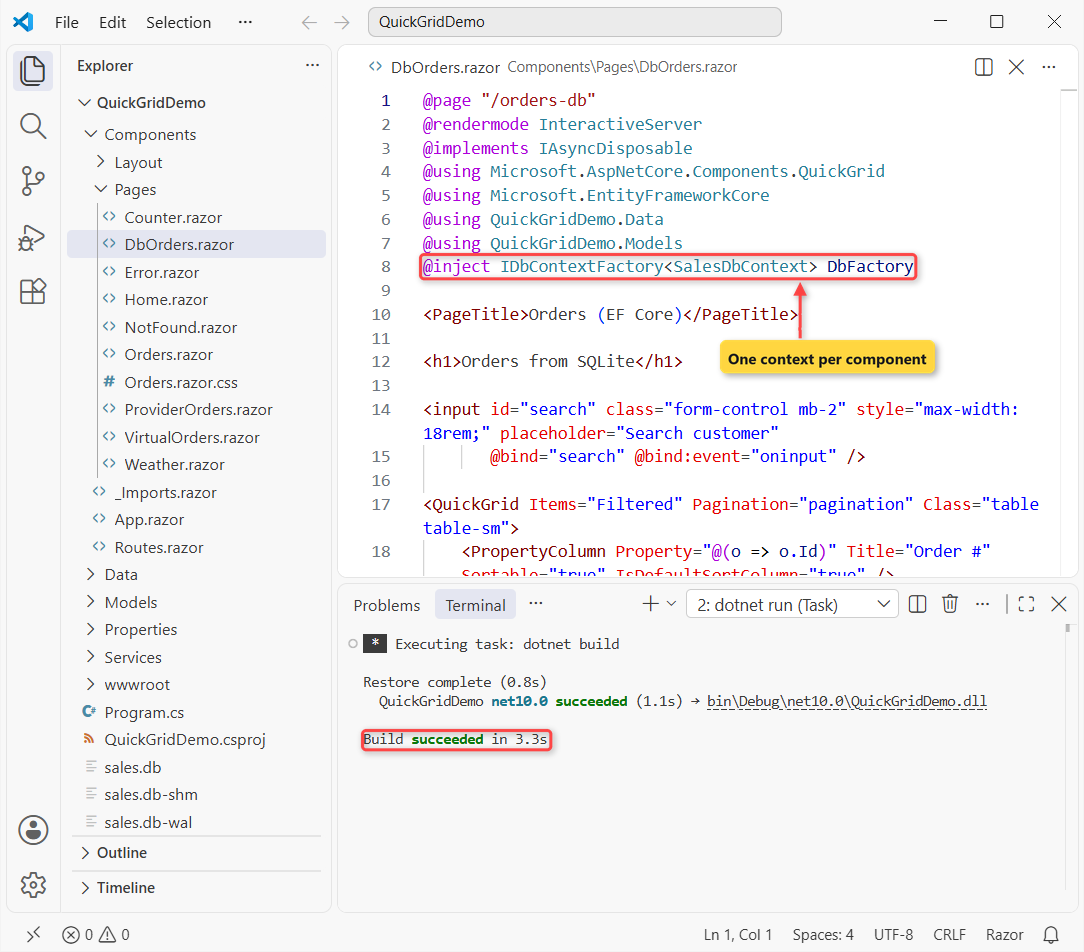
The page uses a context factory, as Learn recommends, and disposes the context with the component. EF.Functions.Like keeps the search in SQL:
@page "/orders-db"
@rendermode InteractiveServer
@implements IAsyncDisposable
@using Microsoft.AspNetCore.Components.QuickGrid
@using Microsoft.EntityFrameworkCore
@using QuickGridDemo.Data
@using QuickGridDemo.Models
@inject IDbContextFactory<SalesDbContext> DbFactory

<PageTitle>Orders (EF Core)</PageTitle>

<h1>Orders from SQLite</h1>

<input id="search" class="form-control mb-2" style="max-width: 18rem;" placeholder="Search customer"
       @bind="search" @bind:event="oninput" />

<QuickGrid Items="Filtered" Pagination="pagination" Class="table table-sm">
    <PropertyColumn Property="@(o => o.Id)" Title="Order #" Sortable="true" IsDefaultSortColumn="true" />
    <PropertyColumn Property="@(o => o.Customer)" Sortable="true" />
    <PropertyColumn Property="@(o => o.State)" Sortable="true" />
    <PropertyColumn Property="@(o => o.Total)" Format="C" Sortable="true" Align="Align.Right" Class="total" />
</QuickGrid>

<Paginator State="pagination" />

@code {
    private SalesDbContext context = default!;
    private readonly PaginationState pagination = new() { ItemsPerPage = 10 };
    private string search = "";

    private IQueryable<Order> Filtered =>
        context.Orders.Where(o => EF.Functions.Like(o.Customer, $"%{search}%"));

    protected override void OnInitialized() => context = DbFactory.CreateDbContext();

    public async ValueTask DisposeAsync() => await context.DisposeAsync();
}
After two clicks on Total and one on next, EF Core logged this query. Only 10 rows leave the database:
SELECT "o"."Id", "o"."Customer", "o"."OrderDate", "o"."State", "o"."Status", "o"."Total"
FROM "Orders" AS "o"
WHERE "o"."Customer" LIKE @Format
ORDER BY "o"."Total" COLLATE EF_DECIMAL DESC
LIMIT @p OFFSET @p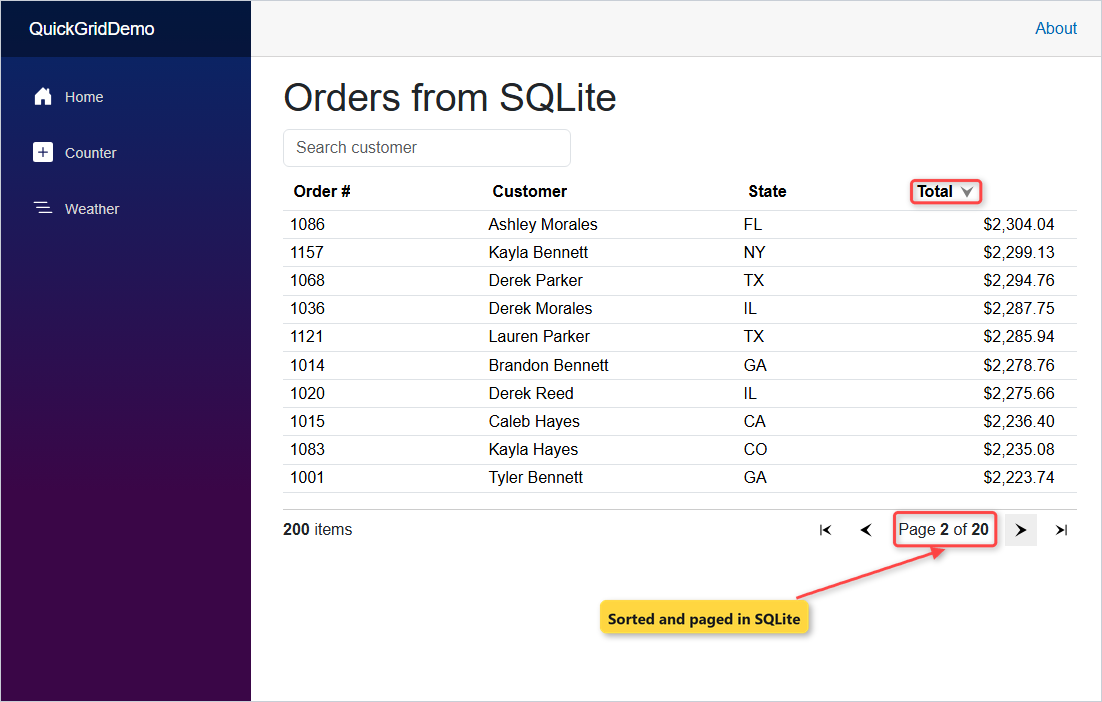
Two things surprised me. EF Core 10 sorted the decimal column in SQLite with COLLATE EF_DECIMAL, no value converter needed. And my first version, without IsDefaultSortColumn on Order #, made EF Core warn on every page:
The query uses a row limiting operator ('Skip'/'Take') without an 'OrderBy' operator. This may lead to unpredictable results. If the 'Distinct' operator is used after 'OrderBy', then make sure to use the 'OrderBy' operator after 'Distinct' as the ordering would otherwise get erased.Without an ORDER BY, page 2 can repeat rows from page 1, so always give a database grid a default sort. For the full EF Core setup, see my ASP.NET Core Web API CRUD with EF Core guide.
Note: Learn also documents a QuickGrid scaffolder that builds CRUD pages from a model: dotnet aspnet-codegenerator blazor CRUD with -dbProvider, -dc, -m and -outDir. I didn’t run it here.
QuickGrid vs a Plain HTML Table: Which Should You Use?
| You need | Use |
|---|---|
| A short, read-only list (under ~20 rows) | A plain <table> with @foreach |
| Sorting, paging or a filter on hundreds of rows | QuickGrid |
| Thousands of rows in one scroll box | QuickGrid with Virtualize |
| Hierarchical rows, column drag-reorder, Excel-style range selection | A third-party grid (Learn says QuickGrid won’t add these) |
I start every admin page with QuickGrid now. It’s free, it’s maintained by the ASP.NET Core team, and the whole grid fits in one Razor file.
Troubleshooting Blazor QuickGrid
Headers don’t sort and the Paginator does nothing. The page is static SSR. Add @rendermode InteractiveServer.
“The type or namespace name ‘QuickGrid’ could not be found”. The package is missing, or the page lacks @using Microsoft.AspNetCore.Components.QuickGrid. Put that line in _Imports.razor to cover every page.
Prices show the wrong currency symbol. Format="C" uses the server’s culture. Set en-US as in Step 1.
“A second operation was started on this context instance”. Learn lists this for concurrent EF Core queries. Create the context per component with IDbContextFactory, as DbOrders.razor does.
Note: before you put a grid like this online, lock the page down with [Authorize]. My JWT authentication guide covers the API side.
Where to Take It Next with Blazor QuickGrid
Add an Edit button in the Action column that opens a form, or export the filtered rows to CSV. If you’re moving an older grid app over, start with upgrading .NET 8 to .NET 10 to get RowClass.
A few more places to keep going:
- All Blazor tutorials
- ASP.NET Core tutorials for the back end
- C# 14 features you can use in components
- C# tutorials from the basics up
Frequently Asked Questions
Does Blazor QuickGrid support filtering?
Not as a built-in filter row. You filter the IQueryable you pass to Items, for example with a bound search box and a LINQ Where clause, and the grid re-renders with the result. A column’s ColumnOptions can host the filter input too.
How do I change the page size in QuickGrid pagination?
Set ItemsPerPage on the PaginationState, for example new PaginationState { ItemsPerPage = 25 }, and pass it to both the grid’s Pagination parameter and the Paginator’s State.
How do I select a row in Blazor QuickGrid?
QuickGrid in .NET 10 has no selection API. Add a TemplateColumn with a checkbox, store the selected IDs in a HashSet, and use RowClass to highlight the selected rows.
Which package do I need for QuickGrid?
Microsoft.AspNetCore.Components.QuickGrid (10.0.14 for .NET 10 as of November 2026). For EF Core data, also add Microsoft.AspNetCore.Components.QuickGrid.EntityFrameworkAdapter and call AddQuickGridEntityFrameworkAdapter.
Can I use QuickGrid in Blazor WebAssembly?
Yes. It works in any interactive render mode. For data behind a web API, use ItemsProvider so only the current page is requested.
Where is the official QuickGrid documentation and demo?
See ASP.NET Core Blazor QuickGrid component on Microsoft Learn and the QuickGrid for Blazor sample app it links to.

Bijay Kumar is a renowned software engineer, accomplished author, and distinguished Microsoft Most Valuable Professional (MVP) specializing in SharePoint. With a rich professional background spanning over 15 years, Bijay has established himself as an authority in the field of information technology. He possesses unparalleled expertise in multiple programming languages and technologies such as ASP.NET, ASP.NET MVC, C#.NET, and SharePoint, which has enabled him to develop innovative and cutting-edge solutions for clients across the globe. Read more…