
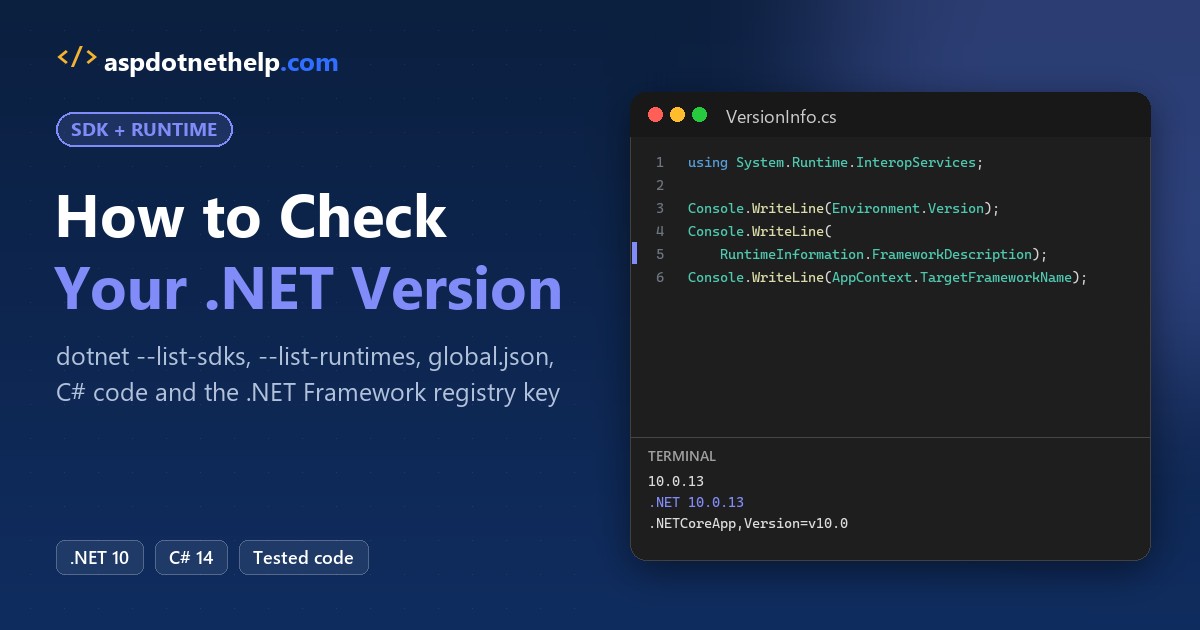
Open a terminal and type dotnet --version. That’s the quickest way to check the .NET version, and it prints the SDK the CLI will use right here. dotnet --list-sdks and dotnet --list-runtimes show everything else that’s installed.
In this tutorial, I’ll list the places where I check .NET version details on a real machine: the CLI commands, global.json, C# code, the project file, the install folders, and the registry for the old .NET Framework 4.x.
Quick Answer: Commands to Check the .NET Version
Here’s the cheat sheet. The last column is what my Windows 11 dev box printed when I ran each one today:
| Command or place | What it shows | My result |
|---|---|---|
dotnet --version | The SDK the CLI uses in this folder | 10.0.402 |
dotnet --list-sdks | Every installed SDK | 2 SDKs |
dotnet --list-runtimes | Every installed runtime | 3 .NET runtimes (6.0.24, 7.0.13, 10.0.13) |
dotnet --info | SDK, runtimes, OS, RID, global.json | All of the above |
Environment.Version | Runtime running your app | 10.0.13 |
<TargetFramework> in .csproj | What the project is built for | net10.0 |
Registry Release value | .NET Framework 4.5+ on Windows | 533509 (.NET Framework 4.8.1 or later) |
If you’re checking because of a support deadline, read my notes on .NET 8 and .NET 9 end of support once you know what you have.
What’s the Difference Between the .NET SDK and the .NET Runtime?
The runtime runs apps. The SDK builds them, and it includes the CLI, the compilers and a matching runtime. Installing an SDK installs that runtime too, but a server can have runtimes with no SDK at all.
That’s why you’ll often see two different numbers. My newest SDK is 10.0.402, while the runtime that came with it is 10.0.13.
How to Read a .NET SDK Version Number like 10.0.402
Runtime versions follow major.minor.patch. SDK versions don’t: the third part packs a feature band and a patch together, per Microsoft’s versioning rules.
| Part of 10.0.402 | Meaning |
|---|---|
| 10.0 | Matches the runtime it ships with (.NET 10) |
| 4 in 402 | Feature band 400, written 10.0.4xx |
| 02 in 402 | Patch 2 within that feature band |
Feature bands matter for global.json, which I’ll get to below. They’re also a favorite in .NET Core interview questions.
Check the Active SDK with dotnet –version
dotnet --version prints one line: the SDK version the CLI picks for the current folder. With no global.json around, that’s the highest SDK you have installed.
dotnet --version
10.0.402
Got an error instead? Then no SDK is on your PATH. Install one, or follow my steps to create a console app in VS Code, which start with the SDK install.
List Installed SDKs and Runtimes with dotnet –list-sdks
To see every SDK, run dotnet --list-sdks. Each line shows the version and the folder it lives in:
dotnet --list-sdks
7.0.403 [C:\Program Files\dotnet\sdk]
10.0.402 [C:\Program Files\dotnet\sdk]
Runtimes come from dotnet --list-runtimes. You get one line per shared framework, so ASP.NET Core and Windows Desktop show up next to the base runtime:
dotnet --list-runtimes
Microsoft.AspNetCore.App 6.0.24 [C:\Program Files\dotnet\shared\Microsoft.AspNetCore.App]
Microsoft.AspNetCore.App 7.0.13 [C:\Program Files\dotnet\shared\Microsoft.AspNetCore.App]
Microsoft.AspNetCore.App 10.0.13 [C:\Program Files\dotnet\shared\Microsoft.AspNetCore.App]
Microsoft.NETCore.App 6.0.24 [C:\Program Files\dotnet\shared\Microsoft.NETCore.App]
Microsoft.NETCore.App 7.0.13 [C:\Program Files\dotnet\shared\Microsoft.NETCore.App]
Microsoft.NETCore.App 10.0.13 [C:\Program Files\dotnet\shared\Microsoft.NETCore.App]
Microsoft.WindowsDesktop.App 6.0.24 [C:\Program Files\dotnet\shared\Microsoft.WindowsDesktop.App]
Microsoft.WindowsDesktop.App 7.0.13 [C:\Program Files\dotnet\shared\Microsoft.WindowsDesktop.App]
Microsoft.WindowsDesktop.App 10.0.13 [C:\Program Files\dotnet\shared\Microsoft.WindowsDesktop.App]
Microsoft.NETCore.App is what console apps need, Microsoft.AspNetCore.App is for web apps, and Microsoft.WindowsDesktop.App covers WPF and WinForms on Windows. Old entries like these are what I clean up before I upgrade from .NET 8 to .NET 10.
See Everything at Once with dotnet –info
dotnet --info combines both lists and adds the OS, the runtime identifier (RID), the SDK base path and the global.json it found. Here’s the top of my output:
dotnet --info
.NET SDK:
 Version:           10.0.402
 Commit:            a8dd0577c5
 Workload version:  10.0.400-manifests.da132f47
 MSBuild version:   18.9.15+a8dd0577c

Runtime Environment:
 OS Name:     Windows
 OS Version:  10.0.26200
 OS Platform: Windows
 RID:         win-x64
 Base Path:   C:\Program Files\dotnet\sdk\10.0.402\
I paste it into bug reports, but scan it first: custom paths can include your user name.
Which .NET SDK Does a Folder Use? Check global.json
A global.json file pins the SDK for its folder and every folder below it. The CLI searches up from your current directory, so dotnet --version can differ from one repo to the next.
You can create one with dotnet new globaljson. I pinned a LegacyApi folder to my oldest SDK, 7.0.403:
dotnet new globaljson --sdk-version 7.0.403 --roll-forward latestFeature
The template "global.json file" was created successfully.
Here’s the file it wrote:
{
  "sdk": {
    "rollForward": "latestFeature",
    "version": "7.0.403"
  }
}
Now dotnet --version answers differently inside and outside that folder:
dotnet --version
10.0.402

cd LegacyApi
dotnet --version
7.0.403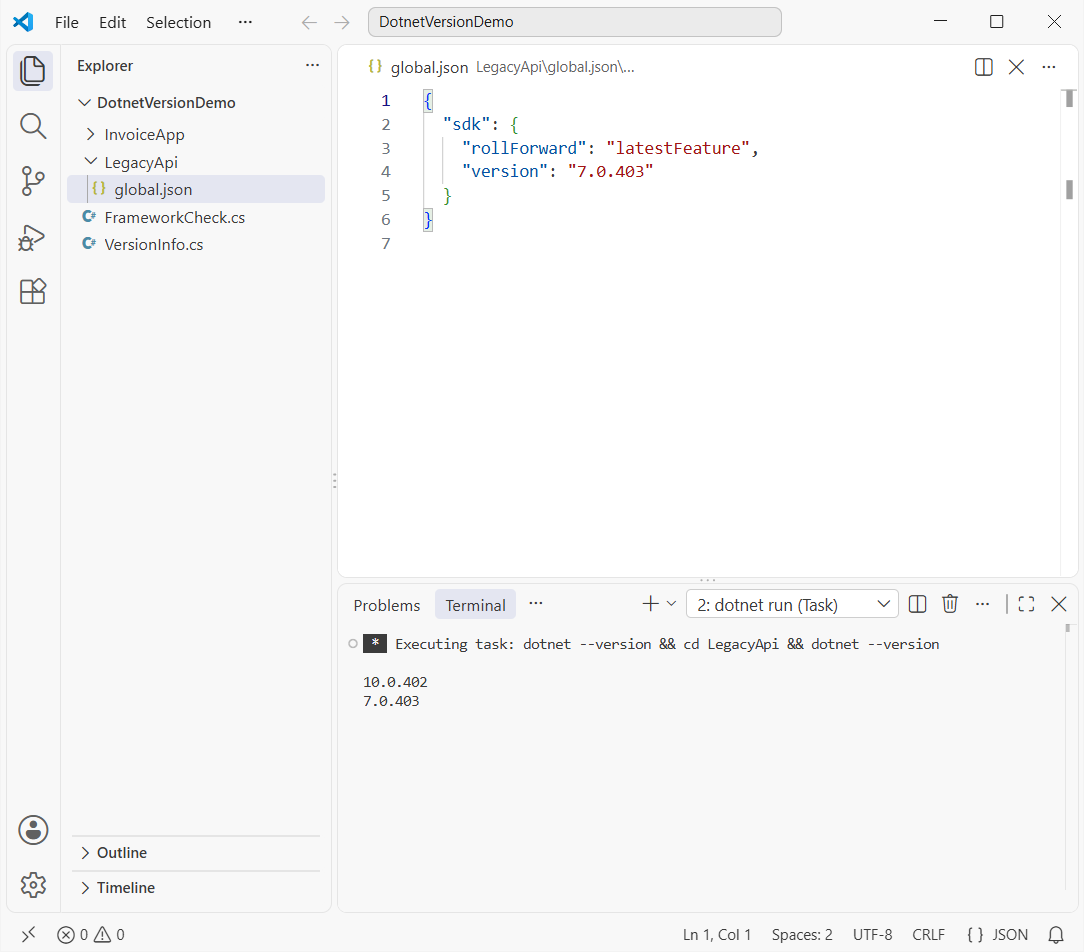
latestFeature accepts any later feature band and patch of the same major.minor. Without a rollForward value, the default policy is patch.
How Do I Check the .NET Version from C# Code?
Inside a running app, ask the runtime itself. This .NET 10 file-based app prints the runtime version, the framework description and the target it was built for:
using System.Runtime.InteropServices;

Console.WriteLine($"Environment.Version: {Environment.Version}");
Console.WriteLine($"Framework: {RuntimeInformation.FrameworkDescription}");
Console.WriteLine($"Target: {AppContext.TargetFrameworkName}");
Console.WriteLine($"Runtime ID: {RuntimeInformation.RuntimeIdentifier}");
Console.WriteLine($"OS: {RuntimeInformation.OSDescription}");
In the screenshot, the terminal runs dotnet --list-sdks first and then the app, which prints:
dotnet run VersionInfo.cs
Environment.Version: 10.0.13
Framework: .NET 10.0.13
Target: .NETCoreApp,Version=v10.0
Runtime ID: win-x64
OS: Microsoft Windows 10.0.26200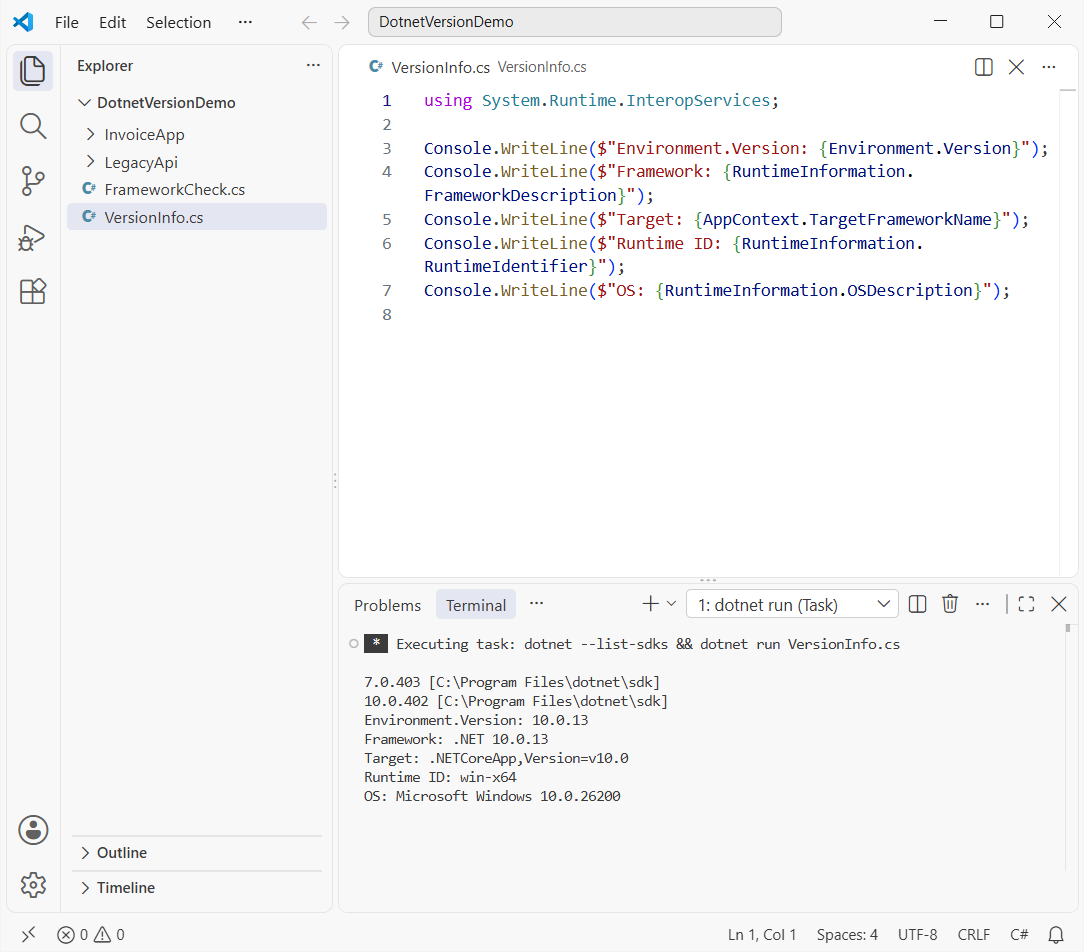
Environment.Version returns a System.Version object, and RuntimeInformation.FrameworkDescription returns the friendly string. Both report the runtime only, not the SDK. If file-based apps are new to you, my overview of what C# is starts with one.
Check a Project’s Target Framework (.csproj)
The installed runtime isn’t the same thing as the framework a project targets. That lives in the TargetFramework property of the .csproj:
<Project Sdk="Microsoft.NET.Sdk">

  <PropertyGroup>
    <OutputType>Exe</OutputType>
    <TargetFramework>net10.0</TargetFramework>
    <ImplicitUsings>enable</ImplicitUsings>
    <Nullable>enable</Nullable>
  </PropertyGroup>

</Project>
And its Program.cs:
using System.Runtime.InteropServices;

Console.WriteLine($"Built for: {AppContext.TargetFrameworkName}");
Console.WriteLine($"Running on: {RuntimeInformation.FrameworkDescription}");
dotnet msbuild -getProperty reads the value without opening the file, and dotnet run confirms it:
dotnet msbuild InvoiceApp -getProperty:TargetFramework
net10.0

dotnet run --project InvoiceApp
Built for: .NETCoreApp,Version=v10.0
Running on: .NET 10.0.13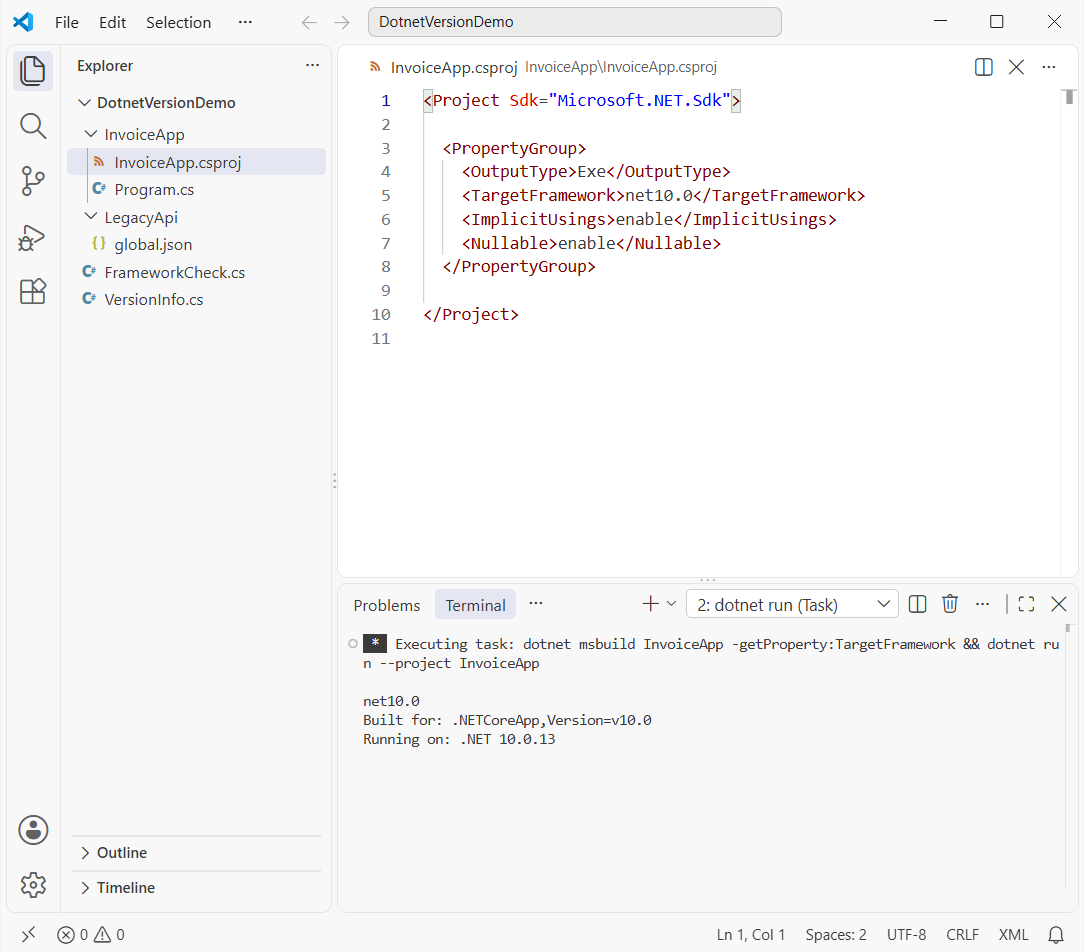
In Visual Studio, the same setting sits under Project Properties, Application, Target framework. Moving it to net10.0 also turns on C# 14 features.
Where Is .NET Installed on Windows, macOS and Linux?
If dotnet isn’t on your PATH, check the default install folders from Microsoft’s install docs:
| OS | SDKs | Runtimes |
|---|---|---|
| Windows | C:\Program Files\dotnet\sdk\{version} | C:\Program Files\dotnet\shared\{runtime-type}\{version} |
| macOS | /usr/local/share/dotnet/sdk/{version} | /usr/local/share/dotnet/shared/{runtime-type}/{version} |
| Linux | /usr/lib/dotnet/sdk or /usr/share/dotnet/sdk | /usr/lib/dotnet/shared or /usr/share/dotnet/shared |
On Linux, a script install usually goes to .dotnet under your home folder instead.
On Windows, winget list Microsoft.DotNet shows SDKs installed through winget, and Visual Studio installs its own SDK. Don’t hunt the registry for .NET 5 and later; the CLI is the reliable source. For release-by-release details, see my .NET versions hub.
Check the .NET Framework Version on Windows (Registry Release Key)
.NET Framework 4.x doesn’t show up in dotnet --list-runtimes. Windows records it in the Release value under the NDP\v4\Full registry key, and you can read it from Command Prompt:
reg query "HKLM\SOFTWARE\Microsoft\NET Framework Setup\NDP\v4\Full" /v Release
HKEY_LOCAL_MACHINE\SOFTWARE\Microsoft\NET Framework Setup\NDP\v4\Full
    Release    REG_DWORD    0x82405
That hex value is 533509 in decimal. On Microsoft’s minimum-version table, 533509 means .NET Framework .NET Framework 4.8.1 or later; 533320 and above is 4.8.1 or later.
The PowerShell check from Microsoft Learn returns True when 4.8 or later is installed:
(Get-ItemPropertyValue -LiteralPath 'HKLM:SOFTWARE\Microsoft\NET Framework Setup\NDP\v4\Full' -Name Release) -ge 528040
True
And here’s the same check in C#. It compares with >= from newest to oldest, so future release keys still map correctly:
using Microsoft.Win32;

if (!OperatingSystem.IsWindows()) return;
const string subkey = @"SOFTWARE\Microsoft\NET Framework Setup\NDP\v4\Full";
using var key = Registry.LocalMachine.OpenSubKey(subkey);
if (key?.GetValue("Release") is int release)
    Console.WriteLine($"Release {release} = .NET Framework {Describe(release)}");
else
    Console.WriteLine(".NET Framework 4.5 or later is not detected.");

static string Describe(int release) => release switch
{
    >= 533320 => "4.8.1 or later",
    >= 528040 => "4.8",
    >= 461808 => "4.7.2",
    >= 394802 => "4.6.2",
    _ => "older than 4.6.2"
};
Output:
Release 533509 = .NET Framework 4.8.1 or later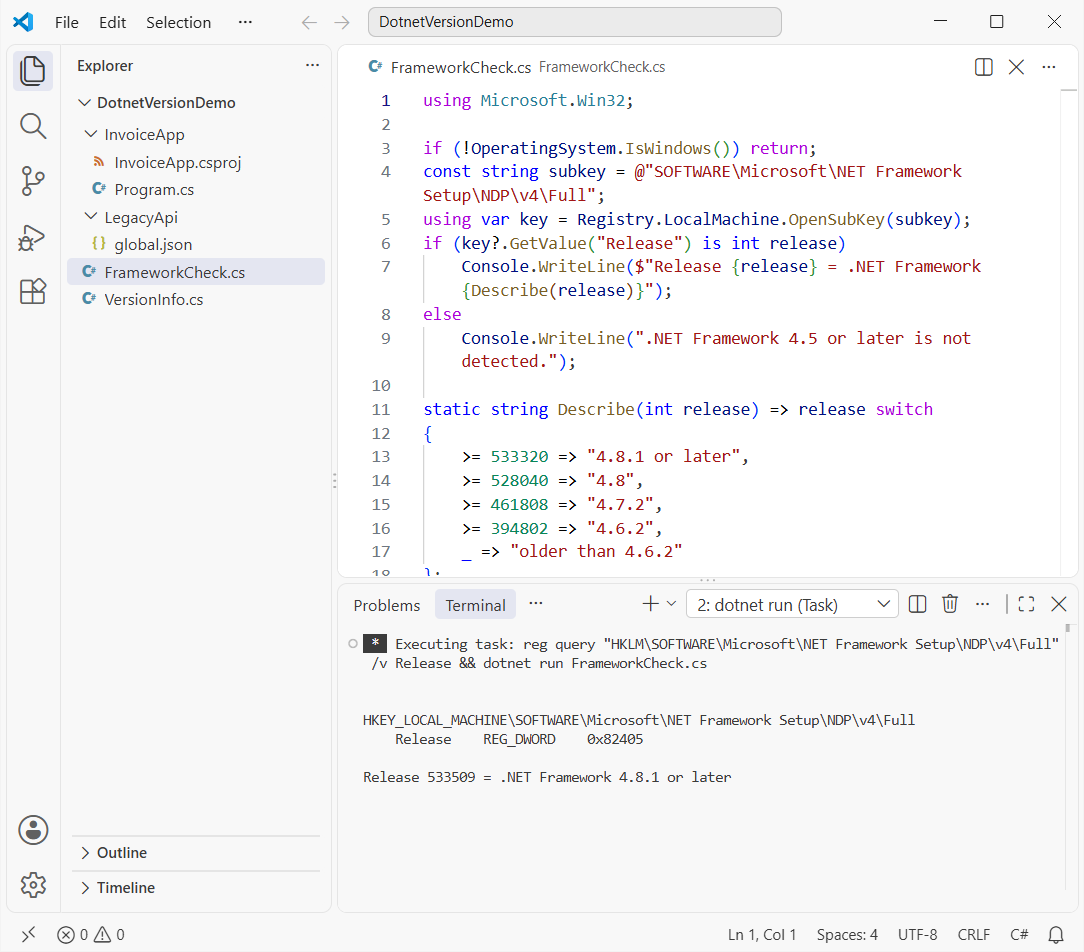
The switch expression in C# keeps the mapping readable, and key?.GetValue handles a missing key, the same idea as my null checks in C#.
Which .NET Version Check Should You Use?
For a quick look, I use dotnet --list-sdks and dotnet --list-runtimes. In a repo, I run dotnet --version inside it, because global.json wins.
Inside an app, I log RuntimeInformation.FrameworkDescription. For the release highlights, see what is new in .NET 10.
Want to keep going? These are good next stops:
- All C# tutorials, from basics to C# 14
- A guided path to learn C# step by step
- ASP.NET Core tutorials on .NET 10
- Handling errors with try-catch in C#
Frequently Asked Questions
How do I check my .NET version in Command Prompt?
Run dotnet –version for the active SDK, dotnet –list-sdks for every SDK and dotnet –list-runtimes for every runtime. dotnet –info shows all of it at once.
Why does dotnet –version show a different version in another folder?
A global.json file in that folder or a parent folder pins the SDK. Delete it or change its version to use another SDK.
Does dotnet –version show the runtime version?
No. It shows the SDK version, such as 10.0.402. Use dotnet –list-runtimes or Environment.Version in code for the runtime.
How do I check the .NET Framework 4.8 version?
Read the Release value under HKLM\SOFTWARE\Microsoft\NET Framework Setup\NDP\v4\Full. Values of 528040 or higher mean 4.8 or later, per Microsoft’s .NET Framework version guide.
Where can I see the official list of .NET install checks?
Microsoft Learn covers the SDK, runtime and install-folder checks for Windows, macOS and Linux in How to check that .NET is already installed.

Bijay Kumar is a renowned software engineer, accomplished author, and distinguished Microsoft Most Valuable Professional (MVP) specializing in SharePoint. With a rich professional background spanning over 15 years, Bijay has established himself as an authority in the field of information technology. He possesses unparalleled expertise in multiple programming languages and technologies such as ASP.NET, ASP.NET MVC, C#.NET, and SharePoint, which has enabled him to develop innovative and cutting-edge solutions for clients across the globe. Read more…